第 31 課 - 圖形之間的綁定
在 第 23 課 - 心智圖 中,我們只關注節點與邊的版面演算法,沒有深入節點移動時連帶移動邊這類互動。同樣地,在 第 25 課 - 繪製箭頭 中,直線與箭頭的屬性也不包含綁定資訊。這一課會補上這項功能。
資料結構
excalidraw 中的線性元素
在 Excalidraw 中,連接線(例如箭頭)在資料模型裡表示為 ExcalidrawLinearElement,並加上與連接相關的欄位:
export declare type PointBinding = {
    elementId: ExcalidrawBindableElement['id'];
    focus: number;
    gap: number;
};
export declare type ExcalidrawLinearElement = _ExcalidrawElementBase &
    Readonly<{
        type: 'line' | 'arrow';
        points: readonly Point[];
        lastCommittedPoint: Point | null;
        startBinding: PointBinding | null;
        endBinding: PointBinding | null;
        startArrowhead: Arrowhead | null;
        endArrowhead: Arrowhead | null;
    }>;
如上所示,每支箭頭都有可選的 startBinding 與 endBinding 欄位,它們與 points 處於不同的語意層級。前者代表語意約束,後者 points 代表幾何表現。兩者同時存在時,points 需要重新計算。此外還有起點與終點的箭頭樣式(startArrowhead/endArrowhead)。PointBinding 中的 elementId 指向被連接的圖形(可綁定元素,例如矩形、橢圓、文字、圖片等),而 focus 與 gap 用來定位連接點(一個浮點索引與偏移距離)。例如,下面是 JSON 中一個箭頭元素的例子:
{
  "type": "arrow",
  // ... other properties omitted ...
  "startBinding": {
    "elementId": "xw25sQBsbd2mecyjTrYHA",
    "focus": -0.0227,
    "gap": 15.6812
  },
  "endBinding": null,
  "points": [[0,0],[0,109]],
  "startArrowhead": null,
  "endArrowhead": null
}
在這個例子裡,箭頭的 startBinding 指向 ID 為 "xw25sQBsbd2mecyjTrYHA" 的圖形,focus 與 gap 定義從該圖形邊界出發的連接位置。
同時,每個被綁定的圖形(例如矩形或橢圓)在基本資料結構中都有一份 boundElements 清單,用來記錄所有連到它的箭頭或文字元素。這個欄位的型別通常是 { id: ExcalidrawLinearElement["id"]; type: "arrow"|"text"; }[] | null。換句話說,箭頭與圖形之間的連接是雙向維護的:箭頭記錄它所綁定的目標元素 ID,目標元素則記錄指向自己的箭頭 ID。
tldraw 中的綁定
在 tldraw 中,「連接線」本身也是圖形(預設是 arrow 圖形),它們的連接關係透過 Binding 物件表示。每筆綁定紀錄單獨存在儲存中,代表兩個圖形之間的關聯。箭頭連接使用 TLArrowBinding 型別,它是 TLBaseBinding<'arrow',TLArrowBindingProps> 的特化。一個典型的箭頭綁定紀錄如下:
{
  id: 'binding:abc123',
  typeName: 'binding',
  type: 'arrow',           // Binding type is arrow
  fromId: 'shape:arrow1',  // Arrow shape ID (arrow shape departure end)
  toId:   'shape:rect1',   // Target shape ID (shape the arrow points to)
  props: {
    terminal: 'end',       // Which end of the arrow to bind to (start or end)
    normalizedAnchor: { x: 0.5, y: 0.5 }, // Normalized anchor point on target shape
    isExact: false,        // Whether arrow enters inside target shape
    isPrecise: true,       // Whether to use anchor point precisely, otherwise use shape center
    snap: 'edge',          // Snap mode (such as edge snapping)
  },
  meta: {}
}這裡,fromId/toId 欄位透過圖形 ID 把箭頭與目標關聯起來,props 則儲存連接細節(例如錨點、對齊選項等)。
antv/g6
連接關係是邏輯上的,不是幾何上的,路徑透過 type 與邊的路由演算法計算:
interface EdgeConfig {
    id?: string;
    source: string; // Source node ID
    target: string; // Target node ID

    sourceAnchor?: number; // Source node anchor index
    targetAnchor?: number; // Target node anchor index

    type?: string; // line / polyline / cubic / loop ...
    style?: ShapeStyle;
}
錨點宣告在節點上,使用正規化座標:
anchorPoints: [
    [0.5, 0], // top
    [1, 0.5], // right
    [0.5, 1], // bottom
    [0, 0.5], // left
];
邊上使用錨點索引,與 tldraw 的 normalizedAnchor 非常相似,但 G6 把錨點定義的權限放在節點上:
{
    source: 'nodeA',
    target: 'nodeB',
    sourceAnchor: 1,
    targetAnchor: 3,
}
mxGraph
mxGraph 有完整的連接約束系統,定義在節點圖形上,代表允許的連接點:
class mxConnectionConstraint {
    point: mxPoint | null; // (0.5, 0) = top center (1, 0.5) = right center
    perimeter: boolean; // Indicates projection along shape boundary
}
JSON Canvas Spec
Obsidian 發布了 JSON Canvas Spec,結構與 antv/g6 相似:頂層儲存節點與邊的陣列:
{
    "nodes": [],
    "edges": []
}
邊看起來如下——它們不帶幾何,只有邏輯連接:
{
    "id": "f67890123456789a",
    "fromNode": "6f0ad84f44ce9c17",
    "toNode": "a1b2c3d4e5f67890"
}
我們的設計
在資料結構上,我們更傾向 mxGraph 的做法。邊上的邏輯關係用 fromId 與 toId 表達,因此不需要 x1/y1 這類幾何欄位。連接 rect-1 與 rect-2 的箭頭是這樣宣告的:
const edge1 = {
    id: 'line-1',
    type: 'line',
    fromId: 'rect-1',
    toId: 'rect-2',
    stroke: 'black',
    strokeWidth: 10,
    markerEnd: 'line',
};
約束放在節點上,類似 mxConnectionConstraint:
interface ConstraintAttributes {
    /**
     * Normalized point, relative to bounding box top-left.
     */
    point: [number, number];
    /**
     * Use perimeter.
     */
    perimeter: boolean;
    name?: string;
    dx?: number;
    dy?: number;
}
類似 第 18 課 - 定義父子元件,我們可以實作雙向綁定關係:
class Binding {
    @field.ref declare from: Entity;
    @field.ref declare to: Entity;
}

class Binded {
    @field.backrefs(Binding, 'from') declare fromBindings: Entity[];
    @field.backrefs(Binding, 'to') declare toBindings: Entity[];
}
特殊情況
下一課會遇到一種特殊情況:fromId/toId 可能是 null,如下面循序圖中的虛線所示,fromId: 'alice', toId: undefined
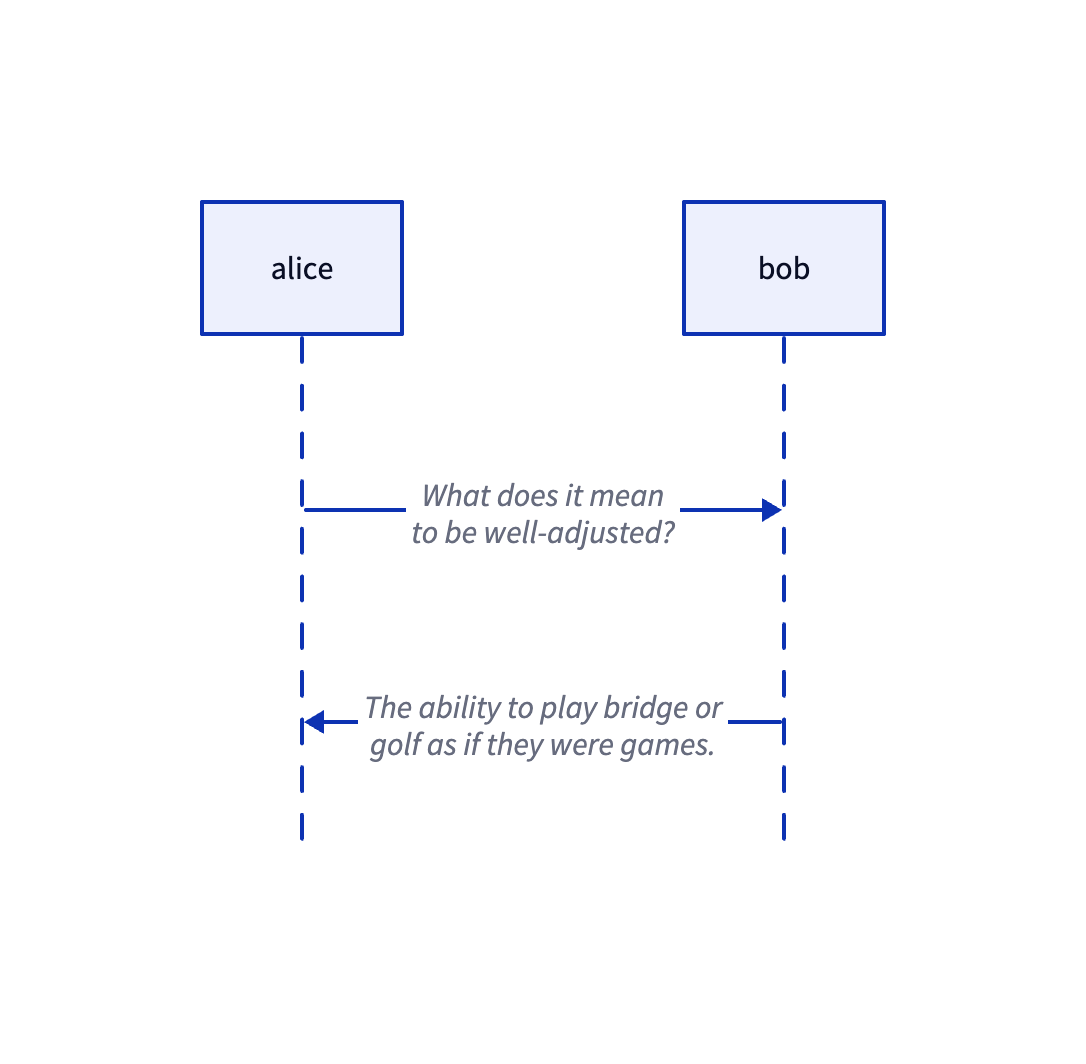
我們引入一個新元件,記錄只關聯一個節點的關係:
/**
 * Edge with only one end attached to a shape; the other end is fixed by `sourcePoint` / `targetPoint`.
 * `attached` is the entity on the connected side; `sourceIsAttached === 1` means the connection is on the source (`fromId`) side.
 */
class PartialBinding {
    @field.ref declare attached: Entity;
    /** 1 = source (from) side attached to node, 0 = target (to) side */
    @field.int32 declare sourceIsAttached: number;
}
自動更新
當被連接圖形的位置改變時,已綁定邊的路徑需要重新計算。我們可以查詢所有具有 Binded 元件的圖形,監看它們的包圍盒變化,並在那時更新已綁定的邊:
class RenderBindings extends System {
    private readonly boundeds = this.query(
        (q) => q.with(Binded).changed.with(ComputedBounds).trackWrites,
    );

    execute() {
        const bindingsToUpdate = new Set<Entity>();
        this.boundeds.changed.forEach((entity) => {
            const { fromBindings, toBindings } = entity.read(Binded);
            [...fromBindings, ...toBindings].forEach((binding) => {
                bindingsToUpdate.add(binding);
            });
        });
        // Recalculate paths of bound edges and render
    }
}
在下面的範例中,可以試著拖曳節點,邊會重新計算路徑並重繪:
目前,邊的起點與終點是被連接圖形的包圍盒中心,與 tldraw 中 isPrecise 等於 false 時的效果一致,表示不精確的綁定。 在大多數情況下,我們希望箭頭不要穿過被連接的圖形,而是優雅地停靠在圖形邊緣。
周界演算法
對於圖形邊界,drawio 提供 perimeter 屬性,改變它會影響連接。細節見:變更圖形周界
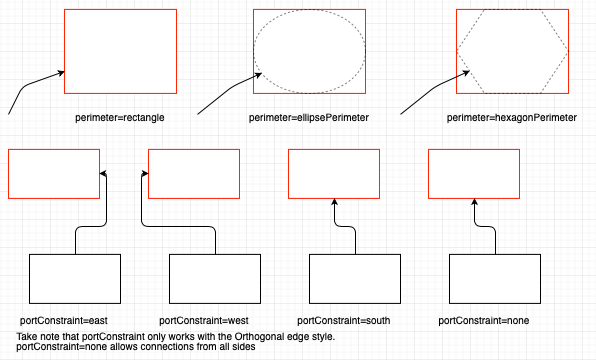
// Note: generally next is passed as "the other center point", orthogonal is usually false
var pointA = graph.view.getPerimeterPoint(stateA, centerB, false, 0);
var pointB = graph.view.getPerimeterPoint(stateB, centerA, false, 0);
矩形周界演算法
矩形周界演算法最常用。在下面的實作中,vertex 是來源節點,next 是目標節點的包圍盒中心。 首先,從來源與目標節點包圍盒的中心畫一條線,再判斷目標點更靠近來源節點包圍盒的哪一條邊。包圍盒的兩條對角線把平面分成四個區域。左邊界的範圍是 alpha < -pi + t || alpha > pi - t):
function rectanglePerimeter(
    vertex: SerializedNode,
    next: IPointData,
    orthogonal: boolean,
): IPointData {
    const { x, y, width, height } = vertex;
    const cx = x + width / 2; // Source node center
    const cy = y + height / 2;
    const dx = next.x - cx;
    const dy = next.y - cy;
    const alpha = Math.atan2(dy, dx); // Slope of line from source node center to target node center
    const p: IPointData = { x: 0, y: 0 };
    const pi = Math.PI;
    const pi2 = Math.PI / 2;
    const beta = pi2 - alpha;
    const t = Math.atan2(height, width); // Diagonals divide into four regions
    if (alpha < -pi + t || alpha > pi - t) {
        // Intersects with left edge
        p.x = x;
        p.y = cy - (width * Math.tan(alpha)) / 2; // Calculate intersection point
    }
    // Other three edges omitted
    return p;
}
最後,計算直線與該邊的交點,作為最終線段的出發點。例如,當我們判斷直線會經過「左邊緣」時:
- 決定
座標:因為是左邊緣,交點的 座標必須等於矩形的左邊界值 vertex.x。 - 計算
偏移: - 從中心到左邊緣的水平距離是
width / 2。 - 使用正切公式:
。 - 在左側,
。 - 因此垂直偏移
。
- 從中心到左邊緣的水平距離是
- 最終座標:
p.y = cy + Δy,也就是程式碼中的cy - (width * Math.tan(alpha)) / 2。
draw.io 還提供另一個選項 orthogonal,表示計算出的線需要正交對齊(也就是與 x 或 y 軸對齊),線段只考慮水平或垂直延伸。這種情況下,不能用另一個中心點當作參考:
if (orthogonal) {
    if (next.x >= x && next.x <= x + width) {
        p.x = next.x;
    } else if (next.y >= y && next.y <= y + height) {
        p.y = next.y;
    }
    if (next.x < x) {
        p.x = x;
    } else if (next.x > x + width) {
        p.x = x + width;
    }
    if (next.y < y) {
        p.y = y;
    } else if (next.y > y + height) {
        p.y = y + height;
    }
}
橢圓周界演算法
對於橢圓節點,需要計算直線與它的交點:
const d = dy / dx;
const h = cy - d * cx;
const e = a * a * d * d + b * b;
const f = -2 * cx * e;
const g = a * a * d * d * cx * cx + b * b * cx * cx - a * a * b * b;
const det = Math.sqrt(f * f - 4 * e * g);

const xout1 = (-f + det) / (2 * e);
const xout2 = (-f - det) / (2 * e);
const yout1 = d * xout1 + h;
const yout2 = d * xout2 + h;
const dist1 = Math.sqrt(Math.pow(xout1 - px, 2) + Math.pow(yout1 - py, 2));
const dist2 = Math.sqrt(Math.pow(xout2 - px, 2) + Math.pow(yout2 - py, 2));

let xout = 0;
let yout = 0;
if (dist1 < dist2) {
    xout = xout1;
    yout = yout1;
} else {
    xout = xout2;
    yout = yout2;
}
return { x: xout, y: yout };
直線通過中心
- 斜率
- 截距
把直線方程式代入橢圓標準方程式:
展開並整理成關於
:二次項係數 :一次項係數 :常數項
二次公式:用判別式 next 的距離(dist1 與 dist2),並選出較近的點。
約束
至此,我們只用 fromId 與 toId 就實作了邊上的邏輯連接。邊與節點的連接點是浮動的,在 mxGraph 中稱為 FloatingTerminalPoint。然而,有時我們希望邊從節點上的固定位置離開,並從被連接圖形上的固定位置進入,mxGraph 稱之為 FixedTerminalPoint。這種情況下需要定義約束,把流程拆成節點與邊各自的部分。
節點上的約束
節點約束定義可以在哪裡、以什麼方式建立連接。它們不是「點」,而是規則物件,在 mxGraph 中定義如下:
class mxConnectionConstraint {
    point: mxPoint | null; // Normalized coordinates (0~1)
    perimeter: boolean; // Whether to project onto the boundary
    name?: string; // Optional port name
}
在隨附的 draw.io 編輯器中,可以看到圖上有許多「藍色連接點」。它們是透過覆寫圖形上的約束來定義的:
mxRectangleShape.prototype.getConstraints = function (style) {
    return [
        new mxConnectionConstraint(new mxPoint(0.5, 0), true), // top
        new mxConnectionConstraint(new mxPoint(1, 0.5), true), // right
        new mxConnectionConstraint(new mxPoint(0.5, 1), true), // bottom
        new mxConnectionConstraint(new mxPoint(0, 0.5), true), // left
    ];
};
我們的約束定義如下:可以在節點上宣告一組約束:
export interface ConstraintAttributes {
    x?: number;
    y?: number;
    perimeter?: boolean;
    dx?: number;
    dy?: number;
}

export interface BindedAttributes {
    constraints: ConstraintAttributes[];
}
取出候選約束,選出最近的約束,再把約束轉換成幾何點。如果需要投影到邊界上,就進入上一節介紹的周界演算法計算邏輯。
邊上的約束
還需要定義邊會從節點的哪個錨點進入或離開。在互動中,這對應到把邊的端點拖到節點的錨點上。此時,entryX/entryY 必須複製錨點約束的 x/y 欄位:
interface BindingAttributes {
    fromId: string;
    toId: string;
    orthogonal: boolean;
    exitX: number;
    exitY: number;
    exitPerimeter: boolean;
    exitDx: number;
    exitDy: number;
    entryX: number;
    entryY: number;
    entryPerimeter: boolean;
    entryDx: number;
    entryDy: number;
}
在下面的範例中,我們分別在灰色與綠色矩形上定義了錨點 [1, 0] 與 [0, 1]。
端點座標 exitX/exitY 與 entryX/entryY 必須是有限數值。如果任一座標無效,端點會退回圖形周界,而不會產生非有限的路徑。無效的像素偏移(exitDx/exitDy 或 entryDx/entryDy)會被忽略,有效的錨點則保持固定。
使用箭頭工具時,點一下選擇來源,再移動指標以預覽連接。預覽會跟著水平與垂直移動,包括任一端點落在空白畫布上的情況。再點一下完成,或按 Escape 取消。
路由規則
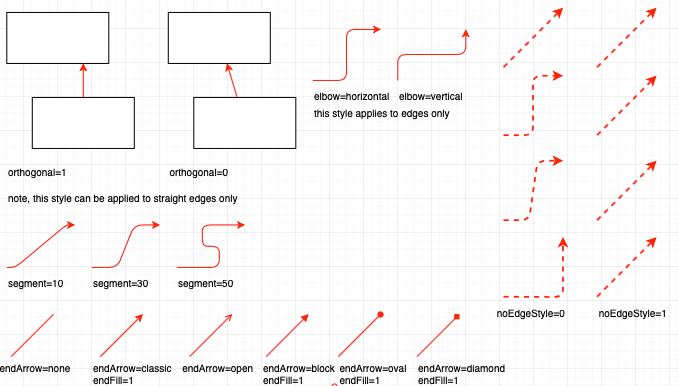
mxGraph 使用 EdgeStyle 函式實作路由規則,它們負責:
- 自動選擇離開方向
- 插入路徑點
- 避開節點包圍盒
- 計算正交/直角路徑
| 連接器 | 特性 | 使用情境 |
|---|---|---|
| OrthConnector | 自動產生正交邊,並支援複雜約束 | 流程圖、組織圖,以及其他自動版面情境 |
| SegmentConnector | 支援使用者定義的控制點,彈性且可互動 | 使用者需要手動調整正交邊路徑時 |
| ElbowConnector | 單一 L 形轉折點 | 簡單的兩段路徑(例如麵包屑導覽) |
| SideToSide | 以水平方向為優先的連接 | 來源與目標節點水平分布時 |
| TopToBottom | 以垂直方向為優先的連接 | 來源與目標節點垂直分布時 |
| EntityRelation | 專用於資料庫關係圖,產生彈性路徑 | 資料庫 ER 圖、雙向關係 |
| Loop | 實作自迴圈連接 | 狀態圖或自動機圖中的自迴圈關係 |
OrthConnector
OrthConnector 是最常見的路由演算法,核心目標是在來源與目的節點之間建立一條只由水平與垂直線段組成的路徑,避免斜線。具體步驟如下:
- 決定來源與目的的離開/進入方向
- 依照方向組合搜尋預先定義的路由模式
- 套用路由模式,產生一串轉折點
- 處理障礙迴避與最佳化
┌──────┐        ┌──────┐
│ Node │ ─┐     │ Node │
└──────┘  └────▶└──────┘
優先連接埠選擇
先考慮沒有連接埠約束的情況。第一步是判斷目標相對於來源所在的象限。比較兩者的幾何中心點,可以得到:
// 0 | 1
// -----
// 3 | 2

let dx = sourceCenX - targetCenX;
let dy = sourceCenY - targetCenY;
let quad = 0;
if (dx < 0) {
    if (dy < 0) {
        quad = 2;
    } else {
        quad = 1;
    }
}
// Other circumstances omitted.
接下來是最複雜的部分:決定邊應該從來源節點的哪個方向離開,以及從哪個方向進入目的節點。
首先計算節點之間的距離:
        sourceTopDist
             ↑
    [Source] |
             ↓
        sourceBottomDist
             ↑
             | [Target]

sourceLeftDist ← [Source] → sourceRightDist → [Target]
然後用一種偏向可用空間較大方向的策略,決定優先方向:
- 若到左側的距離 ≥ 到右側的距離,來源節點偏好向西(向左)移動。
- 若到上方的距離 ≥ 到下方的距離,來源節點偏好向北(向上)移動。
- 目標節點的優先方向是來源節點的相反方向。
var dirPref = [];
var horPref = [];
var vertPref = [];

horPref[0] =
    sourceLeftDist >= sourceRightDist
        ? mxConstants.DIRECTION_MASK_WEST
        : mxConstants.DIRECTION_MASK_EAST;
vertPref[0] =
    sourceTopDist >= sourceBottomDist
        ? mxConstants.DIRECTION_MASK_NORTH
        : mxConstants.DIRECTION_MASK_SOUTH;

horPref[1] = mxUtils.reversePortConstraints(horPref[0]);
vertPref[1] = mxUtils.reversePortConstraints(vertPref[0]);

var preferredHorizDist =
    sourceLeftDist >= sourceRightDist ? sourceLeftDist : sourceRightDist;
var preferredVertDist =
    sourceTopDist >= sourceBottomDist ? sourceTopDist : sourceBottomDist;
選擇路由模式
依照來源與目的的方向索引,從預先定義的 routePatterns 中選一個路由模式以確保品質,並用位元遮罩編碼:
- 低 4 位元:方向(1=西、2=北、4=東、8=南)
- 第 5–8 位元:邊的哪一側
- 第 9 位元:是否使用中心點
- 第 10 位元:是否關聯來源節點
- 第 11 位元:是否關聯目的節點
routePatterns: [
    [ [ 513, 2308, 2081, 2562 ], [ 513, 1090, 514, 2184, 2114, 2561 ],
        [ 513, 1090, 514, 2564, 2184, 2562 ],
        [ 513, 2308, 2561, 1090, 514, 2568, 2308 ] ],
    // ... more patterns
],
產生路徑點
走訪路由模式,並依照方向產生實際的路徑點。
for (var i = 0; i < routePattern.length; i++)
{
    var nextDirection = routePattern[i] & 0xF;

    // Rotate the index of this direction by the quad
    var directionIndex = nextDirection == mxConstants.DIRECTION_MASK_EAST ? 3
            : nextDirection;

    directionIndex += quad;

    if (directionIndex > 4)
    {
        directionIndex -= 4;
    }
最後,簡化彼此非常接近的相鄰路徑點。這裡我們繼續使用 simplify-js,如同 第 12 課 - 簡化折線。
SegmentConnector
OrthConnector 偏向自動路由。當使用者明確指定控制點 controlHints 時,SegmentConnector 會把這些提示變成必須經過或對齊的路徑點,產生的折線大致圍繞這些提示建構,因此對互動編輯來說更可預期、也更一致。
LoopConnector
當起點與終點重合時,需要一條自迴圈。
連接器線條樣式
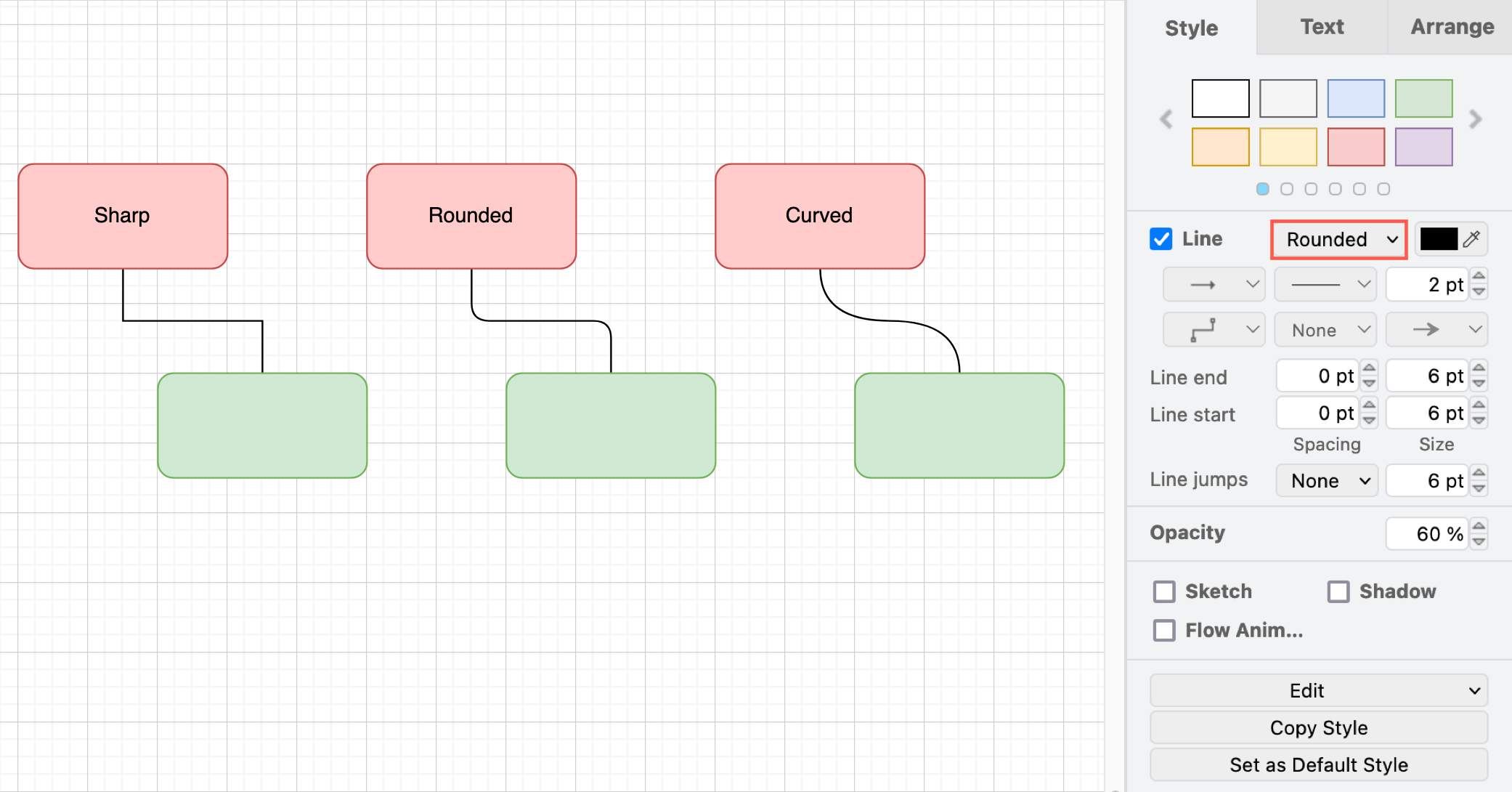
圓角
圓角表示我們仍然使用先前提到的折線路徑點,但在接點處用平滑過渡取代尖角。步驟如下:
- 走訪折線的每一個轉折。
- 在每個轉角的兩側,沿線段往回退一段(至多半個線段長度)。
- 使用
quadTo(或等價的曲線指令)在轉角畫出平滑的圓角。
二次貝茲
用二次貝茲線段連接相鄰的控制點:
const p0 = pts[n - 2];
const p1 = pts[n - 1];
parts.push(
    `Q ${formatNumber(p0.x)} ${formatNumber(p0.y)} ${formatNumber(
        p1.x,
    )} ${formatNumber(p1.y)}`,
);
三次貝茲
當有 3n+1 個點時,直接把它們解讀為 [anchor, cp1, cp2, anchor, ...] 形式的三次貝茲控制點;否則退回二次貝茲線段。
if ((n - 1) % 3 === 0) {
    for (let i = 1; i + 2 < n; i += 3) {
        const cp1 = pts[i];
        const cp2 = pts[i + 1];
        const end = pts[i + 2];
        parts.push(
            `C ${formatNumber(cp1.x)} ${formatNumber(cp1.y)} ` +
                `${formatNumber(cp2.x)} ${formatNumber(cp2.y)} ` +
                `${formatNumber(end.x)} ${formatNumber(end.y)}`,
        );
    }
    return parts.join(' ');
}
保留可編輯曲線
帶有單一可編輯 Q 或 C 線段的 ECS path 或 rough-path,在載入文件或更新綁定時會保留它的控制點。移動已綁定的端點時,相鄰的三次控制點也會跟著移動。當一條二次曲線直接連接兩個端點時,共用的控制點會依兩者位移的平均值移動。因此把兩端移動相同的量,會平移這條曲線而不改變它的形狀。 未綁定的端點即使儲存的 sourcePoint 或 targetPoint 已過時,仍會保留編輯過的幾何。套用這些變更時會包含旋轉、鏡射與縮放。具有多個貝茲線段的路由會繼續使用路由器。
邊標籤
子 text 節點可以用 edgeLabelPosition 指定它在父邊上的位置。數值會被限制在 [0, 1]。edgeLabelOffset 是沿法線的有號距離;正值會把標籤放在由左向右的水平邊下方。編輯任一屬性都會立即更新標籤,並支援復原、重做與重新載入文件。清除 edgeLabelOffset 會還原為零;清除 edgeLabelPosition 會停用自動放置。
路徑標籤目前沿著指令端點的折線插值,每段曲線使用一條弦。支援的指令除了 L、Q 與 C,也包括 H/V、S/T 與 A。這是曲線長度的近似,而不是沿著彎曲輪廓的精確放置。
[WIP] 匯出 SVG
匯出時,只儲存幾何資訊已經不夠;邏輯關係也必須持久化。例如,draw.io 在匯出時會把原始的 mxfile 內容存在 <svg> 的 content 屬性裡(這不屬於任何正式規格):
<svg content='<mxfile host="app.diagrams.net" diagram name="Page-1"'></svg>我們也可以這樣用:
<line x1="0" y1="0" data-binding="" />編輯器
高亮錨點
- 選取節點時,顯示可以從中開始連接的可用錨點。
- 選取邊時,在拖曳過程中高亮可停靠的錨點。