第 5 課 - 網格
在本課中,你將學到以下內容:
- 使用線幾何或螢幕空間技巧繪製直線。
- 繪製點狀網格。
- 為幾何圖形繪製線框。
$button = call(() => {
    const $button = document.createElement('button');
    $button.textContent = 'FlyTo origin';
    return $button;
});checkboardStyle = Inputs.radio(['none', 'grid', 'dots'], {
label: 'Checkboard Style',
value: 'grid',
});canvas = call(() => {
const { Canvas } = Lesson5;
return Utils.createCanvas(Canvas, 400, 400);
});call(() => {
const styles = ['none', 'grid', 'dots'];
canvas.setCheckboardStyle(styles.indexOf(checkboardStyle));
});(async () => {
const { Canvas, Circle, Group } = Lesson5;
const solarSystem = new Group();
const earthOrbit = new Group();
const moonOrbit = new Group();
const sun = new Circle({
cx: 0,
cy: 0,
r: 100,
fill: 'red',
});
const earth = new Circle({
cx: 0,
cy: 0,
r: 50,
fill: 'blue',
});
const moon = new Circle({
cx: 0,
cy: 0,
r: 25,
fill: 'yellow',
});
solarSystem.appendChild(sun);
solarSystem.appendChild(earthOrbit);
earthOrbit.appendChild(earth);
earthOrbit.appendChild(moonOrbit);
moonOrbit.appendChild(moon);
solarSystem.position.x = 200;
solarSystem.position.y = 200;
earthOrbit.position.x = 100;
moonOrbit.position.x = 100;
canvas.appendChild(solarSystem);
let id;
const animate = () => {
solarSystem.rotation += 0.01;
earthOrbit.rotation += 0.02;
canvas.render();
id = requestAnimationFrame(animate);
};
animate();
unsubscribe(() => {
cancelAnimationFrame(id);
canvas.destroy();
});
const landmark = canvas.camera.createLandmark({
x: 0,
y: 0,
zoom: 1,
rotation: 0,
});
$button.onclick = () => {
canvas.camera.gotoLandmark(landmark, {
duration: 1000,
easing: 'ease',
});
};
return canvas.getDOM();
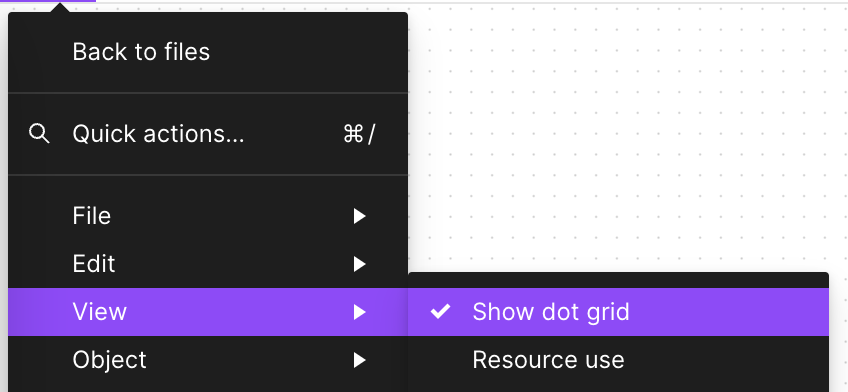
})();在 Figma 與 FigJam 中,放大到一定程度就會出現網格,前者顯示為線,後者顯示為點。
Miro 支援在線與點之間切換:
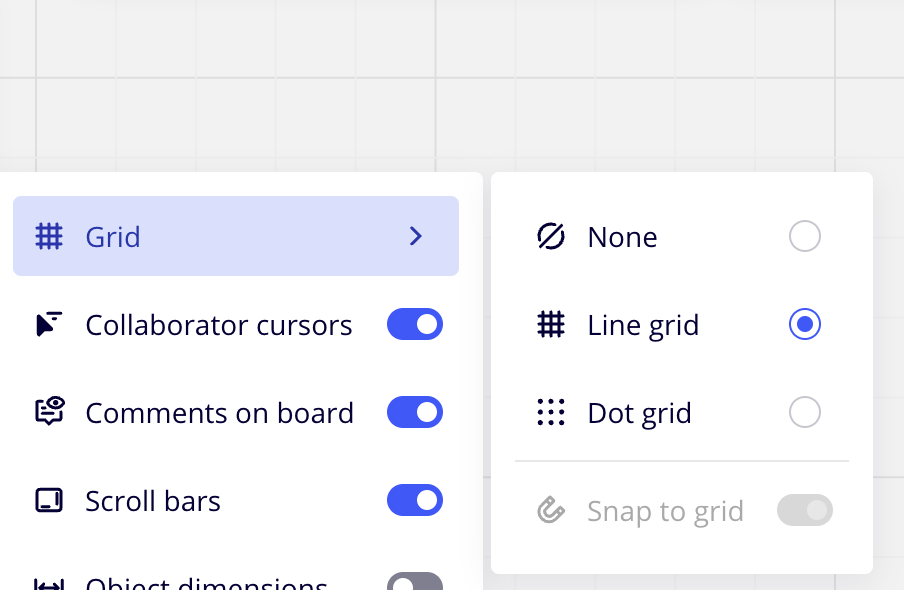
讓我們從線段網格開始。
線段網格
首先,網格不應屬於場景圖。我們不希望網格隨著畫布縮放而變大變小。不過,我們確實希望它在縮放時有淡入與淡出效果。因此,我們先在 beginFrame 鉤子中渲染網格,並傳入場景中必要的資訊,例如相機:
hooks.initAsync.tapPromise(async () => {
    this.#grid = new Grid();
});
hooks.beginFrame.tap(() => {
    this.#grid.render(
        this.#device,
        this.#renderPass,
        this.#uniformBuffer,
        camera,
    );
});
線幾何
最直接的做法類似 GridHelper - Three.js,依照網格大小建立一組線段:
// https://github.com/mrdoob/three.js/blob/master/src/helpers/GridHelper.js#L25-L37
for (var i = 0, j = 0, k = -halfSize; i <= divisions; i++, k += step) {
    vertices.push(-halfSize, 0, k, halfSize, 0, k);
    vertices.push(k, 0, -halfSize, k, 0, halfSize);
}

var geometry = new BufferGeometry();
geometry.addAttribute('position', new Float32BufferAttribute(vertices, 3));
geometry.addAttribute('color', new Float32BufferAttribute(colors, 3));

var material = new LineBasicMaterial({ vertexColors: VertexColors });
LineSegments.call(this, geometry, material);
在 Figma CTO Evan 的 thetamath 專案中,網格也是這樣實作的,從水平與垂直兩個方向建構網格所需的線段:
for (let x = left; x < right; x++) {
    const tx = ox + (x * zoom) / step;
    this.strokeLine();
}
for (let y = top; y < bottom; y++) {
    const ty = oy - (y * zoom) / step;
    this.strokeLine();
}
在 WebGL 中要如何繪製直線?我先前寫過一篇 在 WebGL 中繪製直線。簡而言之,如果不考慮接合處,只需要沿法線方向向兩側向外拉伸,用兩個三角形來畫:
thetamath 還用了兩個小技巧。第一個是使用 三角形帶。相較於一般的 Triangles,它可以節省頂點數量,從 3N 降到 N + 2,其中 N 是三角形的數量:
this.#pipeline = device.createRenderPipeline({
    inputLayout: this.#inputLayout,
    program: this.#program,
    colorAttachmentFormats: [Format.U8_RGBA_RT],
    topology: PrimitiveTopology.TRIANGLE_STRIP,
});
第二,它把顏色存在四個 Bytes 中:
255 | (255 << 8) | (255 << 16) | (127 << 24);配合 vertexAttribPointer,它宣告每個分量是 gl.UNSIGNED_BYTE,並且需要正規化:
this.#inputLayout = device.createInputLayout({
  vertexBufferDescriptors: [
    {
      arrayStride: 4 * 5,
      stepMode: VertexStepMode.VERTEX,
      attributes: [
        {
          format: Format.F32_RGBA,
          offset: 0,
          shaderLocation: 0,
        },
        {
          format: Format.U8_RGBA_NORM,
          offset: 4 * 4,
          shaderLocation: 1,
        },
      ],
    },
  ],
  indexBufferFormat: null,
  program: this.#program,
});
讓我們試看看:
(async () => {
    const { Canvas, Circle, Group } = Lesson5;
    const canvas = await Utils.createCanvas(Canvas, 400, 400);
    const $canvas = canvas.getDOM();

    canvas.setGridImplementation(0);

    const solarSystem = new Group();
    const earthOrbit = new Group();
    const moonOrbit = new Group();

    const sun = new Circle({
        cx: 0,
        cy: 0,
        r: 100,
        fill: 'red',
    });
    const earth = new Circle({
        cx: 0,
        cy: 0,
        r: 50,
        fill: 'blue',
    });
    const moon = new Circle({
        cx: 0,
        cy: 0,
        r: 25,
        fill: 'yellow',
    });
    solarSystem.appendChild(sun);
    solarSystem.appendChild(earthOrbit);
    earthOrbit.appendChild(earth);
    earthOrbit.appendChild(moonOrbit);
    moonOrbit.appendChild(moon);

    solarSystem.position.x = 200;
    solarSystem.position.y = 200;
    earthOrbit.position.x = 100;
    moonOrbit.position.x = 100;

    canvas.appendChild(solarSystem);

    let id;
    const animate = () => {
        solarSystem.rotation += 0.01;
        earthOrbit.rotation += 0.02;
        canvas.render();
        id = requestAnimationFrame(animate);
    };
    animate();

    unsubscribe(() => {
        cancelAnimationFrame(id);
        canvas.destroy();
    });

    return $canvas;
})();
在這個方法中,畫布越大、網格越密,需要的頂點就越多。有沒有辦法用更少的頂點做到?既然網格總是填滿整個螢幕,能不能在螢幕空間中完成?
片段著色器中的圖案
正如 使用 GridPaper 與 WebGL 建立靈活而強大的剖面 所說:
與其把這些線全部當作幾何圖形來繪製,我們可以使用 WebGL 片段著色器,以逐像素的方式產生這些線。
在螢幕空間中實作的好處是,只需要一個填滿螢幕的 Quad,共四個頂點,並把裁剪座標系下的座標傳進去。當然也可以使用全螢幕三角形,只需要三個頂點。這種做法在後處理中相當常見:
this.appendVertex(-1, -1);
this.appendVertex(-1, 1);
this.appendVertex(1, -1);
this.appendVertex(1, 1);
這樣一來,在頂點著色器中就可以直接使用它們,不需要任何變換:
layout(location = 0) in vec4 a_Position;
void main() {
  gl_Position = vec4(a_Position.xy, 0, 1);
}
要在片段著色器中繪製網格,你需要像素點在世界座標系中的座標。因此,利用相機投影變換矩陣的逆矩陣,可以把座標從裁剪座標系轉換到世界座標系:
layout(std140) uniform SceneUniforms {
  mat3 u_ProjectionMatrix;
  mat3 u_ViewMatrix;
  mat3 u_ViewProjectionInvMatrix;
};

out vec2 v_Position;

vec2 project_clipspace_to_world(vec2 p) {
  return (u_ViewProjectionInvMatrix * vec3(p, 1.0)).xy;
}

void main() {
  v_Position = project_clipspace_to_world(a_Position.xy);
}
在 Canvas2D 與 SVG 中,網格通常使用 Pattern 來實作。用片段著色器實作的基本想法也類似,也就是使用內建函式 fract 來繪製 Pattern。把初始座標空間縮放 n 倍,再用 fract 取得小數部分,就只需要考慮座標範圍在 0-1 的一小塊。更多資訊可以參考 the book of shaders - 圖案。
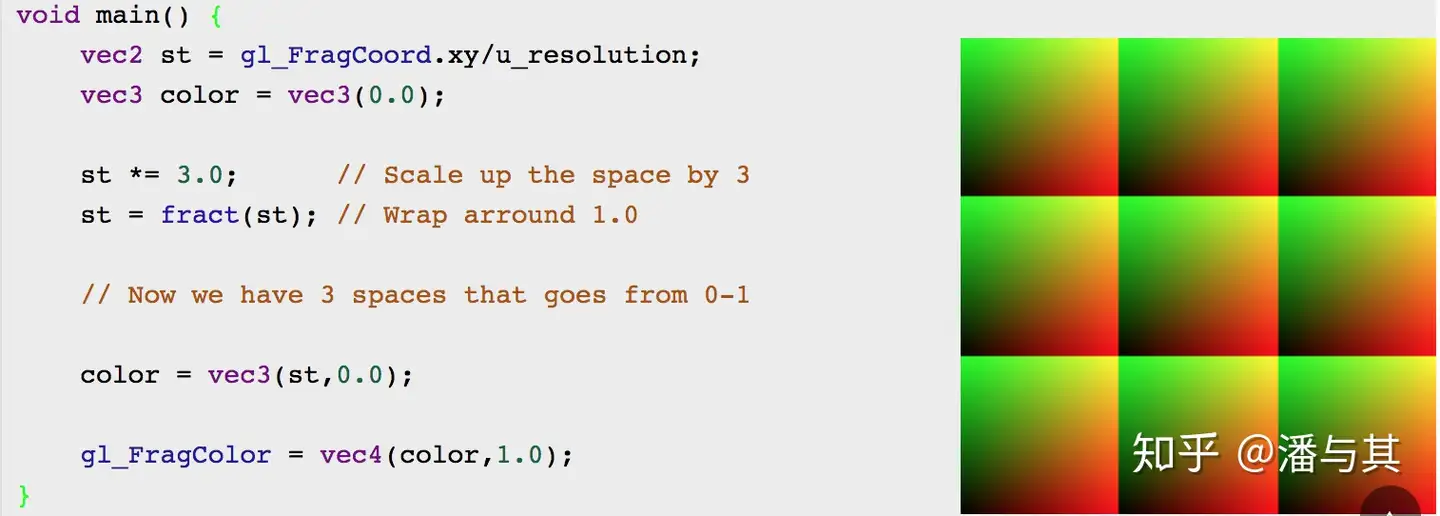
下面的程式來自 Evan 的 反鋸齒網格著色器:
vec4 render_grid_checkerboard(vec2 coord) {
  // Compute anti-aliased world-space grid lines
  vec2 grid = abs(fract(coord / gridSize - 0.5) - 0.5) / fwidth(coord) * gridSize;
  float line = min(grid.x, grid.y);
  float alpha = 1.0 - min(line, 1.0);
}
我們想繪製兩組不同粗細的網格,細網格的間距是粗網格的 1/5。同時,我們檢查目前的像素點是否更靠近粗網格:
vec2 size = scale_grid_size(u_ZoomScale);
float gridSize1 = size.x;
float gridSize2 = gridSize1 / 5.0;
以紋理為基礎的網格
目前為止最好的網格著色器 介紹了另一種以紋理為基礎的做法。特別是當我們希望線條本身也有透視時,這個做法會比螢幕空間中固定寬度的網格更好。例如下圖右側有明顯的「莫列波紋」現象,而左側較遠處的線條顏色也會變得更細、更暗。
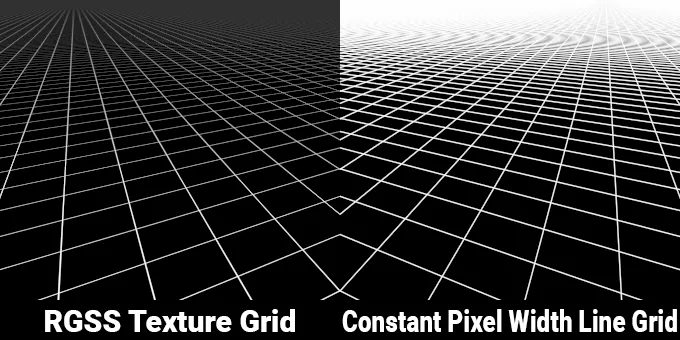
在原文中,作者對透視厚度、減輕「莫列波紋」圖案等方面做了多項改進。Shadertoy 上的範例如下:
點狀網格
對於點狀網格,我們仍選擇在螢幕空間的片段著色器中處理。雖然可以用先前討論過的有號距離場(SDF)方法來畫圓,但那樣會需要大量頂點。因此,我們繼續沿用直線網格的 Pattern,只是這裡用 SDF 判斷像素點是否落在圓內;這個方法在第二課已經講過:
vec2 grid2 = abs(fract(coord / gridSize2 - 0.5) - 0.5) / fwidth(coord) * gridSize2;
alpha = 1.0 - smoothstep(0.0, 1.0, length(grid2) - BASE_DOT_SIZE * u_ZoomScale / zoomStep);
為了支援在直線網格與點狀網格之間切換,我們可以引入一個新的 uniform 變數來區分網格樣式。
layout(std140) uniform SceneUniforms {
  mat3 u_ProjectionMatrix;
  mat3 u_ViewMatrix;
  mat3 u_ViewProjectionInvMatrix;
  float u_ZoomScale;
  float u_CheckboardStyle;
};
現在可以在片段著色器中這樣繪製不同的網格:
const int CHECKERBOARD_STYLE_NONE = 0;
const int CHECKERBOARD_STYLE_GRID = 1;
const int CHECKERBOARD_STYLE_DOTS = 2;

vec4 render_grid_checkerboard(vec2 coord) {
  int checkboardStyle = int(floor(u_CheckboardStyle + 0.5));
  if (checkboardStyle == CHECKERBOARD_STYLE_GRID) {
    // lines grid
  } else if (checkboardStyle == CHECKERBOARD_STYLE_DOTS) {
    // dots grid
  }
}
你可以回到頁面開頭的範例,在不同的網格樣式之間切換。
最後提供一個結合滑鼠互動的有趣範例:如何使用 React Three Fiber 撰寫細緻的著色器背景效果
調整亮度
在 Figma / FigJam 使用的著色器中,也會計算顏色的亮度,並依據亮度值調整顏色。具體來說,它採用以亮度為基礎的顏色調整演算法,用來提升顏色的視覺效果,讓文字或圖形在較亮的背景上更清晰可見。
已定義權重向量 weights,權重依照人眼對不同顏色亮度感知的非線性特性來設定。這常用於計算 RGB 色彩空間中的亮度值。
vec3 gridColor; // Store the final adjusted color value
vec3 weights = vec3(0.299, 0.587, 0.114);
float c2 = dot(rgb * rgb, weights); // Calculate weighted sum of squares of RGB, c2 is an estimate of color brightness
float luminance = sqrt(c2);
如果亮度值大於 0.5,表示顏色本身已經相當亮。程式會計算一個調整係數 target,並用它修改顏色值 rgb,讓顏色稍微變暗。這個改變能確保顏色在明亮背景上更容易觀察。如果亮度值不大於 0.5,顏色本身相對較暗,程式會改採另一種策略來調整顏色。
首先,它計算一個新的亮度目標值 target,然後根據 b 與 a 的計算結果,使用 mix 函式把 rgb 顏色與純白 vec3(1) 混合。最終的顏色混合比例由 b 與 a 的關係決定。這裡的 a 與 b 是根據原始顏色的亮度值計算的,用來控制顏色調整過程。
if (luminance > 0.5) {
    float target = (luminance - 0.05) / luminance;
    gridColor = rgb * target;
}
else {
    float target = luminance * 0.8 + 0.15;
    float c1 = dot(rgb, weights);
    float a = 1.0 - 2.0 * c1 + c2;
    float b = c2 - c1;
    gridColor = mix(rgb, vec3(1), (b + sqrt(b * b - a * (c2 - target * target))) / a);
}
rgb = mix(rgb, gridColor, gridWeight);
繪製線框
繪製線框也使用類似的技巧,可以用來除錯複雜的幾何圖形,例如 繪製折線。
重心座標
想法其實很簡單。我們想在光柵化期間為每個三角形繪製線框,因此需要知道目前片段距離三角形三條邊有多遠。一旦小於邊框寬度,就用邊框顏色為目前片段上色。所以關鍵是如何計算片段到三角形三條邊的距離。我們可以使用重心座標。既然只關心目前片段所在的三角形,可以用三個頂點的重心座標建立重心座標系,再用片段著色器的內插取得目前片段的重心座標。
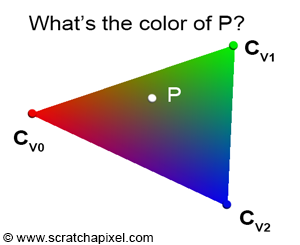
事實上,渲染管線也使用重心座標作為權重來決定片段的顏色,如下圖所示。你可以繼續閱讀 scratchapixel 上關於光柵化實作的文章:光柵化。
讓我們看看具體實作。首先,把重心座標傳入頂點。我們需要確保三角形三個頂點的座標分別是 (1,0,0)、(0,1,0) 與 (0,0,1)。如果繪製時使用 gl.drawArrays(),只需要依序傳入三個頂點的座標,並重複多次(次數為三角形數量),例如:
layout(location = BARYCENTRIC) in vec3 a_Barycentric;
out vec3 v_Barycentric;

void main() {
  v_Barycentric = a_Barycentric;
}
接著在片段著色器中,當重心座標的任一分量小於邊框寬度的閾值時,就可以視為邊框。這裡使用內建的 glsl 函式 any() 與 lessThan():
in vec3 v_Barycentric;
void main() {
  // less than border width
  if (any(lessThan(v_Barycentric, vec3(0.1)))) {
    // border color
    gl_FragColor = vec4(0.0, 0.0, 0.0, 1.0);
  } else {
    // fill background color
    gl_FragColor = vec4(0.5, 0.5, 0.5, 1.0);
  }
}
而且就像前面繪製直線網格的例子,我們希望線寬不隨相機縮放而改變,因此繼續使用 fwidth():
float edgeFactor() {
  vec3 d = fwidth(v_Barycentric);
  vec3 a3 = smoothstep(vec3(0.0), d * u_WireframeLineWidth, v_Barycentric);
  return min(min(a3.x, a3.y), a3.z);
}
重新配置頂點資料
在前一個例子中,繪製時使用 gl.drawArrays(),但如果改用更省空間的 gl.drawElements(),也就是共用部分頂點(例如一個平面只用 4 個而不是 6 個頂點),就不能只依頂點順序分配重心座標,而需要依頂點索引來分配。不過,並非所有分配方式都這麼簡單。例如 Stack Overflow 上的這個問題:共用頂點時的重心座標問題,你會發現 ? 無法分配。根本原因是,在共用頂點的情況下,一旦為一個三角形分配了重心座標,下一個共用同一條邊的三角形所剩的那個頂點座標其實已經被決定了:
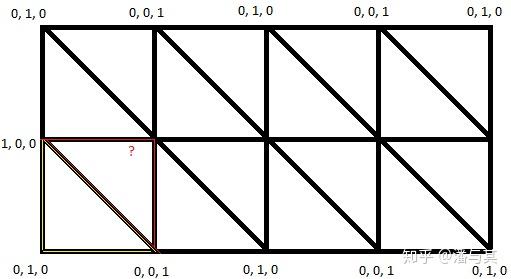
因此,啟用線框時,需要展開被重複使用的索引。例如,原本使用 4 個索引的 6 個頂點 [0, 1, 2, 0, 2, 3] 會展開成 [0, 1, 2, 3, 4, 5],頂點陣列中的資料也需要重新配置。
let cursor = 0;
const uniqueIndices = new Uint32Array(indiceNum); // Reallocate indices
for (let i = 0; i < indiceNum; i++) {
    const ii = this.#indexBufferData[i];
    for (let j = 0; j < bufferDatas.length; j++) {
        const { arrayStride } = this.#vertexBufferDescriptors[j];
        const size = arrayStride / 4;
        for (let k = 0; k < size; k++) {
            bufferDatas[j][cursor * size + k] =
                originalVertexBuffers[j][ii * size + k]; // Reallocate vertex data
        }
    }
    uniqueIndices[i] = cursor;
    cursor++;
}
效果如下,之後還會介紹更多圖形繪製方法。