第 16 課 - 文字進階功能
在上一課,我們介紹了基於 SDF 的文字渲染原理,嘗試用 ESDT 與 MSDF 改善渲染品質,並提到 CanvasKit 相較於 Canvas 所提供的進階文字渲染功能。
在這一課,我們先看 SDF 以外的渲染方法,接著討論並嘗試實作這些功能:裝飾線、陰影、文字沿著路徑。最後,文字不只要能渲染,還要有良好的互動——我們會討論輸入框、文字選取與 A11y 等主題。
先看看除了 SDF 之外還有哪些文字渲染方法。
用貝茲曲線渲染文字
使用 Figma 的 SVG 匯出功能,可以看到它的文字也是用 Path 渲染的。如果不考慮渲染效能與 CJK 字元,用貝茲曲線渲染文字確實是個好選擇。若要在瀏覽器環境取得字元的向量資訊,可以使用:
- opentype.js
- use-gpu 使用 use-gpu-text,它是基於 ab-glyph 包裝的
- 越來越多應用程式使用 harfbuzzjs,見:2024 年文字渲染現況。例如 font-mesh-pipeline 就是一個簡單示範
下面會展示用 opentype.js 與 harfbuzzjs 渲染文字的範例,兩者都支援 ttf 字型格式。
opentype.js
opentype.js 提供 getPath 方法。給定文字內容、位置與字型大小後,它會完成 Shaping,並取得 SVG 路徑指令。
opentype.load('fonts/Roboto-Black.ttf', function (err, font) {
    const path = font.getPath('Hello, World!', 0, 0, 32); // x, y, fontSize
    // convert to svg path definition
});
harfbuzzjs
首先用 Vite 的 ?init 語法初始化 harfbuzzjs WASM。然後載入字型檔並建立字型物件。
import init from 'harfbuzzjs/hb.wasm?init';
import hbjs from 'harfbuzzjs/hbjs.js';

const instance = await init();
hb = hbjs(instance);

const data = await (
    await window.fetch('/fonts/NotoSans-Regular.ttf')
).arrayBuffer();
blob = hb.createBlob(data);
face = hb.createFace(blob, 0);
font = hb.createFont(face);
font.setScale(32, 32); // Set font size
接著建立 buffer 物件並加入文字內容。如前所述,harfbuzz 不處理 BiDi,所以需要手動設定文字方向。最後呼叫 hb.shape 方法執行 Shaping 計算。
buffer = hb.createBuffer();
buffer.addText('Hello, world!');
buffer.guessSegmentProperties();
// TODO: use BiDi
// buffer.setDirection(segment.direction);

hb.shape(font, buffer);
const result = buffer.json(font);
現在我們有了字形資料,可以用 Path 把它畫出來
result.forEach(function (x) {
    const d = font.glyphToPath(x.g);
    const path = new Path({
        d,
        fill: '#F67676',
    });
});
TeX 數學公式渲染
我們可以用 MathJax 渲染 TeX 數學公式,把它們轉成 SVG,再用 Path 渲染。這裡沿用 motion-canvas 中的 LaTeX 的作法來取得 SVGElement:
const JaxDocument = mathjax.document('', {
    InputJax: new TeX({ packages: AllPackages }),
    OutputJax: new SVG({ fontCache: 'local' }),
});

const svg = Adaptor.innerHTML(JaxDocument.convert(formula));
const parser = new DOMParser();
const doc = parser.parseFromString(svg, 'image/svg+xml');
const $svg = doc.documentElement;
然後用 第 10 課 - 從 SVGElement 到 Serialized Node 介紹的方法,把 SVGElement 轉成圖形並加到畫布上。
const root = await deserializeNode(fromSVGElement($svg));文字描邊
Canvas 的 strokeText 與 CSS 的 -webkit-text-stroke 都提供文字描邊。好消息是,描邊在 SDF 中本來就很容易實作:
if (strokeWidth > 0.0 && strokeColor.a > 0.0) {
    float fillAlpha = smoothstep(buff - gamma_scaled, buff + gamma_scaled, dist);
    float strokeThreshold = buff - strokeWidth / fontSize;
    float strokeAlpha = smoothstep(strokeThreshold - gamma_scaled, strokeThreshold + gamma_scaled, dist);

    vec4 finalColor = mix(strokeColor, fillColor, fillAlpha);
    outputColor = finalColor;
    opacity *= strokeAlpha;
}
下面展示基於 SDF 與 MSDF 的渲染效果,可以看到即使加上描邊,MSDF 仍然保持銳利:
文字裝飾
在 CSS 中,早期瀏覽器對 text-decoration 的實作相當粗糙,underline 就是一例,下圖取自:在 Medium 上精心製作連結底線
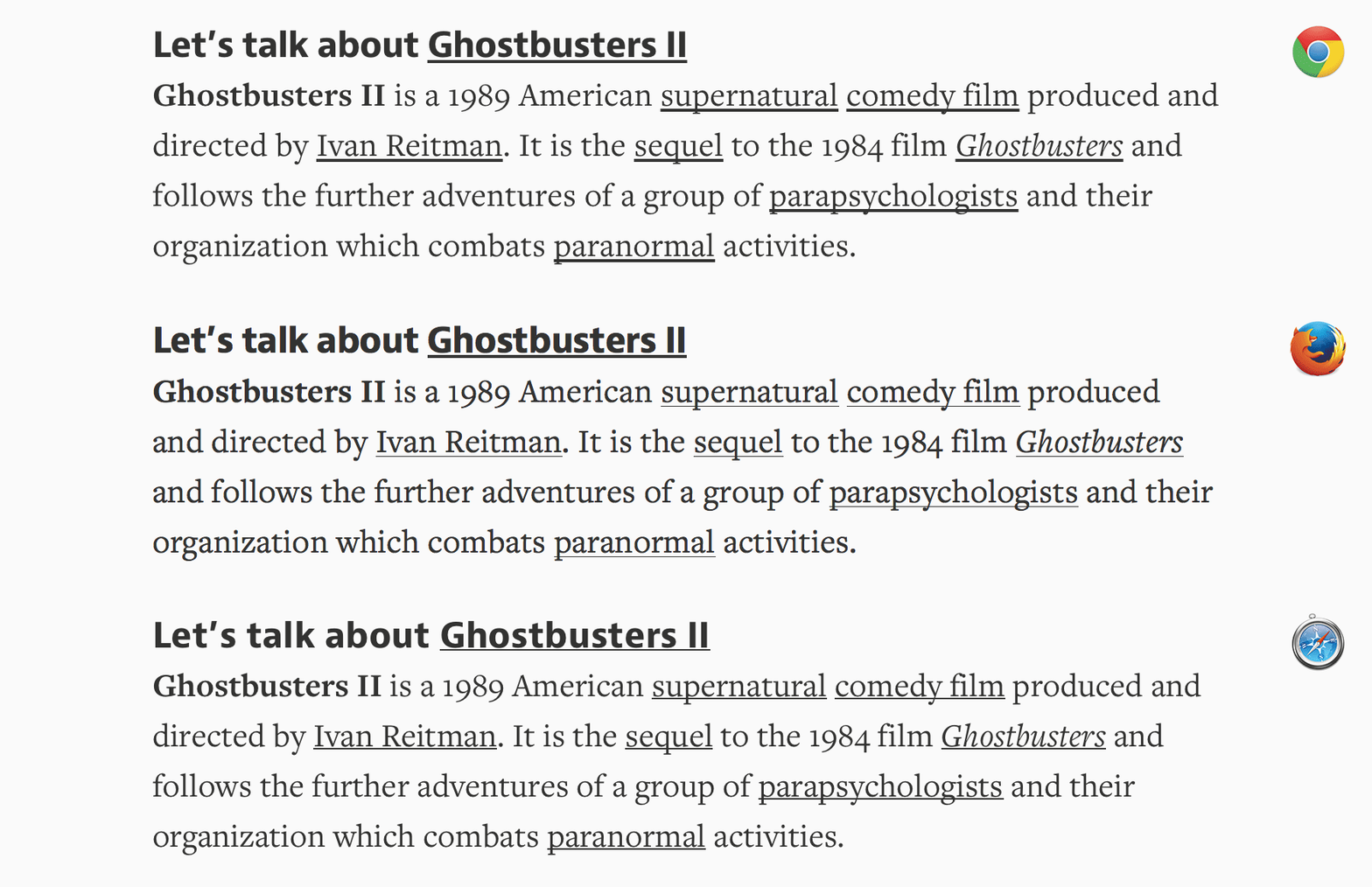
完美的底線應該看得到,但又不搶眼——讓人知道哪些地方可以點,卻不會把太多注意力拉到自己身上。它與文字的距離要剛剛好,當下降部想佔用同一塊空間時,能安穩地待在文字後面:

目前的瀏覽器已經把這個實作做得相當完善。此外,Canvas 並不提供這項功能,CanvasKit 則用一組對應 CSS text-decoration 的屬性加以擴充:
// @see https://developer.mozilla.org/en-US/docs/Web/CSS/text-decoration#constituent_properties
// @see https://skia.org/docs/dev/design/text_shaper/#principles
const paraStyle = new CanvasKit.ParagraphStyle({
    textStyle: {
        decoration: CanvasKit.UnderlineDecoration,
        decorationColor,
        decorationThickness,
        decorationStyle: CanvasKit.DecorationStyle.Solid,
    },
});
另一個有趣的實作 underlineJS 是基於 Canvas。
使用折線
裝飾線樣式由 decorationStyle 屬性控制:
export type TextDecorationStyle =
  | 'solid'
  | 'double'
  | 'dotted'
  | 'dashed'
  | 'wavy';
: TextDecorationStyle;
以最簡單的 solid 樣式為例,我們把 decorationColor 與 decorationThickness 當成 strokeColor 與 strokeWidth 傳入:
if (instance instanceof Text) {
    const {
        decorationColorRGB,
        decorationThickness,
        decorationStyle,
        metrics,
    } = instance;
    u_StrokeColor = [
        decorationColorRGB.r / 255,
        decorationColorRGB.g / 255,
        decorationColorRGB.b / 255,
        fo,
    ];
    u_ZIndexStrokeWidth[1] = decorationThickness;
}
裝飾樣式
折線本身支援 strokeDasharray,因此 dotted 與 dashed 都可以靠它實現。這裡參考 Skia 的實作,設定 dash 與 gap 的比例:
// @see https://github.com/google/skia/blob/main/modules/skparagraph/src/Decorations.cpp#L187
SkScalar scaleFactor = textStyle.getFontSize() / 14.f;
switch (textStyle.getDecorationStyle()) {
    case TextDecorationStyle::kDotted: {
        dashPathEffect.emplace(1.0f * scaleFactor, 1.5f * scaleFactor);
        break;
    }
    case TextDecorationStyle::kDashed: {
        dashPathEffect.emplace(4.0f * scaleFactor, 2.0f * scaleFactor);
        break;
    }
    default: break;
}具體來說,wavy 線需要計算並取樣。這裡的作法是產生一條 SVG Path,並使用 第 13 課 - 在曲線上取樣 所述的方法:
// @see https://github.com/google/skia/blob/main/modules/skparagraph/src/Decorations.cpp#L215
let d = 'M 0 0';
while (x_start + quarterWave * 2 < line.width) {
    d += ` Q ${x_start + quarterWave} ${
        wave_count % 2 != 0 ? quarterWave : -quarterWave
    } ${x_start + quarterWave * 2} 0`;

    x_start += quarterWave * 2;
    ++wave_count;
}
效果如下:
計算位置
位置由 decorationLine 屬性控制:
export type TextDecorationLine =
    | 'underline'
    | 'overline'
    | 'line-through'
    | 'none';
我們參考 Skia 的 Decorations::calculatePosition 實作,以 underline 為例:
void Decorations::calculatePosition(TextDecoration decoration, SkScalar ascent) {
    switch (decoration) {
        case TextDecoration::kUnderline:
            if ((fFontMetrics.fFlags & SkFontMetrics::FontMetricsFlags::kUnderlinePositionIsValid_Flag) &&
                fFontMetrics.fUnderlinePosition > 0) {
                fPosition  = fFontMetrics.fUnderlinePosition;
            } else {
                fPosition = fThickness;
            }
            fPosition -= ascent;
            break;
    }
}
匯出 SVG
遺憾的是,截至目前(2025.7.9),SVG 尚未完整支援 text-decoration。在下方右圖中,text-decoration-color 並不會採用我們設定的藍色,而是被文字顏色覆蓋,text-decoration-style 則完全不受支援。見:HTML 中 SVG 文字的文字裝飾。
顯然,text-decoration-color 並不適用於 SVG 的 text 元素
Figma 的作法是匯出成 <path> 來迴避這個問題。我們仍希望保留 <text>,因此匯出 SVG 時只能用 <foreignObject> 包起來,見左下方:
<foreignObject width="50" height="20">
    <span style="text-decoration: underline; text-decoration-color: blue;">
        Text
    </span>
</foreignObject>陰影
Pixi.js 提供 DropShadowFilter,但我們可以直接在 SDF 中實作,不必使用後處理。用 shadowOffset 與 shadowBlurRadius 控制 SDF 紋理的偏移與模糊。
// @see https://github.com/soimy/pixi-msdf-text/blob/master/src/msdf.frag#L49
vec3 shadowSample = texture2D(uSampler, vTextureCoord - shadowOffset).rgb;
float shadowDist = median(shadowSample.r, shadowSample.g, shadowSample.b);
float distAlpha = smoothstep(0.5 - shadowSmoothing, 0.5 + shadowSmoothing, shadowDist);
vec4 shadow = vec4(shadowColor, shadowAlpha * distAlpha);
gl_FragColor = mix(shadow, text, text.a);
沿路徑排列文字
在 Figma 社群中,許多使用者一直期待這項功能,例如:讓文字沿著路徑或圓排列。這項功能最近已獲得官方支援:在路徑上輸入文字。
在 SVG 中,可以透過 textPath 達成,見:沿著路徑的曲線文字
<path
    id="curve"
    d="M73.2,148.6c4-6.1,65.5-96.8,178.6-95.6c111.3,1.2,170.8,90.3,175.1,97"
/>
<text width="500">
    <textPath xlink:href="#curve"> Dangerous Curves Ahead </textPath>
</text>
Skia 提供 MakeOnPath 方法,見 沿著路徑繪製文字:
const textblob = CanvasKit.TextBlob.MakeOnPath(text, skPath, skFont);
canvas.drawTextBlob(textblob, 0, 0, textPaint);
在 Mapbox 中,把標籤沿著道路與河流放置是常見情境,見 Mapbox GL 中的地圖標籤放置
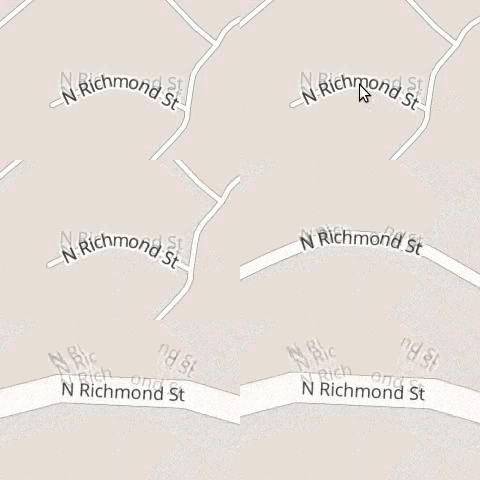
Kittl 提供了 在任意路徑上輕鬆輸入文字 工具。
另一種實作見 fabricjs - 路徑上的文字。依每個字形 advance box 中心的弧長放置字形,再用同一距離上的切線決定它的方向。Bézier 參數 t 通常不是長度比例:點與切線的取樣必須使用同一套弧長對應,如 第 13 課 - 在曲線上取樣 所述。
const centerDistance =
    startOffset + alignmentOffset + advanceBefore + advance / 2;
const ratio = centerDistance / totalPathLength;
const point = curve.getPointAt(ratio);
const tangent = curve.getTangentAt(ratio);
advance width 決定下一個字形的位置。它不同於紋理寬度、墨水側距(bearing)與 SDF 留白。letterSpacing 只作用在相鄰字形之間。
調整旋轉
實作會在 CPU 上讓每個 Quad 繞著字形基線原點旋轉,再用 SDF/MSDF 渲染。若繞著紋理底邊旋轉,不同字型與尺寸的文字位移會不一樣。
const rotation = Math.atan2(tangent[1], tangent[0]);
const x =
    point[0] -
    (Math.cos(rotation) * advance) / 2 -
    Math.sin(rotation) * pathOffset;
const y =
    point[1] -
    (Math.sin(rotation) * advance) / 2 +
    Math.cos(rotation) * pathOffset;
這個範例使用 alphabetic 基線;其他 textBaseline 調整也沿著局部法線。包圍盒是旋轉後字形墨水矩形的聯集,因此改變內容、尺寸、路徑或偏移時,選取範圍也會一起更新。
| 屬性 | 行為 |
|---|---|
textAlign | 相對於可用路徑長度的 start / left、center,或 end / right |
startOffset | 沿閱讀方向移動已對齊的文字,單位為文件單位 |
side | left 沿著路徑前進;right 從另一端出發,旋轉字形並維持閱讀順序 |
pathOffset | 沿局部法線移動基線;正值位於閱讀方向切線順時針 90° 的一側 |
letterSpacing | 在相鄰字形之間增加距離 |
在開放路徑上,中心超出任一端點的字形會被省略,而不是折返或堆在端點。單一封閉輪廓可以在正或負偏移下跨越接縫,每一行最多繞一圈。分開的子路徑會串接長度,不會在 M 的空隙之間憑空補一條線。後續各行沿著局部法線,以行高間距排列。
沿著路徑拖曳文字或藍色把手,並拖曳橘色控制點來改變曲線形狀。可以在曲線、圓與直線之間切換,改變側邊與對齊,或調整間距與基線距離。把手支援方向鍵,Shift 用於較大的步進,Esc 用來取消;被取消的觸控手勢會恢復到起始狀態。
Drag the text or blue handle along the path. Drag orange control points to reshape the curve. Handles support arrow keys; Esc cancels a drag.
這個範例使用 core 的 SDF 文字渲染器。路徑版面與編輯上的改進沿用既有的字素管線;它們並未加入完整的 OpenType 塑形或連字支援。
ECS 也支援這些路徑屬性,並具備變形手勢、字形拾取、復原/重做與文字編輯。可以試試 ECS 路徑文字範例;編輯時使用直線文字框,確認後會恢復曲線版面。
匯出 SVG
原生 SVG 支援 textPath,如下所示;另見 沿著路徑的曲線文字。匯出器與畫布共用同一套版面,並輸出帶有 x、y 與 rotate 的定位 <tspan> 元素,以便在 textPath side 支援程度不同的瀏覽器之間,保留側邊變化、溢出裁切與封閉接縫。JSON 序列化會保留路徑、側邊、對齊與偏移,匯入後還能繼續編輯。
<path
    id="MyPath"
    fill="none"
    stroke="red"
    d="M10,90 Q90,90 90,45 Q90,10 50,10 Q10,10 10,40 Q10,70 45,70 Q70,70 75,50"
></path>
<text>
    <textPath href="#MyPath">Quick brown fox jumps over the lazy dog.</textPath>
</text>更友善的互動
瀏覽器原生的 <textarea> 提供閃爍游標、選取、鍵盤控制、複製與貼上等等便利功能。若想基於 <canvas> 從零實作這些功能,會非常繁瑣,例如 fabricjs - 載入自訂字型 與 Google Docs,所以我們不選這條路。
文字輸入
下面這張 Figma 的圖可以看到,原生 <textarea> 元素被用來定位在畫布上,當 Text 被雙擊時就顯示輸入框:
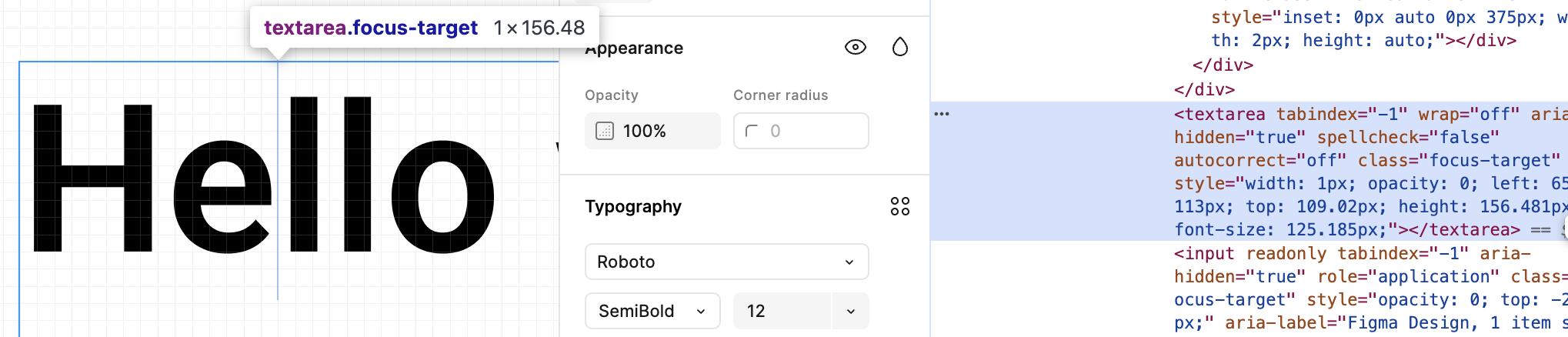
excalidraw 也是這樣做的,見:textWysiwyg.tsx。
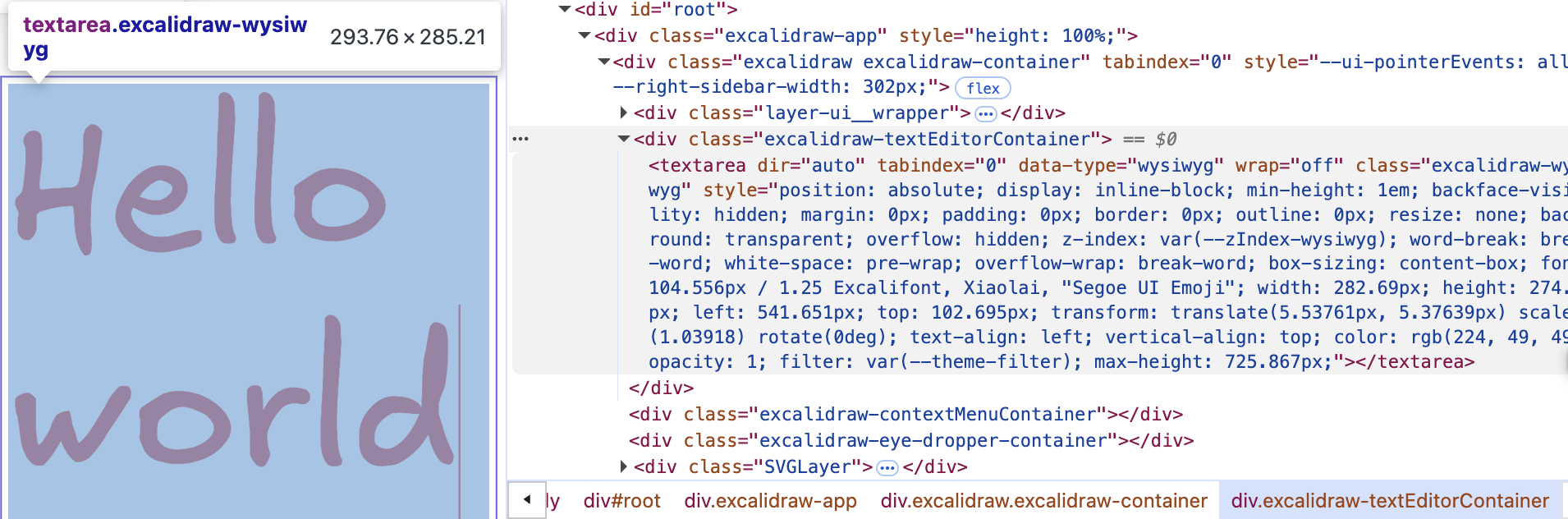
我們也加入 <ic-text-editor> 元素,讓它盡可能貼合畫布中的 Text 渲染。原生 <textarea> 元素的樣式會被重設,例如不顯示邊框與背景。fontFamily、fontSize 與 color 屬性都有對應的 CSS 屬性,可以直接設定,但使用絕對定位時還有若干因素需要考慮:
@customElement('ic-text-editor')
export class TextEditor extends LitElement {
    static styles = css`
        :host {
            position: absolute;
        }
        textarea {
            position: absolute;
            display: none;
            margin: 0;
            padding: 0;
            border: 0;
            outline: 0;
            resize: none;
            background: transparent;
        }
    `;

    @query('textarea')
    editable: HTMLTextAreaElement;

    render() {
        return html`<textarea></textarea>`;
    }
}
首先要把雙擊的滑鼠事件位置座標轉換到視口座標系:
const { x, y } = this.api.canvas2Viewport({
    x: this.node.x,
    y: this.node.y,
});

this.editable.style.left = `${x}px`;
this.editable.style.top = `${y}px`;
接著需要考慮相機目前的縮放等級:
const { zoom } = this.api.getCamera().read(ComputedCamera);
this.editable.style.transform = `scale(${zoom})`;
this.editable.style.transformOrigin = `left top`;
最後,我們希望在 <textarea> 元素上捲動時,不要觸發瀏覽器的預設行為,而是穿透它,在 <canvas> 元素上觸發,由畫布執行相機的平移與縮放:
handleWheel = (event: WheelEvent) => {
    event.preventDefault();
    event.stopPropagation();

    const newWheelEvent = new WheelEvent('wheel', {});
    $canvas.dispatchEvent(newWheelEvent);
};
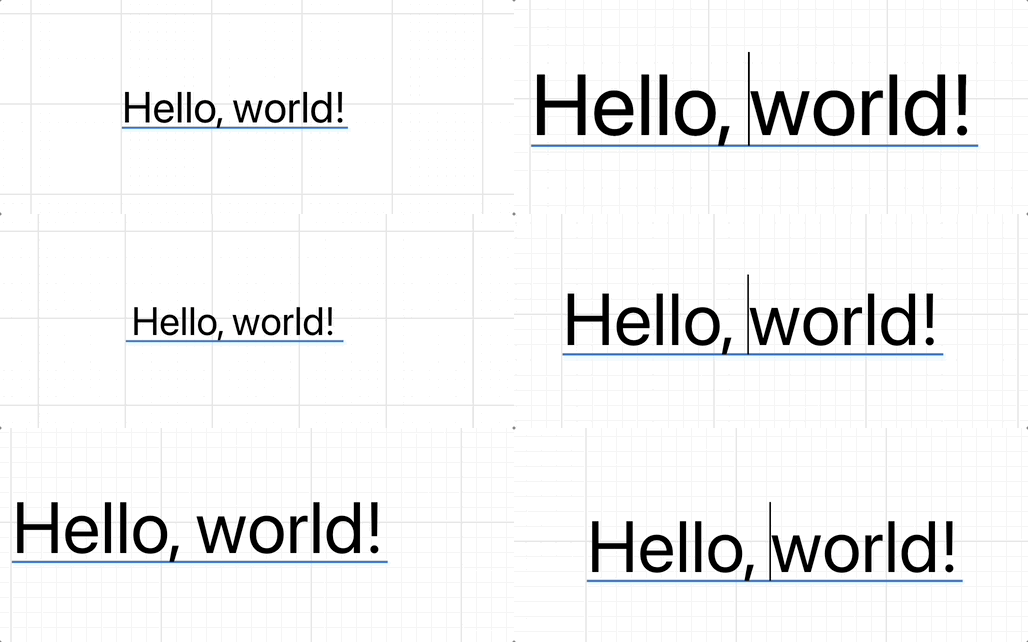
效果如下:
文字改變時計算尺寸
輸入與貼上文字時,需要即時重新計算並設定 <textarea> 的寬高。
處理 Tab
在 <textarea> 中按 Tab 的預設行為是把焦點切到下一個元素。我們希望它和程式碼編輯器一樣。
文字選取
一旦支援把 textarea 疊在 Text 上,這項功能就很容易實作。
特殊效果
載入 Web 字型
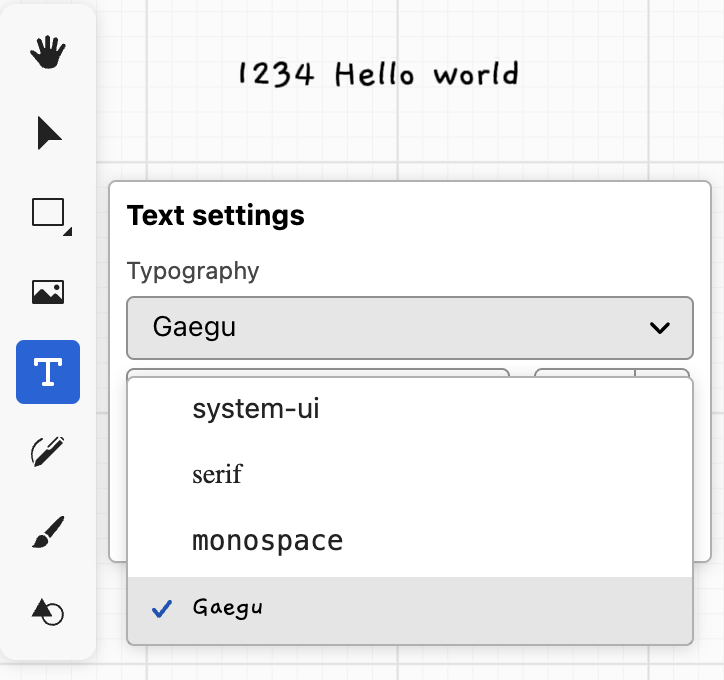
若使用 Canvas2D API 產生 SDF,只要先用 webfontloader 載入字型,再用 fontFamily 指定字型即可。
import WebFont from 'webfontloader';
WebFont.load({
    google: {
        families: ['Gaegu'], // specify font
    },
    active: () => {
        const text = new Text({
            x: 150,
            y: 150,
            content: 'Hello, world',
            fontFamily: 'Gaegu', // specify font
            fontSize: 55,
            fill: '#F67676',
        });
    },
});
也可以在首頁範例中切換到 Text 模式,並選取 Gaegu 自訂字型:
GPU 上的 Material Design
GPU 上的 Material Design 介紹一種基於 SDF 文字的材質效果,用法線貼圖與光照模擬墨水在紙上暈開。我們不需要考慮光照,只要用 simplex noise 實作,並加入多種吸收效果:
import { simplex_2d } from './simplex-2d';
import { aastep } from './aastep';
export const absorb = /* wgsl */ `
  ${aastep}
  ${simplex_2d}
  float absorb(float sdf, vec2 uv, float scale, float falloff) {
    float distort = sdf + snoise(uv * scale) * falloff;
    return aastep(0.5, distort);
  }
`;