第 26 課 - 選取工具
在 第 14 課 - 選取模式 中,我們只實作了點擊選取單一圖形的簡單功能。這一課會繼續改進選取工具,加入多選、框選與套索功能。
多選
在單擊選取的基礎上,按住 Shift 可以把其他圖形加入目前的選取,或從中移除。

在選取模式中,我們根據 input.shiftKey 的狀態(是否按下 Shift)決定是否保留目前的選取:若未按下,就切換為單選;若按下,就把目標圖形加入既有的選取:
if (selection.mode === SelectionMode.SELECT) {
    if (layersSelected.length > 1 && layersSelected.includes(selected.id)) {
        // deselect if already selected in a group
        api.deselectNodes([selected]);
    } else {
        api.selectNodes([selected], input.shiftKey); // whether to add to existed selection
    }
}
在 第 21 課 - Transformer 中,我們實作了單一圖形的選取。接下來需要為多個選取的圖形加上 Group 顯示。與單選的 Transformer 不同,多選的 Group 不需要考慮 rotation 與 scale。
export class RenderTransformer extends System {
    getOBB(camera: Entity): OBB {
        const { selecteds } = camera.read(Transformable);

        // Single selected, keep the original OBB include rotation & scale.
        if (selecteds.length === 1 && selecteds[0].has(ComputedBounds)) {
            const { obb } = selecteds[0].read(ComputedBounds);
            return obb;
        }

        if (selecteds.length > 1) {
        }
    }
}
效果如下。調整大小時變換所有選取圖形的邏輯,已在 第 21 課 - 變換圖形 中介紹,這裡不再重複:
框選
下圖來自 在 Figma 中選取圖層與物件

這個框選工具稱為 “marquee”,見:使用矩形選取框工具進行選取。我們把形成的矩形區域稱為筆刷(Brush)。
框選結束(滑鼠放開)時,首先要隱藏筆刷矩形(下一節會看到它的實作),然後使用 第 8 課 - 使用空間索引加速 介紹的快速拾取方法。值得注意的是,矩形的寬度與高度可能是負數(取決於拖曳方向),因此需要做一些計算,確保 BBox 有效:
if (input.pointerUpTrigger) {
    if (selection.mode === SelectionMode.BRUSH) {
        // Hide Brush...

        if (selection.brush) {
            const { x, y, width, height } = selection.brush.read(Rect);
            // Make a valid BBox
            const minX = Math.min(x, x + width);
            const minY = Math.min(y, y + height);
            const maxX = Math.max(x, x + width);
            const maxY = Math.max(y, y + height);
            const selecteds = api
                .elementsFromBBox(minX, minY, maxX, maxY) // Use space index
                .filter((e) => !e.has(UI))
                .map((e) => api.getNodeByEntity(e));
            api.selectNodes(selecteds); // Finish selection
        }
    }
}
框選過程中,我們也希望透過醒目提示與 Transformer 即時顯示選取狀態。在上述拾取與選取邏輯的基礎上,加入醒目提示:
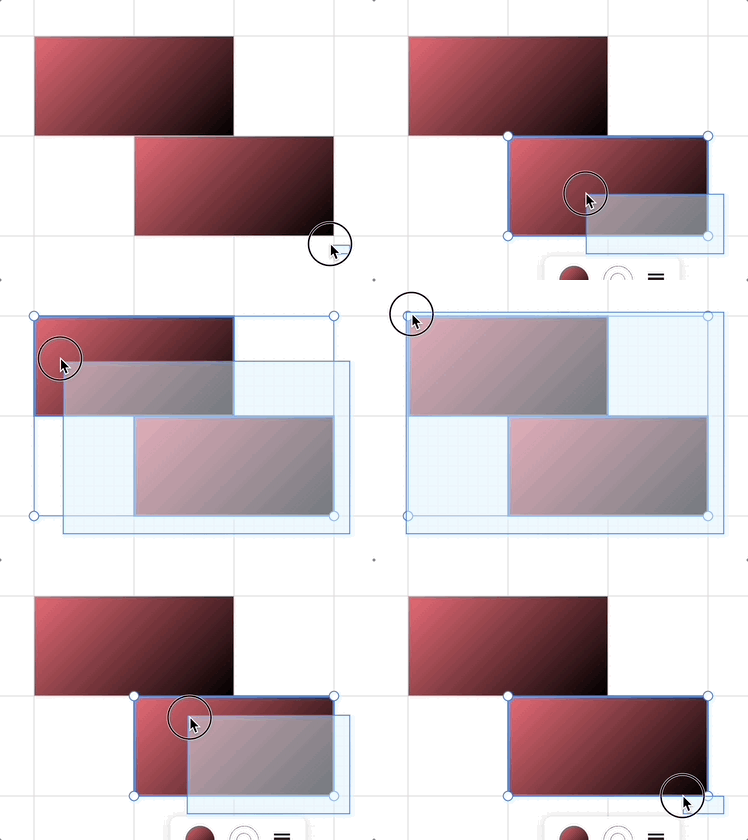
api.selectNodes(selecteds);
if (needHighlight) {
    api.highlightNodes(selecteds);
}
當然,對於視口空間中的元件,也可以用 SVG 實作,後面的套索工具就會看到。
用 Esc 取消選取
在已選取狀態按下 Esc 會取消選取。此外,框選過程中需要隱藏筆刷:
if (input.key === 'Escape') {
    api.selectNodes([]);
    if (selection.mode === SelectionMode.BRUSH) {
        this.hideBrush(selection);
    }
}
鎖定與解鎖圖層
已鎖定的圖層無法被選取。詳見:鎖定與解鎖圖層
套索選取
相較於矩形選取框工具,套索工具能透過建立不規則多邊形,進行更精確的選取。
在以 AI 為基礎的影像編輯中,套索工具也能更精確地建立遮罩,以便進行局部重繪。下圖是 Figma 中的效果,選取區域可以被擦除,或分離成圖層:
繪製套索
在 第 25 課 - 鉛筆工具 中,我們介紹了如何自由繪製折線路徑。我們繼續在 SVG 容器中繪製套索路徑,通常以帶有動畫效果的虛線(螞蟻線)表示。
<path d="...">
    <animate
        attribute-name="stroke-dashoffset"
        stroke-dasharray="7 7"
        stroke-dashoffset="10"
        from="0"
        to="-14"
        dur="0.3s"
    />
</path>
首先,把點座標從視口座標系轉換到畫布座標系。然後依目前相機的縮放等級簡化路徑——高縮放等級顯然需要更細的選取粒度,反之亦然。此外,較少的頂點既能改善渲染效能,也能提高後續相交檢測的效率:
import simplify from 'simplify-js';

const lassoPath = super
    .getCurrentTrail()
    ?.originalPoints?.map(([x, y]) => this.api.viewport2Canvas({ x, y }));

const simplifyDistance = 5 / this.api.getAppState().cameraZoom;
const points = simplify(lassoPath, simplifyDistance).map((p) => [p.x, p.y]);
// Hit-test the current path as it changes for preview, and again on pointerup
// before clearing the trail to commit the final selection.
const selected = selectByLassoPath(this.api, points);
圍繞圖形拖曳,即可立即預覽命中結果:套索變化時,輪廓會出現或消失。尚未完成的套索會自動閉合回起點,以便進行命中測試。放開後,會在一個復原步驟中提交最終選取。按下 Escape、取消觸控手勢、開始雙指縮放,或切換工具,都會清除預覽而不進行選取。點擊與極小的移動不會選取任何東西。再次選擇套索工具,就可以進行另一次選取。遮罩繪製模式只在放開時建立路徑,不會預覽圖形選取。
命中測試使用世界座標,包含每個圖形的父層變換、旋轉與翻轉。開放折線會逐段測試,不會加上隱含的封閉邊。已鎖定與隱藏的圖形會被排除。
多邊形相交檢測
既然已經建立了 Path,就需要取得場景中與它相交的幾何。和先前一樣,我們先使用 第 8 課 - 使用空間索引加速。
function selectByLassoPath(api: API, lassoPath: [number, number][]) {
    const lassoBounds = lassoPath.reduce(
        (acc, item) => {
            return [
                Math.min(acc[0], item[0]),
                Math.min(acc[1], item[1]),
                Math.max(acc[2], item[0]),
                Math.max(acc[3], item[1]),
            ];
        },
        [Infinity, Infinity, -Infinity, -Infinity],
    ) as [number, number, number, number];

    // Hit-test with rbush
    const elements = api.elementsFromBBox(
        lassoBounds[0],
        lassoBounds[1],
        lassoBounds[2],
        lassoBounds[3],
    );

    // elementsFromBBox excludes locked elements; also filter UI and hidden nodes.
}
通過快速包圍盒檢測之後,必須處理兩種情況:套索完全位於圖形內部;套索與圖形相交。
function isPolygonsIntersect(points1: number[][], points2: number[][]) {
    let isIn = false;
    // Determine whether a point lies inside a polygon. If any point is inside another polygon, return true.
    points2.forEach((point) => {
        if (isPointInPolygon(points1, point[0], point[1])) {
            isIn = true;
            return false;
        }
    });
    if (isIn) {
        return true;
    }
}