第 29 課 - 嵌入 HTML 內容
有時我們希望在畫布上嵌入 HTML 內容,例如 YouTube 播放器、CodeSandbox 元件、ShaderToy 等。
建立 HTML 容器
Excalidraw 不支援在畫布上嵌入 HTML 內容,但 tldraw 支援 TLEmbedShape。它在頁面中把 HTML 容器(含 iframe 或其他元素)與畫布的 <svg> 元素並列或疊加顯示,而不是「完全」放在單一畫布內部。
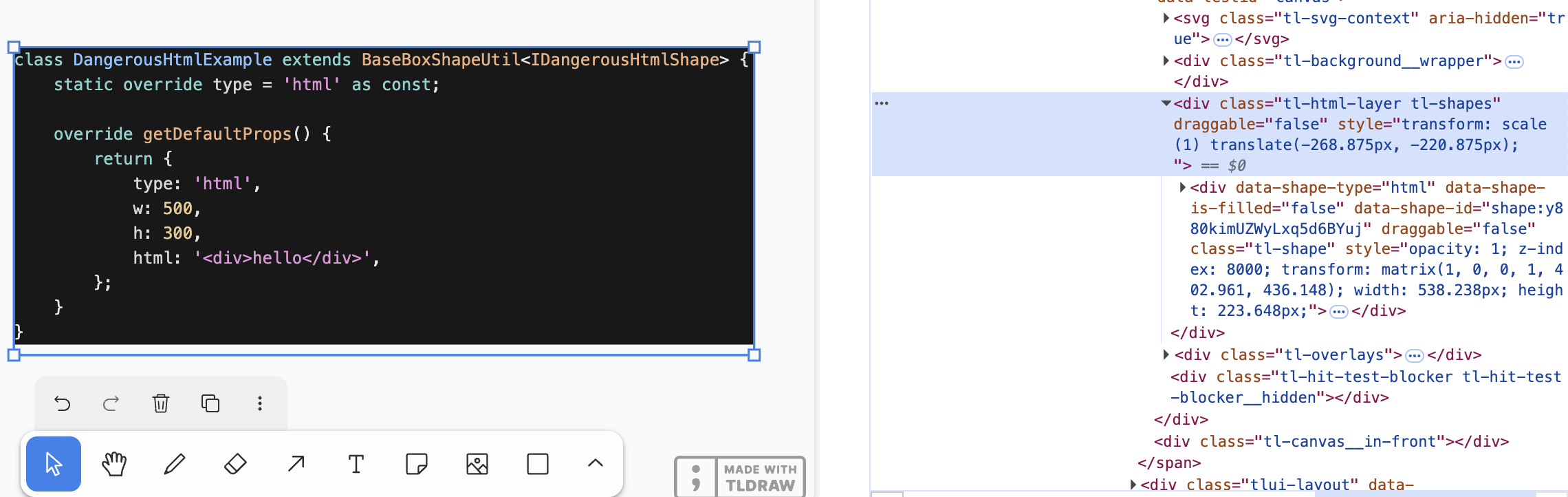
容器分成兩層:
- HTML 層與
<canvas>並列,作為它的兄弟節點,包含所有 HTML 容器,並負責相機同步。 - HTML 容器是每個
html/embed圖形的容器,負責個別圖形的定位。
相機同步
在 第 4 課 - 相機 中,我們介紹了一系列重要的相機參數:平移、旋轉與縮放。現在需要把相機參數對應到 HTML 容器的 CSS transform,讓畫布與 HTML 容器保持同步。
const { cameraZoom, cameraX, cameraY } = this.appStateProvider.value;

$htmlLayer.style.transform = `scale(${toDomPrecision(
    cameraZoom,
)}) translate(${toDomPrecision(-cameraX)}px, ${toDomPrecision(-cameraY)}px)`;
HTML 層使用 position: absolute;,相對於根元素:
$htmlLayer.style.position = 'absolute';
$htmlLayer.style.top = topbarVisible ? `${TOP_NAVBAR_HEIGHT}px` : '0px';
$htmlLayer.style.left = '0px';
HTML 圖形
在 外部內容來源 範例中,可以看到 tldraw 如何支援 HTML 內容:
class DangerousHtmlExample extends BaseBoxShapeUtil<IDangerousHtmlShape> {
    static override type = 'html' as const;

    override getDefaultProps() {
        return {
            type: 'html',
            w: 500,
            h: 300,
            html: '<div>hello</div>',
        };
    }
}
我們也加入一種可序列化的圖形。除了共通的 x/y/width/height 屬性之外,最重要的屬性是 innerHTML 內容:
export interface HtmlAttributes {
    html: string;
}
export interface HtmlSerializedNode
    extends BaseSerializeNode<'html'>,
        Partial<HtmlAttributes> {}
位置改變時,需要透過 CSS transform 同步:
const { matrix } = entity.read(GlobalTransform);

$child.style.transform = `matrix(${toDomPrecision(
    matrix.m00,
)}, ${toDomPrecision(matrix.m01)}, ${toDomPrecision(
    matrix.m10,
)}, ${toDomPrecision(matrix.m11)}, ${toDomPrecision(
    matrix.m20,
)}, ${toDomPrecision(matrix.m21)})`;
$child.style.width = `${toDomPrecision(width)}px`;
$child.style.height = `${toDomPrecision(height)}px`;
剔除
在 第 8 課 - 剔除 中,我們討論過完全位於視埠之外的 HTML 內容應該隱藏,這可以用 display: none; 達成。我們使用 第 18 課 - ECS 介紹的方法,以 System 的查詢追蹤所有包含 HTML 元件、且 Culled 元件發生變化的實體。
export class RenderHTML extends System {
    private readonly culled = this.query(
        (q) => q.with(HTML).addedChangedOrRemoved.with(Culled).trackWrites,
    );

    execute() {
        this.culled.addedChangedOrRemoved.forEach((entity) => {
            entity.read(HTMLContainer).element.style.display = entity.has(
                Culled,
            )
                ? 'none'
                : 'block';
        });
    }
}
但如果只有一部分在畫布之外呢?值得注意的是,tldraw 在 .tl-canvas 容器上設定了下列 CSS 屬性:
.tl-canvas {
    overflow: clip;
    content-visibility: auto;
    touch-action: none;
    contain: strict;
}| CSS 屬性 | 要解決的問題 |
|---|---|
| overflow: clip | 停用捲動,以確保座標系統穩定,並避免捲動位移破壞渲染。 |
| content-visibility: auto | 最佳化視埠外 DOM 元素的效能(例如選取範圍、遠端游標等)。 |
| touch-action: none | 完全接管觸控操作,避免瀏覽器預設手勢的干擾。 |
| contain: strict | 把畫布視為獨立的渲染島,減少重排與重繪的開銷。 |
來看看如何顯示 HTML 內容。
貼上 URL
在 第 24 課 - 從剪貼簿讀取 中,我們介紹了如何處理剪貼簿中的圖片與文字內容。
URL 是特殊的文字。在 tldraw 中:
- 當 URL 被辨識為外部連結時,預設處理常式會抓取頁面中繼資料(og:image、title、favicon、description),包裝成書籤資產(TLBookmarkAsset)與對應的圖形,並以書籤樣式渲染。
- 當 URL 是可嵌入內容(例如 YouTube、Figma、Google Maps 等)時,透過
<iframe>渲染。 - 當 URL 指向圖片或影片資源時,把它當成媒體資產(TLImageAsset / TLVideoAsset)載入,並用 ImageShapeUtil 渲染。
// @see https://github.com/tldraw/tldraw/blob/main/packages/tldraw/src/lib/ui/hooks/clipboard/pasteUrl.ts#L12
export async function pasteUrl() {
    return await editor.putExternalContent({
        type: 'url',
        point,
        url,
        sources,
    });
}
書籤
// @see https://github.com/tldraw/tldraw/blob/ef0eba14c5a8baf4f36b3659ac9af98256d3b5dd/packages/tldraw/src/lib/defaultExternalContentHandlers.ts#L249
export async function defaultHandleExternalUrlAsset() {
    let meta: {
        image: string;
        favicon: string;
        title: string;
        description: string;
    };

    const resp = await fetch(url, {
        method: 'GET',
        mode: 'no-cors',
    });
    const html = await resp.text();
    const doc = new DOMParser().parseFromString(html, 'text/html');
    meta = {
        image:
            doc.head
                .querySelector('meta[property="og:image"]')
                ?.getAttribute('content') ?? '',
        // title, favicon, description
    };

    // Create bookmark asset
}
用 iframe 渲染
許多網站提供分享控制項,把內容嵌入網頁。以 YouTube 為例:需要用特定規則把播放連結轉換成可嵌入連結,之後就可以用 <iframe> 顯示:
// Input URL: https://www.youtube.com/watch?v=37fvFffAmf8
const embedUrl = `https://www.youtube.com/embed/${videoId}${search}`;

const $iframe = document.createElement('iframe');
$iframe.src = embedUrl;
圖片 URL
貼上 HTML 內容
從 VS Code 複製的程式碼區塊是 HTML 片段:
<meta charset="utf-8" />
<div
    style="color: #e4e4e4;background-color: #181818;font-family: Menlo, Monaco, 'Courier New', monospace;font-weight: normal;font-size: 12px;line-height: 18px;white-space: pre;"
>
    <div><span style="color: #d6d6dd;">### iframe</span></div>
</div>
可以試著從剪貼簿讀取:
const html = event.clipboardData?.getData(MIME_TYPES.html); // text/html接著就能根據 HTML 建立內容。為了取得尺寸,把 HTML 插入一個隱藏元素,讓瀏覽器排版,再讀取它的 offsetWidth / offsetHeight。
function createHTML(
    api: ExtendedAPI,
    appState: AppState,
    html: string,
    position?: { x: number; y: number },
) {
    const { width, height } = measureHTML(html);

    updateAndSelectNodes(api, appState, [
        {
            id: uuidv4(),
            type: 'html',
            x: position?.x ?? 0,
            y: position?.y ?? 0,
            width,
            height,
            html,
        },
    ]);
}
與 HTML 內容互動
有些 HTML 內容可以互動,例如把 YouTube 播放器嵌入畫布後仍然允許播放。然而,在 HTML 容器上設定 pointer-events: none; 會阻止影片播放。常見做法是用雙擊進入編輯模式,以區別畫布預設的單擊選取圖形。
事實上,在 第 16 課 - 文字輸入 中,我們也是雙擊 Text 圖形來進入編輯模式。這裡正式為圖形加上 isEditing 屬性。
export interface BaseSerializeNode<Type extends string> {
    editable? boolean;
    isEditing?: boolean;
}class RenderHTML extends System {
private readonly editables = this.query(
(q) => q.withAny(HTML, Embed).addedOrChanged.with(Editable).trackWrites,
);
execute() {
this.editables.addedOrChanged.forEach((entity) => {
const { element } = entity.read(HTMLContainer);
const { isEditing } = entity.read(Editable);
element.style.pointerEvents = isEditing ? 'auto' : 'none';
});
}
}雙擊選取的圖形以進入編輯模式。點擊其他地方則離開編輯模式。
if (input.doubleClickTrigger) {
    selection.mode = SelectionMode.EDITING;
    api.updateNode(api.getNodeByEntity(selected), { isEditing: true });
}

if (input.pointerDownTrigger) {
    if (selection.mode === SelectionMode.EDITING) {
        const toSelect = this.getTopmostEntity(api, x, y, (e) => !e.has(UI));
        if (selection.editing && toSelect !== selection.editing) {
            api.updateNode(api.getNodeByEntity(selection.editing), {
                isEditing: false,
            });
            selection.editing = undefined;
            selection.mode = SelectionMode.SELECT;
        }
    }
}
雙擊上面的 YouTube 播放器範例即可進入編輯模式,並在其中播放影片。
匯出為 SVG 或圖片
在 第 10 課 - 匯入與匯出圖片 中,我們說明如何把畫布內容匯出為 SVG 或 PNG 圖片。對於 HTML 內容,可以依靠成熟的社群方案,例如 html-to-image。
這個函式庫使用 SVG 的一項特性,允許在 <foreignObject> 標籤內放入任意 HTML 內容。