第 13 課 - 繪製路徑與手繪風格
在上一課我們介紹了折線的繪製。Path 的描邊部分理論上可以透過取樣轉成折線,p5js - bezierDetail() 就是這樣做的,但若要平滑的效果,就需要加入更多取樣點。填色部分則仍待實作。我們會在這一課處理:
- 試驗 SDF
- 嘗試用一些三角化方法繪製填色,並用折線繪製描邊。
- 畫一些手繪圖形
$icCanvas = call(() => {
    return document.createElement('ic-canvas-lesson13');
});call(() => {
const {
Canvas,
Path,
RoughCircle,
RoughRect,
deserializeNode,
fromSVGElement,
TesselationMethod,
} = Lesson13;
const stats = new Stats();
stats.showPanel(0);
const $stats = stats.dom;
$stats.style.position = 'absolute';
$stats.style.left = '0px';
$stats.style.top = '0px';
$icCanvas.parentElement.style.position = 'relative';
$icCanvas.parentElement.appendChild($stats);
$icCanvas.addEventListener('ic-ready', (e) => {
const canvas = e.detail;
const circle = new RoughCircle({
cx: 600,
cy: 100,
r: 50,
fill: 'black',
strokeWidth: 2,
stroke: 'red',
fillStyle: 'zigzag',
});
canvas.appendChild(circle);
const rect = new RoughRect({
x: 550,
y: 200,
fill: 'black',
strokeWidth: 2,
stroke: 'red',
fillStyle: 'dots',
});
rect.width = 100;
rect.height = 50;
canvas.appendChild(rect);
fetch(
'/Ghostscript_Tiger.svg',
// '/photo-camera.svg',
).then(async (res) => {
const svg = await res.text();
const $container = document.createElement('div');
$container.innerHTML = svg;
const $svg = $container.children[0];
for (const child of $svg.children) {
const group = await deserializeNode(fromSVGElement(child));
group.children.forEach((path) => {
path.cullable = false;
});
group.position.x = 100;
group.position.y = 75;
canvas.appendChild(group);
const group2 = await deserializeNode(fromSVGElement(child));
group2.children.forEach((path) => {
path.tessellationMethod = TesselationMethod.LIBTESS;
path.cullable = false;
});
group2.position.x = 300;
group2.position.y = 75;
canvas.appendChild(group2);
}
});
});
$icCanvas.addEventListener('ic-frame', (e) => {
stats.update();
});
});一些基本概念
與折線的差異
首先,讓我們釐清 SVG 中 路徑 的定義,尤其是它和 MDN 上 <polyline> 的差異。
<path> 元素是 SVG 基本形狀庫中最強大的元素。它可以用來建立線段、曲線、弧線等等。
雖然 <polyline> 與 <path> 元素可以做出看起來相似的形狀,<polyline> 元素需要大量短直線來模擬曲線,而且放大後效果不好。
因此,用 <polyline> 表示曲線時會缺少平滑,如下圖所示:繪製弧線,弧線不平滑 ISSUE

反過來說,使用 Path 則可以用類似 d=“M 100 100 L 200 200 L 200 100” 的東西實現一條線。
子路徑
除了線段或曲線這類簡單路徑,單一 <path> 也可以包含一系列線段或曲線,這些可以稱為子路徑。
每條子路徑以 moveto 指令開始,通常是 M 或 m,它告訴繪圖工具移到座標系中的新位置,但不畫線。其後可以接一系列繪圖指令,例如線段(L 或 l)、水平線段(H 或 h)、垂直線段(V 或 v)、曲線(C、S、Q、T 等)以及弧線(A 或 a)。
使用 SDF
我們先前用 SDF 畫過 Circle、Ellipse 與 Rect,Path 也能這樣做嗎?
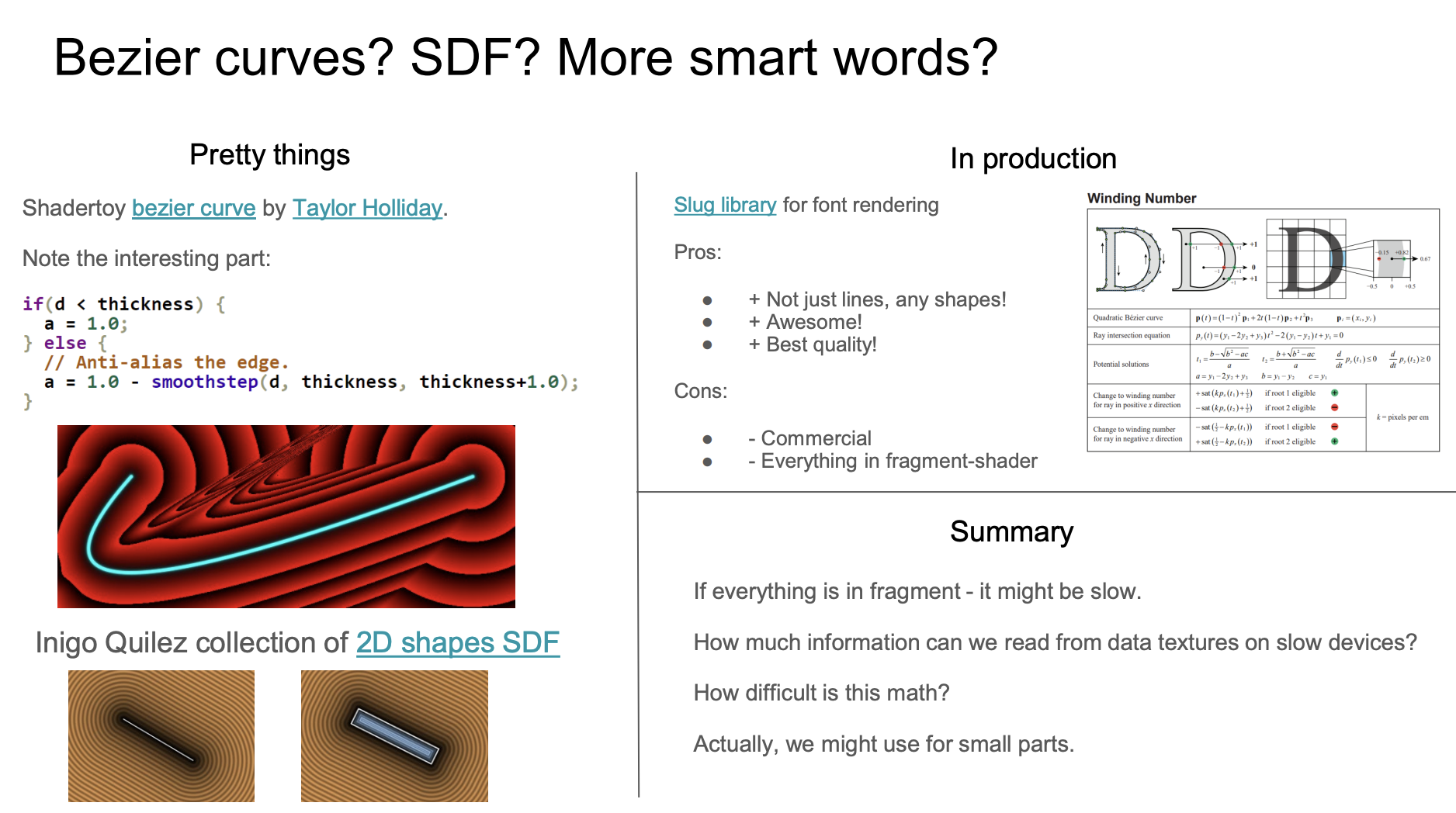
簡單路徑似乎可行。例如上一課原作者 PPT 中提到的 shadertoy 範例 Quadratic Bezier - distance 2D,它對單條貝茲曲線確實有效,但對複雜路徑不行,而且片段著色器裡過於複雜的數學運算也會影響效能。
Path2D
svg-path-sdf 給了另一個想法,有趣的是它幾乎和我們稍後要介紹的文字繪製想法相同。在 OB 上有一個線上範例:使用 regl 的 SDF 點

Canvas2D API 的 fill() 與 stroke() 可以接受 Path2D 作為參數,後者可以直接從 SVG 路徑定義建立。接著用 Canvas2D API 產生 SDF,並當作紋理傳入。做法細節見 tiny-sdf,稍後介紹文字繪製時會再談。
// @see https://github.com/dy/svg-path-sdf/blob/master/index.js#L61C3-L63C31
var path2d = new Path2D(path);
ctx.fill(path2d);
ctx.stroke(path2d);

var data = bitmapSdf(ctx);
當然,Path2D 是瀏覽器環境原生支援的 API,若要用於伺服器端渲染,就需要 polyfill,這裡有更詳細的說明:支援 Path2D API。
使用網格
因此,無論 2D 還是 3D,把 Path 三角化的常見做法如下,範例來自:three.js 中的 SVG 載入器。先把 SVG 文字轉成一組 ShapePath,再建立一組 ShapeGeometry 並渲染:
const shapes = SVGLoader.createShapes(path);
for (const shape of shapes) {
    const geometry = new THREE.ShapeGeometry(shape);
    const mesh = new THREE.Mesh(geometry, material);
    mesh.renderOrder = renderOrder++;

    group.add(mesh);
}
下面來實作我們自己的版本:
- 把路徑定義正規化成絕對指令
- 在曲線上取樣
- 用折線繪製描邊
- 使用 earcut 與 libtess 三角化來繪製填色。
正規化成絕對指令
SVG 路徑指令同時有絕對與相對兩種,例如 M 100 100 L 200 100 等同於 M 100 100 l 100 0。為了方便處理,我們會先把所有相對指令轉成絕對指令。為了方便處理,我們先把所有相對指令轉成絕對指令,Canvas2D API 也使用這種風格,類似 lineTo。我們參考 Three.js 的 ShapePath 實作,它實作了一系列 CanvasRenderingContext2D 方法,例如 moveTo / lineTo / bezierCurveTo 等等。
import { path2Absolute } from '@antv/util';

const path = new ShapePath();
const commands = path2Absolute(d);
commands.forEach((command) => {
    const type = command[0];
    const data = command.slice(1);
    switch (type) {
        case 'M':
            path.moveTo();
        case 'L':
            path.lineTo();
        //...
    }
});
下面簡介 ShapePath 提供的方法。它由一組子路徑組成,對應路徑定義中的多個指令。以 moveTo 與 lineTo 為例,前者建立新的子路徑並設定起點,後者完成到下一點的線段。
export class ShapePath {
    currentPath: Path | null;
    subPaths: Path[];

    moveTo(x: number, y: number) {
        this.currentPath = new Path();
        this.subPaths.push(this.currentPath);
        this.currentPath.moveTo(x, y);
        return this;
    }

    lineTo(x: number, y: number) {
        this.currentPath.lineTo(x, y);
        return this;
    }
}
再看看每條子路徑的結構。
export class Path extends CurvePath {}在曲線上取樣
以不同精度對直線與貝茲曲線取樣。這很好理解:對貝茲曲線來說,要讓線看起來更平滑,唯一的辦法就是增加取樣;對直線則不必加入任何額外取樣。
export class CurvePath extends Curve {
    getPoints(divisions = 12) {
        const resolution =
            curve instanceof EllipseCurve
                ? divisions * 2
                : curve instanceof LineCurve
                ? 1
                : divisions;
        const pts = curve.getPoints(resolution);
    }
}
縮放時的自適應精度
上面固定的 divisions 說明了基本演算法。目前 core 與 ecs 的 Path 渲染器會改為依照二次/三次貝茲曲線與橢圓弧在螢幕上的尺寸來展平它們。它們以 0.25 個實體像素的誤差為目標,並計入相機縮放、裝置像素比、父層變換,以及匯出時使用的渲染通道。較粗的描邊也會限制切線變化,包括端點帽的方向。Path 描邊覆蓋率使用實體像素,因此反鋸齒邊緣不會隨著縮放變大。
精度會向上取整到二的次方。放大時,一旦目前等級不夠就會立即加密;縮小時則多保留一個八度的遲滯,避免在邊界附近反覆重建。每個繪製呼叫會為每條 Path 保留最多四組取樣點。在同一等級內平移與縮放會重用 GPU 幾何。d 的變更會使那些取樣失效。
幾何包圍盒來自原始曲線的極值,與渲染精度無關。Path.points、ECS 的 ComputedPoints,以及曲線長度/路徑上文字的計算,都維持與視圖無關的行為,因此改變縮放不會移動選取範圍,也不會讓文字重排。自訂的 ECS 包圍盒提供者仍然受支援。
細分會在 16 層遞迴或每條 SVG 指令 4096 個區段後停止。在極端放大時,這個工作量上限可能放寬目標誤差。這項變更涵蓋一般的 Path;Rough 路徑、VectorNetwork 取樣,以及歷史上的課程套件,仍維持既有的取樣策略。
以三階 Bézier 曲線為例,給定正規化的 t,就可以依其定義取得取樣點:貝茲曲線
export class CubicBezierCurve extends Curve {
    getPoint(t: number) {
        const point = vec2.create();
        const { v0, v1, v2, v3 } = this;

        vec2.set(
            point,
            CubicBezier(t, v0[0], v1[0], v2[0], v3[0]),
            CubicBezier(t, v0[1], v1[1], v2[1], v3[1]),
        );

        return point;
    }
}
下面是一個圓形 Path 的範例,取樣頂點清單如下:
points = call(() => {
    const { Path } = Lesson13;
    return new Path({
        d: 'M40,0A40,40 0 1,1 0,-40A40,40 0 0,1 40,0Z',
        fill: 'black',
        opacity: 0.5,
    }).points;
});
用折線繪製描邊
現在子路徑上的取樣點都有了,就可以分別繪製填色與描邊。前者稍後再談,後者可以直接使用上一課實作的折線,多段折線 剛好支援一系列子路徑。
SHAPE_DRAWCALL_CTORS.set(Path, [Mesh, SmoothPolyline]);使用 earcut 三角化
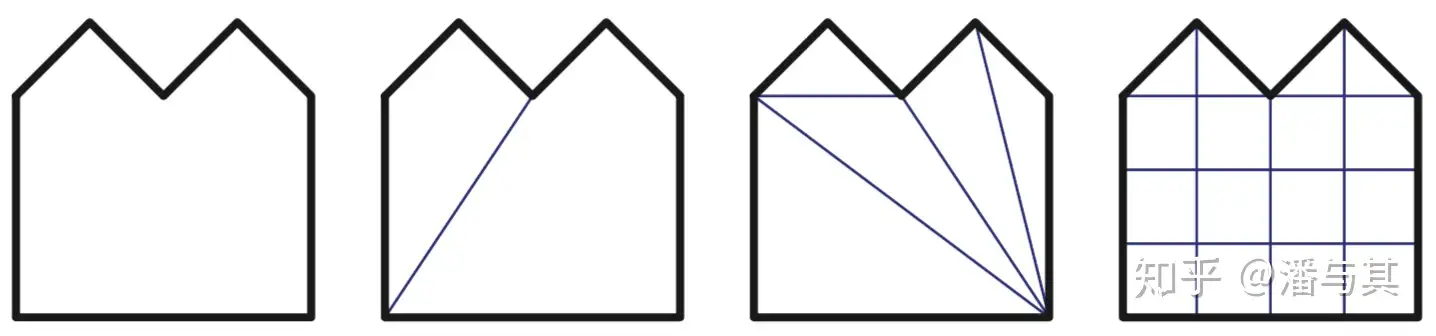
那麼要如何把圖形拆成三角形?一種常見方法叫做 ear clipping。若連接某個頂點的兩個相鄰頂點的線不會與多邊形的任何邊相交,這個頂點就是 ear。 以下圖左側為例。依這個準則,v2、v4 與 v5 是 ear。接著移除找到的 ear,例如 v4,再繼續判斷它的鄰居 v5 與 v3,其中 v5 構成一個 ear。最終所有 ear 都被移除,多邊形也就被拆成三角形。
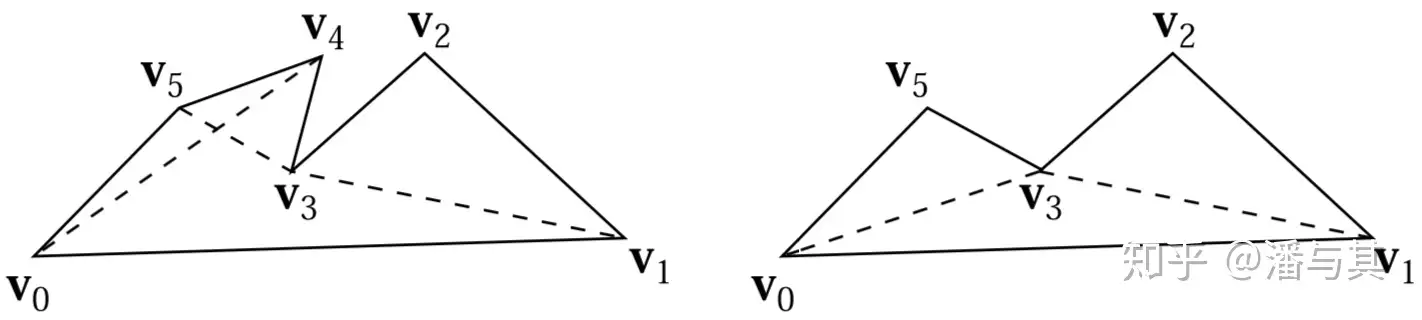
詳細演算法見這篇論文:以剪耳法三角化,而 earcut 提供了 JS 實作:
function isEar(ear) {
    var a = ear.prev,
        b = ear,
        c = ear.next;

    if (area(a, b, c) >= 0) return false; // reflex, can't be an ear

    // now make sure we don't have other points inside the potential ear
    var p = ear.next.next;

    while (p !== ear.prev) {
        // If the poing is in triangle, it's not an ear.
        if (
            pointInTriangle(a.x, a.y, b.x, b.y, c.x, c.y, p.x, p.y) &&
            area(p.prev, p, p.next) >= 0
        )
            return false;
        p = p.next;
    }

    return true;
}
使用 earcut 完成三角化。它輸入取樣點座標,得到索引陣列,甚至會計算誤差。稍後和其他三角化方法比較時會看到,earcut 大幅提升計算速度,但損失一些精度:
import earcut, { flatten, deviation } from 'earcut';

const { d } = path;
const { subPaths } = parsePath(d);
const points = subPaths
    .map((subPath) => subPath.getPoints().map((point) => [point[0], point[1]]))
    .flat(2); // [100, 100, 200, 200, 300, 100, 100, 100]

const { vertices, holes, dimensions } = flatten(points);
const indices = earcut(vertices, holes, dimensions); // [1, 3, 2]
const err = deviation(vertices, holes, dimensions, indices); // 0
接著可以用 gl.drawElements() 或 passEncoder.drawIndexed() 來繪製。下圖中,左側 Path 的定義如下。把它和右側用 SDF 畫的圓比較,可以看出邊緣並不真正平滑,相機放大時更明顯:
const path = new Path({
    d: 'M40,0A40,40 0 1,1 0,-40A40,40 0 0,1 40,0Z',
    fill: 'black',
    opacity: 0.5,
});$icCanvas2 = call(() => {
return document.createElement('ic-canvas-lesson13');
});call(() => {
const { Canvas, Path, Circle } = Lesson13;
const stats = new Stats();
stats.showPanel(0);
const $stats = stats.dom;
$stats.style.position = 'absolute';
$stats.style.left = '0px';
$stats.style.top = '0px';
$icCanvas2.parentElement.style.position = 'relative';
$icCanvas2.parentElement.appendChild($stats);
$icCanvas2.addEventListener('ic-ready', (e) => {
const canvas = e.detail;
canvas.camera.zoom = 2;
const path = new Path({
d: 'M40,0A40,40 0 1,1 0,-40A40,40 0 0,1 40,0Z',
fill: 'black',
opacity: 0.5,
});
path.position.x = 100;
path.position.y = 100;
canvas.appendChild(path);
const circle = new Circle({
cx: 0,
cy: 0,
r: 40,
fill: 'black',
opacity: 0.5,
});
circle.position.x = 200;
circle.position.y = 100;
canvas.appendChild(circle);
});
$icCanvas2.addEventListener('ic-frame', (e) => {
stats.update();
});
});我發現許多 2D 渲染引擎,例如 vello,會用 Ghostscript Tiger.svg 測試 Path 的渲染,本文開頭的範例就能看到。但若和原始 SVG 比較(還記得我們實作的匯出功能嗎?它在畫布右上角。),你會看到少了一些東西。
其他三角化技術
Pixi.js 使用 earcut 對多邊形做三角化。其他三角化函式庫包括 cdt2d 與 libtess.js,後者能力較弱但更準確,尤其是有大量 holes 與自交的路徑。正如 earcut 在文件中提到的,見:為指定 Graphics 物件用 libtess.js 取代 earcut:
如果你希望即使在自交很多、品質很差的資料上也能得到正確的三角化,而 earcut 又不夠精確,可以看看 libtess.js。
多邊形三角化 比較了 earcut 與 libtess.js 的效果。earcut 回傳索引陣列,libtess.js 則不同,它回傳頂點陣列,如儲存庫中的範例所示。這表示我們需要手動產生索引陣列,當然這很簡單:既然不必考慮重用頂點,只要使用從 0 開始的遞增陣列即可。
export function triangulate(contours: [number, number][][]) {
    tessy.gluTessNormal(0, 0, 1);

    const triangleVerts = [];
    tessy.gluTessBeginPolygon(triangleVerts);
    // Omit...
    return triangleVerts;
}

triangulate(points); // [100, 0, 0, 100, 0, 0, 0, 100, 100, 0, 100, 100]
// indices: [0, 1, 2, 3, 4, 5]
你可以回到本文開頭的「兩隻老虎」範例,和左側用 earcut、右側用 libtess.js 產生的結果比較。我們為 Path 加上了 tessellationMethod 屬性,用來在兩種三角化方法之間切換:
export enum TesselationMethod {
    EARCUT,
    LIBTESS,
}
export interface PathAttributes extends ShapeAttributes {
    tessellationMethod?: TesselationMethod;
}
繪製孔洞
在 SVG 預設的 nonzero 規則下,孔洞可以用與外框相反的環繞方向來定義。例如下面這條路徑,外框是順時針的 M0 0 L100 0 L100 100 L0 100 Z,其後兩個孔洞是逆時針:
M0 0 L100 0 L100 100 L0 100 Z M50 50 L50 75 L75 75 L75 50 Z M25 25 L25也可以在定義中反轉順時針方向,例如:在 SVG 中繪製空心圓。關鍵是孔洞的方向必須與外框相反。
填色規則
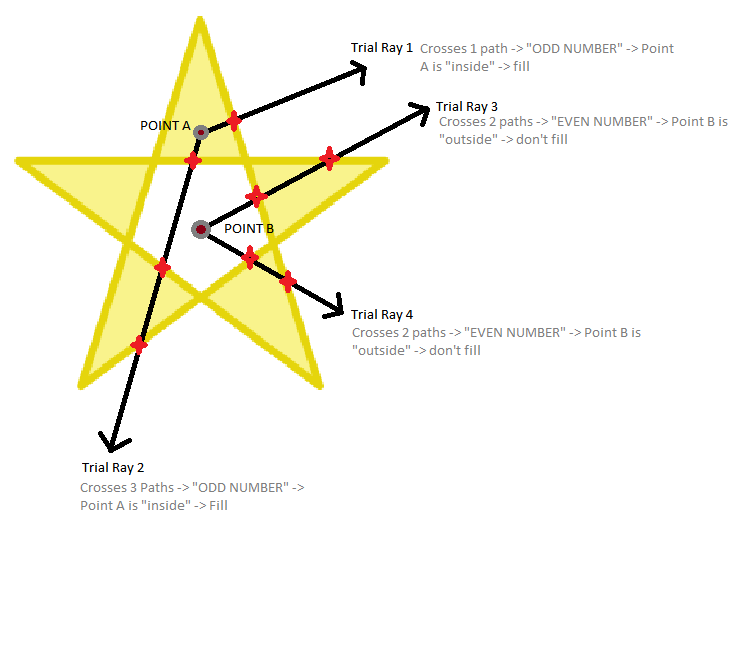
SVG 的 fill-rule 用來決定 Path 的填色區域。在下面的範例中,左側使用 nonzero 規則,右側使用 evenodd 規則。
以中心鏤空區域的一個點為例,射線與圖形相交偶數次,因此判定它在圖形外側,不需要填色。詳見 星形 SVG 上 fill-rule="evenodd" 如何運作。
由於 earcut 不支援自交路徑,我們使用 libtess.js 為路徑做三角化。
tessy.gluTessProperty(
    libtess.gluEnum.GLU_TESS_WINDING_RULE,
    fillRule === 'evenodd'
        ? libtess.windingRule.GLU_TESS_WINDING_ODD
        : libtess.windingRule.GLU_TESS_WINDING_NONZERO,
);
在 ECS 中,fillRule 也適用於預設的 tessellationMethod: 'earcut'。複合路徑與 evenodd 填色會自動使用 libtess,依整條路徑解析環繞方向或奇偶,而不是依輸入順序或第一條輪廓的方向來猜測孔洞。孔洞可以出現在外框之前;巢狀島嶼、重疊輪廓與重複輪廓,都遵循與濾鏡所用的原生 Canvas 遮罩相同的規則。
單一的 nonzero 輪廓仍走 Earcut 快速路徑。這類輪廓若有一般的自交,請明確選擇 libtess。解析複合路徑可能增加三角化成本;既有的幾何快取仍然避免每一幀都重建。填色規則或三角化選項不同的 Path 不再共用填色網格。Rough 的繪製保留獨立的三角化路徑,以維持重疊筆刷的 alpha。
包圍盒與拾取
包圍盒可以用和上一課折線相同的方式估計。我們把重點放在如何判斷一個點是否在 Path 內部。
使用原生方法
CanvasRenderingContext2D 提供兩個開箱即用的方法,isPointInPath 與 isPointInStroke,可以和先前介紹的 Path2D 一起輕鬆使用。
const canvas = document.getElementById('canvas');
const ctx = canvas.getContext('2d');
const isPointInPath = ctx.isPointInPath(new Path2D(d), x, y);
我們先前介紹過 OffscreenCanvas,它特別適合拾取判斷這類與主執行緒渲染工作無關的計算。我們在 PickingPlugin 中做初始化,然後傳入 containsPoint,以便對特定圖形按需呼叫:
export class Picker implements Plugin {
    private ctx: OffscreenCanvasRenderingContext2D | CanvasRenderingContext2D;

    private hitTest(shape: Shape, wx: number, wy: number): boolean {
        if (shape.hitArea || shape.renderable) {
            shape.worldTransform.applyInverse(
                { x: wx, y: wy },
                tempLocalPosition,
            );
            const { x, y } = tempLocalPosition;

            return shape.containsPoint(x, y);
            return shape.containsPoint(x, y, this.ctx);
        }

        return false;
    }
}
幾何方法
Path 的每條子路徑都可以對它與某個點的位置關係做幾何運算。例如 Pixi.js 實作了 GraphicsContext - containsPoint,可以進一步閱讀。
手繪風格繪製
excalidraw 使用 rough 做手繪風格繪製。我們不需要 rough 預設提供的、基於 Canvas2D 或 SVG 的實際繪製功能,所以使用 RoughGenerator 是更好的選擇。
產生手繪路徑定義
RoughGenerator 為常見形狀提供產生方法,以矩形為例:
const generator = rough.generator();
const rect = generator.rectangle(0, 0, 100, 100);
它會依輸入參數為我們產生一組類似子路徑的結構,稱為 OpSet,其中包含 move、lineTo 與 bcurveTo 運算子。我們可以很容易把它轉成絕對路徑指令,然後取樣,並繼續用折線繪製!
import { AbsoluteArray } from '@antv/util';
import { OpSet } from 'roughjs/bin/core';

export function opSet2Absolute(set: OpSet) {
    const array = [];
    set.ops.forEach(({ op, data }) => {
        if (op === 'move') {
            array.push(['M', data[0], data[1]]);
        } else if (op === 'lineTo') {
            array.push(['L', data[0], data[1]]);
        } else if (op === 'bcurveTo') {
            array.push([
                'C',
                data[0],
                data[1],
                data[2],
                data[3],
                data[4],
                data[5],
            ]);
        }
    });
    return array as AbsoluteArray;
}
Rough Mixin
我們希望這些包圍盒計算與拾取功能能重用非手繪版本,原因如下:
- 這種風格化渲染只應影響渲染效果,不改變它的物理性質。
- 一個手繪圖形實際上由好幾組 Path 組成,精確計算包圍盒會浪費效能。
- 拾取時應把它當成一個整體,依 Path 判斷會得到錯誤結果。例如滑鼠停在圖形內部,但落在線條之間的空白處,因而被判定不在圖形內。 因此我們建立一個新的 Mixin,帶上 rough 支援的全部參數,例如
seed、roughness等,並在這些參數改變時立即重繪:
import { Drawable, Options } from 'roughjs/bin/core';
import { GConstructor } from '.';
import { parsePath } from '../../utils';

export interface IRough
    extends Omit<Options, 'stroke' | 'fill' | 'strokeWidth'> {
    /**
     * @see https://github.com/rough-stuff/rough/wiki#roughness
     */
    roughness: Options['roughness'];
}
export function Rough<TBase extends GConstructor>(Base: TBase) {
    abstract class Rough extends Base implements IRough {
        get roughness() {
            return this.#roughness;
        }
        set roughness(roughness: number) {
            if (this.#roughness !== roughness) {
                this.#roughness = roughness;
                this.renderDirtyFlag = true;
                this.generate();
            }
        }
    }
}
這樣就能把我們已經支援的圖形包起來,得到手繪效果。用法如下,以 RoughRect 為例,它繼承自 Rect:
import { RectWrapper, RectAttributes } from './Rect';

export class RoughRect extends Rough(RectWrapper(Shape)) {}
fillStyle solid
為了支援 fillStyle = 'solid' 的情況:
SHAPE_DRAWCALL_CTORS.set(RoughRect, [
    ShadowRect,
    Mesh, // fillStyle === 'solid'
    SmoothPolyline, // fill
    SmoothPolyline, // stroke
]);$icCanvas3 = call(() => {
return document.createElement('ic-canvas-lesson13');
});call(() => {
const { Canvas, RoughCircle } = Lesson13;
const stats = new Stats();
stats.showPanel(0);
const $stats = stats.dom;
$stats.style.position = 'absolute';
$stats.style.left = '0px';
$stats.style.top = '0px';
$icCanvas3.parentElement.style.position = 'relative';
$icCanvas3.parentElement.appendChild($stats);
const circle1 = new RoughCircle({
cx: 100,
cy: 100,
r: 50,
fill: 'black',
strokeWidth: 2,
stroke: 'red',
fillStyle: 'dots',
});
const circle2 = new RoughCircle({
cx: 200,
cy: 100,
r: 50,
fill: 'black',
strokeWidth: 2,
stroke: 'red',
fillStyle: 'hachure',
});
const circle3 = new RoughCircle({
cx: 300,
cy: 100,
r: 50,
fill: 'black',
strokeWidth: 2,
stroke: 'red',
fillStyle: 'zigzag',
});
const circle4 = new RoughCircle({
cx: 400,
cy: 100,
r: 50,
fill: 'black',
strokeWidth: 2,
stroke: 'red',
fillStyle: 'cross-hatch',
});
const circle5 = new RoughCircle({
cx: 500,
cy: 100,
r: 50,
fill: 'black',
strokeWidth: 2,
stroke: 'red',
fillStyle: 'solid',
});
const circle6 = new RoughCircle({
cx: 100,
cy: 200,
r: 50,
fill: 'black',
strokeWidth: 2,
stroke: 'red',
fillStyle: 'dashed',
});
const circle7 = new RoughCircle({
cx: 200,
cy: 200,
r: 50,
fill: 'black',
strokeWidth: 2,
stroke: 'red',
fillStyle: 'zigzag-line',
});
$icCanvas3.addEventListener('ic-ready', (e) => {
const canvas = e.detail;
canvas.appendChild(circle1);
canvas.appendChild(circle2);
canvas.appendChild(circle3);
canvas.appendChild(circle4);
canvas.appendChild(circle5);
canvas.appendChild(circle6);
canvas.appendChild(circle7);
});
$icCanvas3.addEventListener('ic-frame', (e) => {
stats.update();
});
});匯出 SVG
可以看到,rough 產生的圖形由一組 Path 組成。因此匯出成 SVG 時需要使用 <path>。你可以在上面的範例中試試匯出:
export function exportRough(
    node: SerializedNode,
    $g: SVGElement,
    doc: Document,
) {
    const {
        attributes: { drawableSets, stroke, fill },
    } = node;

    drawableSets.forEach((drawableSet) => {
        const { type } = drawableSet;
        const commands = opSet2Absolute(drawableSet);
        const d = path2String(commands, 2); // retain two decimal places
        const $path = createSVGElement('path', doc);
        $path.setAttribute('d', d);
        $g.appendChild($path);
        if (type === 'fillSketch') {
            $path.setAttribute('stroke', fill as string);
            $path.setAttribute('fill', 'none');
        }
    });
}
水彩風格
使用 watercolorizer,我們新增 fillStyle: 'watercolor'。
值得注意的是,矩形不再只用四個頂點來建模。我們改用 subdivideAxisAlignedRect,依尺寸(透過 hypot(w, h) / 40)為每條邊選擇 4 到 16 之間的細分數量,讓外框更像高頂點數的多邊形,並減少裸四邊形那種均勻向外鼓起。