第 3 課 - 場景圖與變換
上一課我們畫了一個圓。在這一課中,你將學到下列內容:
- 變換。讓圖形支援平移、縮放、旋轉與傾斜變換。
- 場景圖。
最後,我們會用上述功能實現一個簡單的太陽系模型。
(async () => {
    const { Canvas, Circle, Group } = Lesson3;
    const canvas = await Utils.createCanvas(Canvas, 400, 400);

    const solarSystem = new Group();
    const earthOrbit = new Group();
    const moonOrbit = new Group();

    const sun = new Circle({
        cx: 0,
        cy: 0,
        r: 100,
        fill: 'red',
    });
    const earth = new Circle({
        cx: 0,
        cy: 0,
        r: 50,
        fill: 'blue',
    });
    const moon = new Circle({
        cx: 0,
        cy: 0,
        r: 25,
        fill: 'yellow',
    });
    solarSystem.appendChild(sun);
    solarSystem.appendChild(earthOrbit);
    earthOrbit.appendChild(earth);
    earthOrbit.appendChild(moonOrbit);
    moonOrbit.appendChild(moon);

    solarSystem.position.x = 200;
    solarSystem.position.y = 200;
    earthOrbit.position.x = 100;
    moonOrbit.position.x = 100;

    canvas.appendChild(solarSystem);

    let id;
    const animate = () => {
        solarSystem.rotation += 0.01;
        earthOrbit.rotation += 0.02;
        canvas.render();
        id = requestAnimationFrame(animate);
    };
    animate();

    unsubscribe(() => {
        cancelAnimationFrame(id);
        canvas.destroy();
    });
    return canvas.getDOM();
})();
變換
CSS Transform 提供這些變換:translate、scale、rotate 與 skew。 這些變換背後的矩陣可以在 變換 - LearnOpenGL 找到。由於場景中只有 2D 圖形,我們只需要 3x3 矩陣;又因為最後一列 [0, 0, 1] 是固定的,實際上只需要儲存矩陣的 6 個元素:
| a | c | tx|
| b | d | ty|
| 0 | 0 | 1 |
我們直接使用 @pixi/math 為圖形基底類別加上 transform 屬性,當然也可以用 gl-matrix。
import { Transform } from '@pixi/math';

export abstract class Shape {
    transform = new Transform();
}
在加入更多方法之前,先介紹一個重要概念。
局部座標與世界座標
座標系可以用來描述場景中物件的位置、旋轉與縮放;最廣為人知的是歐幾里得座標系。圖學中也會使用重心座標系。歐幾里得空間最多可以包含 N 個維度,這裡我們只使用二維。
當我們說「月球繞著地球轉」,實際上是忽略了地球以外的物件。在月球的局部座標系中,它只是繞著一個點旋轉;即便在整個太陽系的世界座標系中,地球仍繞著太陽轉,月球最終則沿著前面描述的複雜軌跡運動。
局部座標系與世界座標系的概念在 2D 與 3D 世界都適用。下圖來自 playcanvas,左側是世界座標系,可以看出座標軸始終相同。右側是立方體的局部座標系,座標軸會隨著物件變換(此處為旋轉)而改變。因此,如果這個已經旋轉的物件此時沿著 X 軸(紅色)正方向平移,它可能會跑到地面以下。

世界座標系由場景圖中的所有節點共用,因此原點固定為 (0, 0),XYZ 軸(2D 場景中為 XY 軸)的方向也是固定的。即使場景中的箱子自己旋轉,對它而言世界座標系也不會改變。但它自己的局部座標系,原點不再是 (0, 0),而是物件本身的位置,座標軸自然也會改變。顧名思義,它與物件本身相關聯。
想像箱子「沿著 X 軸(紅色)移動 10 個單位」。在不同座標系中,這句話的意義完全不同。因此,當我們要變換一個物件時,必須先指定它所在的座標系。
此外,局部座標系也稱為模型座標系,描述模型自身的變換時更方便。如果想讓每個士兵轉頭,在局部座標系中顯然更容易,因為「轉向」這個變換是相對於每個模型的頭部。

我們為圖形基底類別加上局部座標系與世界座標系中的變換方法,由 @pixi/math 提供:
export abstract class Shape {
    get localTransform(): Matrix {
        return this.transform.localTransform;
    }
    get worldTransform(): Matrix {
        return this.transform.worldTransform;
    }
}
下圖來自 電腦圖學基礎 第 4 版,展示局部(物件)座標系經過模型變換進入世界座標系,再經過相機變換進入相機座標系,接著經過投影變換進入裁剪座標系(clip space/NDC),最後經過視埠變換進入螢幕座標系(screen/pixel space)。相機稍後會介紹,目前我們只需要關心模型變換。
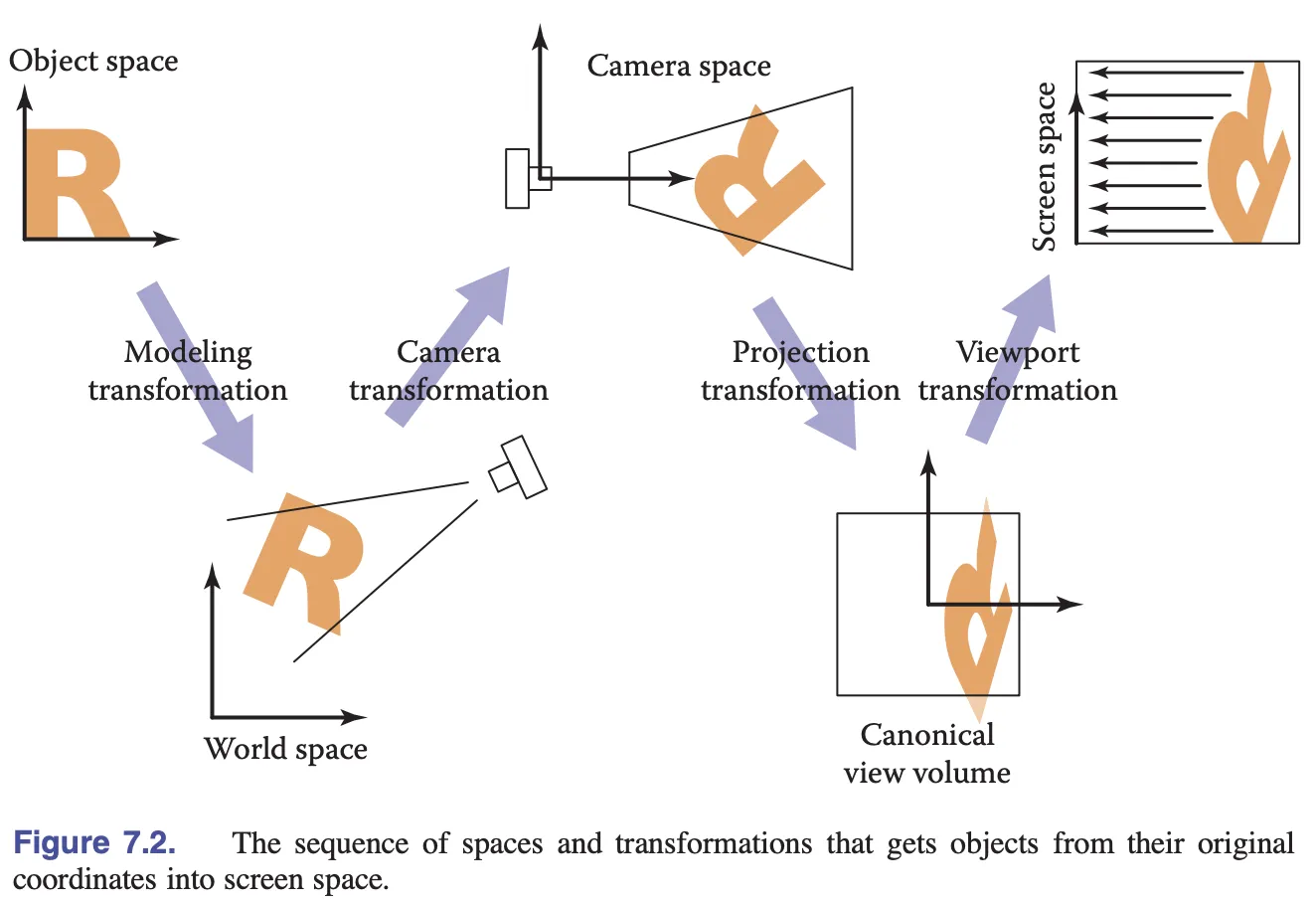
接下來需要把模型變換矩陣傳入著色器,以變換頂點位置。
對齊
在頂點著色器中,模型變換矩陣透過 Uniform 傳入,再與位置向量左乘:
layout(std140) uniform ShapeUniforms {
  mat3 u_ModelMatrix;
};

vec2 position = (u_ModelMatrix * vec3(a_Position + a_Size * a_FragCoord, 1)).xy;
自然地,我們直接建立一個長度為 9 的 Float32Array(3 * 3 的矩陣):
this.#uniformBuffer = device.createBuffer({
    viewOrSize: Float32Array.BYTES_PER_ELEMENT * 9, // mat3
    usage: BufferUsage.UNIFORM,
    hint: BufferFrequencyHint.DYNAMIC,
});
但接著主控台會報錯,說我們建立的 Uniform Buffer 不夠長。這是怎麼回事?
[.WebGL-0x10800c78f00] GL_INVALID_OPERATION: It is undefined behaviour to use a uniform buffer that is too small.這裡需要介紹 記憶體配置 的概念。Uniform Block 支援 packed、shared、std140、std430 配置規則。不同的配置規則會導致緩衝區中儲存與讀取資料的方式不同。選擇 std140 的優點是各個 Program 之間沒有配置差異(相較於 packed),不同 OpenGL 實作之間也沒有差異(相較於 shared);缺點是必須手動處理對齊。官方文件對此提出警告,提醒我們應盡量避免使用 vec3,以避開對齊問題:
警告:實作有時會把 vec3 分量的 std140 配置弄錯。建議你手動為結構與陣列補上填充,並完全避免使用 vec3。
那麼什麼是對齊?以 vec3 為例,它的長度是 4 * 3 個位元組,實際上卻佔用 16 個位元組。實務上對齊規則非常複雜,這裡的 mat3 實際上佔用 4 * 12 個位元組的儲存空間:
this.#uniformBuffer = device.createBuffer({
    viewOrSize: Float32Array.BYTES_PER_ELEMENT * 12, // mat3
    usage: BufferUsage.UNIFORM,
});
wgsl-offset-computer 是很好的線上工具,可以透過視覺化幫助理解對齊規則:
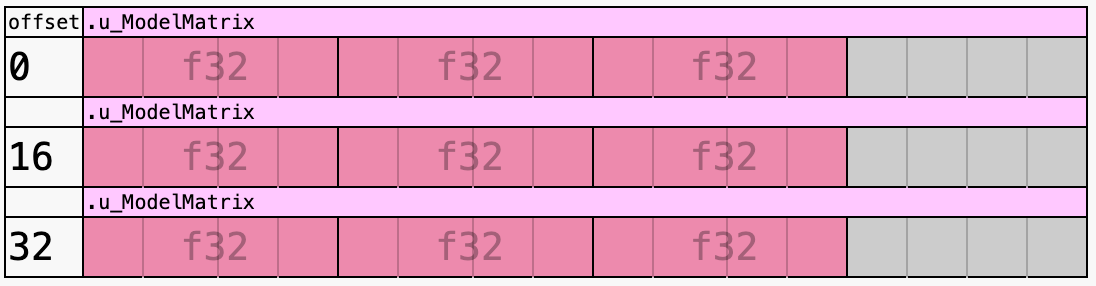
寫入資料時,我們需要手動加入填充:
| a | c | tx|
| b | d | ty|
| 0 | 0 | 1 |
| padding | padding | padding |const PADDING = 0;
const { a, b, c, d, tx, ty } = this.worldTransform;
this.#uniformBuffer.setSubData(
0,
new Uint8Array(
new Float32Array([
a,
b,
0,
PADDING,
c,
d,
0,
PADDING,
tx,
ty,
1,
PADDING,
]).buffer,
),
);值得注意的是,WGSL 也有同樣的 Uniform 與 Storage 緩衝區的對齊,Rust 生態系中還有 bytemuck 可以幫助自動對齊。下面的範例來自 bevy:
use bytemuck::{Pod, Zeroable};

#[repr(C)]
#[derive(Copy, Clone, Pod, Zeroable)]
pub struct UiMaterialVertex {
    pub position: [f32; 3],
    pub uv: [f32; 2],
    pub border_widths: [f32; 4],
}
讓我們為圖形加上平移、旋轉與縮放等 API。
平移
export abstract class Shape {
    get position(): ObservablePoint {
        return this.transform.position;
    }
    set position(value: IPointData) {
        this.transform.position.copyFrom(value);
    }

    get x(): number {
        return this.position.x;
    }
    set x(value: number) {
        this.transform.position.x = value;
    }

    get y(): number {
        return this.position.y;
    }
    set y(value: number) {
        this.transform.position.y = value;
    }
}
用法與 PIXI.js 一致:
circle = call(() => {
    const { Circle } = Lesson3;
    return new Circle({
        cx: 100,
        cy: 100,
        r: 50,
        fill: 'red',
    });
});positionX = Inputs.range([0, 100], { label: 'position.x', value: 0, step: 1 });positionY = Inputs.range([0, 100], { label: 'position.y', value: 0, step: 1 });call(() => {
circle.position.x = positionX;
circle.position.y = positionY;
});(async () => {
const { Canvas } = Lesson3;
const canvas = await Utils.createCanvas(Canvas, 200, 200);
canvas.appendChild(circle);
let id;
const animate = () => {
canvas.render();
id = requestAnimationFrame(animate);
};
animate();
unsubscribe(() => {
cancelAnimationFrame(id);
canvas.destroy();
});
return canvas.getDOM();
})();軸心
旋轉、縮放與傾斜都需要指定變換中心。在 Pixi.js 中我們稱它為 pivot。它與 CSS 的 transform-origin 不同,請見:PixiJS 定位。

pivot 也會影響物件位置的偏移。

export abstract class Shape {
    get pivot(): ObservablePoint {
        return this.transform.pivot;
    }
    set pivot(value: IPointData) {
        this.transform.pivot.copyFrom(value);
    }
}
旋轉
export abstract class Shape {
    get rotation(): number {
        return this.transform.rotation;
    }
    set rotation(value: number) {
        this.transform.rotation = value;
    }
}circle2 = call(() => {
const { Circle } = Lesson3;
const circle = new Circle({
cx: 0,
cy: 0,
r: 50,
fill: 'red',
});
circle.position = { x: 100, y: 100 };
return circle;
});pivotX = Inputs.range([0, 100], { label: 'pivot.x', value: 0, step: 1 });pivotY = Inputs.range([0, 100], { label: 'pivot.y', value: 0, step: 1 });call(() => {
circle2.pivot.x = pivotX;
circle2.pivot.y = pivotY;
});(async () => {
const { Canvas } = Lesson3;
const canvas = await Utils.createCanvas(Canvas, 200, 200);
canvas.appendChild(circle2);
let id;
const animate = () => {
circle2.rotation += 0.01;
canvas.render();
id = requestAnimationFrame(animate);
};
animate();
unsubscribe(() => {
cancelAnimationFrame(id);
canvas.destroy();
});
return canvas.getDOM();
})();縮放
export abstract class Shape {
    get scale(): ObservablePoint {
        return this.transform.scale;
    }
    set scale(value: IPointData) {
        this.transform.scale.copyFrom(value);
    }
}circle3 = call(() => {
const { Circle } = Lesson3;
return new Circle({
cx: 0,
cy: 0,
r: 50,
fill: 'red',
});
});pivotX2 = Inputs.range([0, 100], { label: 'pivot.x', value: 0, step: 1 });pivotY2 = Inputs.range([0, 100], { label: 'pivot.y', value: 0, step: 1 });scaleX = Inputs.range([0, 5], { label: 'scale.x', value: 1, step: 0.1 });scaleY = Inputs.range([0, 5], { label: 'scale.y', value: 1, step: 0.1 });call(() => {
circle3.pivot.x = pivotX2;
circle3.pivot.y = pivotY2;
circle3.scale.x = scaleX;
circle3.scale.y = scaleY;
circle3.position.x = 100;
circle3.position.y = 100;
});(async () => {
const { Canvas } = Lesson3;
const canvas = await Utils.createCanvas(Canvas, 200, 200);
canvas.appendChild(circle3);
let id;
const animate = () => {
canvas.render();
id = requestAnimationFrame(animate);
};
animate();
unsubscribe(() => {
cancelAnimationFrame(id);
canvas.destroy();
});
return canvas.getDOM();
})();傾斜
export abstract class Shape {
    get skew(): ObservablePoint {
        return this.transform.skew;
    }
    set skew(value: IPointData) {
        this.transform.skew.copyFrom(value);
    }
}
場景圖
場景圖 是用來組織與管理 2D/3D 虛擬場景的資料結構,是一個有向無環圖。場景圖提供兩項主要能力:
- 描述父子關係
- 基於父子關係,自動完成一些複雜的連鎖計算。
Figma 的左側面板展示了場景圖:
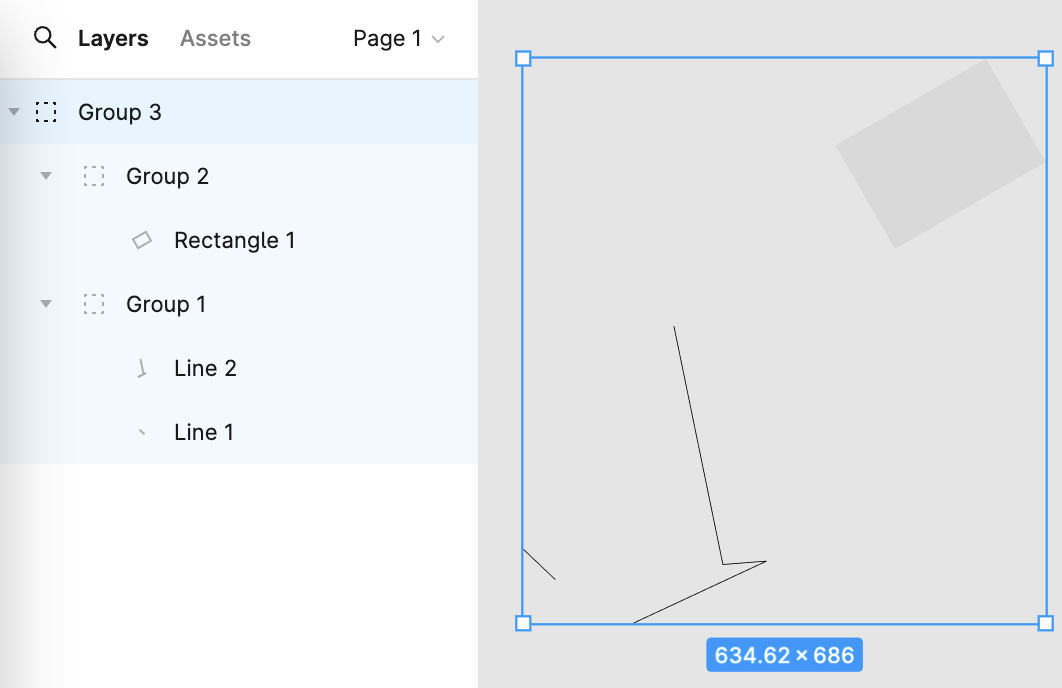
想像我們需要建立一個簡單的太陽系場景,階層關係如下:
solarSystem
   |    |
   |   sun
   |
 earthOrbit
   |    |
   |  earth
   |
 moonOrbit
      |
     moon
用這個 API 來描述。Group 只是繼承圖形基底類別,不需要覆寫渲染方法:
const solarSystem = new Group();
const earthOrbit = new Group();
const moonOrbit = new Group();

const sun = new Circle({
    cx: 0,
    cy: 0,
    r: 100,
    fill: 'red',
});
const earth = new Circle({
    cx: 0,
    cy: 0,
    r: 50,
    fill: 'blue',
});
const moon = new Circle({
    cx: 0,
    cy: 0,
    r: 25,
    fill: 'yellow',
});
solarSystem.appendChild(sun);
solarSystem.appendChild(earthOrbit);
earthOrbit.appendChild(earth);
earthOrbit.appendChild(moonOrbit);
moonOrbit.appendChild(moon);
父子關係
為圖形加上 parent 與 children 屬性:
export abstract class Shape {
    parent: Shape;
    readonly children: Shape[] = [];
}
接著加上 append/removeChild 節點方法。如果子節點先前已經有父節點,就先移除。這裡設定 _parentID 與 @pixi/math 的實作有關,最後一小節會談到:
export abstract class Shape {
  appendChild(child: Shape) {
    if (child.parent) {
      child.parent.removeChild(child);
    }
    child.parent = this;
    child.transform._parentID = -1;
    this.children.push(child);

    return child;
  }
}
走訪場景圖
有了階層之後,就可以用遞迴走訪整個場景圖。這裡加上一個工具方法:
export function traverse(shape: Shape, callback: (shape: Shape) => void) {
    callback(shape);
    shape.children.forEach((child) => {
        traverse(child, callback);
    });
}
畫布渲染時,使用上述工具方法依序渲染每個圖形:
export class Canvas {
  render() {
    const { hooks } = this.#pluginContext;
    hooks.beginFrame.call();
    this.#shapes.forEach((shape) => {
      traverse(shape, (s) => {
        hooks.render.call(s);
      });
    });
    hooks.endFrame.call();
  }
}
更新變換
在場景圖中,子節點在世界座標系中的變換矩陣用下列方式計算:
child's WorldTransform = parent's WorldTransform
    * child's LocalTransform
我們在渲染每一幀之前,完成變換矩陣的更新:
hooks.render.tap((shape) => {
  shape.transform.updateTransform(
    shape.parent ? shape.parent.transform : IDENTITY_TRANSFORM,
  );
  shape.render(this.#device, this.#renderPass, this.#uniformBuffer);
});
你可能會擔心:如果圖形沒有發生變換,是否仍需要每一幀都更新?畢竟整個場景圖要對每個圖形執行運算,額外開銷不小。我們在 第 2 課 - 髒旗標 介紹過這個設計模式,現在來分析 @pixi/math 的實作。
每次發生變換時,例如平移變換,只會遞增版本號 _localID:
this.position = new ObservablePoint(this.onChange, this, 0, 0);

protected onChange(): void {
    this._localID++;
}
更新局部變換矩陣時,用版本號判斷自上一次以來是否沒有發生變換;否則才執行實際的矩陣運算。完成後更新版本號,並透過重設 _parentID 強制更新世界變換矩陣:
updateTransform(parentTransform: Transform): void {
    const lt = this.localTransform;
    if (this._localID !== this._currentLocalID) {
        // Perform actual matrix operations
        lt.a = this._cx * this.scale.x;
        // ...
        this._currentLocalID = this._localID;
        this._parentID = -1;
    }
    if (this._parentID !== parentTransform._worldID) {
        this._parentID = parentTransform._worldID;
        this._worldID++;
    }
}
還記得我們先前新增的 appendChild 方法嗎?由於父節點變了,需要重設 _parentID,這樣下一次更新時就會重新計算世界座標系中的矩陣:
appendChild(child: Shape) {
    child.transform._parentID = -1;
}
PIXI.js 在計算包圍盒這類額外開銷很高的操作中,也使用了這個模式。