第 4 課 - 相機
在本課中,你將學到以下內容:
- 什麼是相機?
- 投影變換。
- 相機變換。
- 相機動畫。使用 Landmark 在不同的相機狀態之間過渡。
我們可以透過控制相機來改變畫布上顯示的內容。點擊並拖曳滑鼠可以平移;按住 Shift 並拖曳可以繞指定點旋轉;使用滑鼠滾輪可以以指定點為中心放大與縮小。按下按鈕會以平滑的過渡效果回到初始狀態。
$button = call(() => {
    const $button = document.createElement('button');
    $button.textContent = 'FlyTo origin';
    return $button;
});(async () => {
const { Canvas, Circle, Group } = Lesson4;
const canvas = await Utils.createCanvas(Canvas, 400, 400);
const solarSystem = new Group();
const earthOrbit = new Group();
const moonOrbit = new Group();
const sun = new Circle({
cx: 0,
cy: 0,
r: 100,
fill: 'red',
});
const earth = new Circle({
cx: 0,
cy: 0,
r: 50,
fill: 'blue',
});
const moon = new Circle({
cx: 0,
cy: 0,
r: 25,
fill: 'yellow',
});
solarSystem.appendChild(sun);
solarSystem.appendChild(earthOrbit);
earthOrbit.appendChild(earth);
earthOrbit.appendChild(moonOrbit);
moonOrbit.appendChild(moon);
solarSystem.position.x = 200;
solarSystem.position.y = 200;
earthOrbit.position.x = 100;
moonOrbit.position.x = 100;
canvas.appendChild(solarSystem);
let id;
const animate = () => {
solarSystem.rotation += 0.01;
earthOrbit.rotation += 0.02;
canvas.render();
id = requestAnimationFrame(animate);
};
animate();
unsubscribe(() => {
cancelAnimationFrame(id);
canvas.destroy();
});
const landmark = canvas.camera.createLandmark({
x: 0,
y: 0,
zoom: 1,
rotation: 0,
});
$button.onclick = () => {
canvas.camera.gotoLandmark(landmark, {
duration: 1000,
easing: 'ease',
});
};
return canvas.getDOM();
})();什麼是相機?
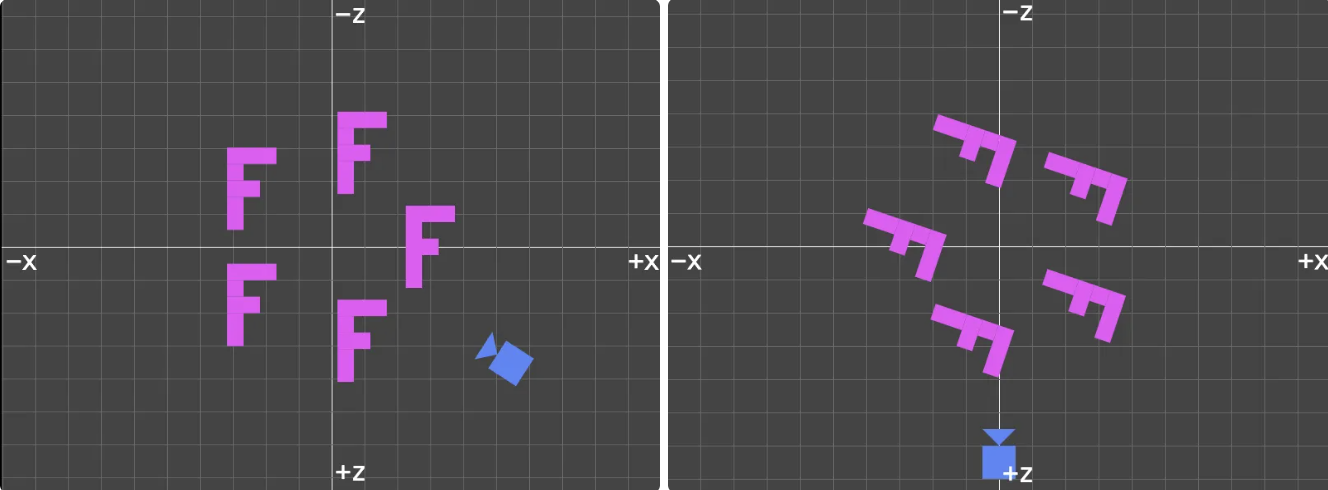
相機描述我們觀看世界的角度。焦點與相機位置都會影響最終影像。它同時適用於 2D 與 3D 場景。透過控制相機,我們可以輕鬆完成過去必須移動整塊畫布才能做到的某些操作,甚至可以實現相機動畫。下面這張來自 WebGL 3D - 相機 的圖,以鳥瞰方式呈現 XZ 平面上的內容。若要達到相同的視覺效果,移動相機(左圖)會比旋轉整塊畫布中的所有物件(右圖)更直覺,實作上的效能也更好。我們很快就會看到這一點:
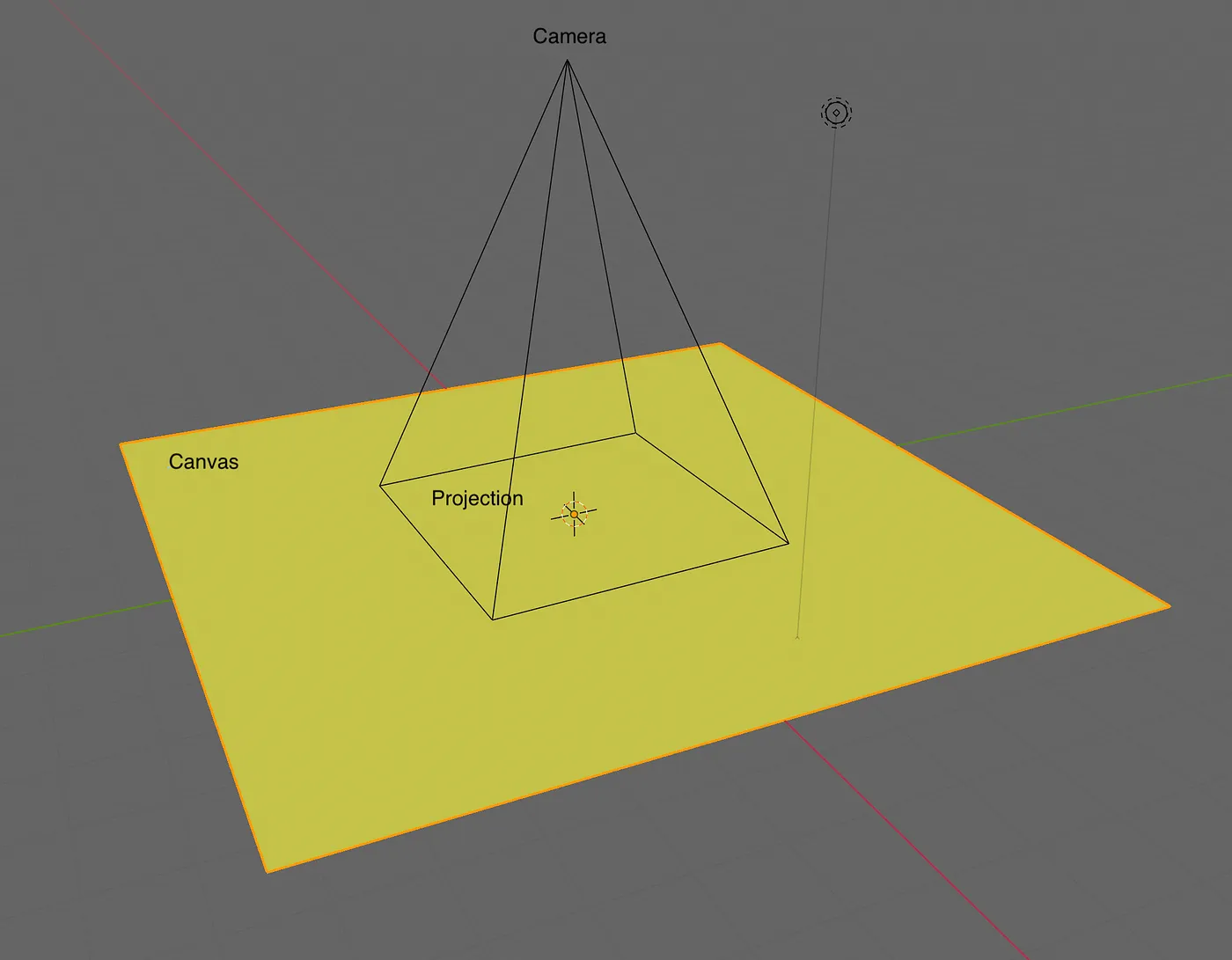
我們的畫布位於 XY 平面上,相機從螢幕外側向內觀察。下面這張圖來自:如何在 WebGL 中建立類似 Figma 的無限畫布。當我們想把畫布向左平移時,對應的相機移動是向右平移:
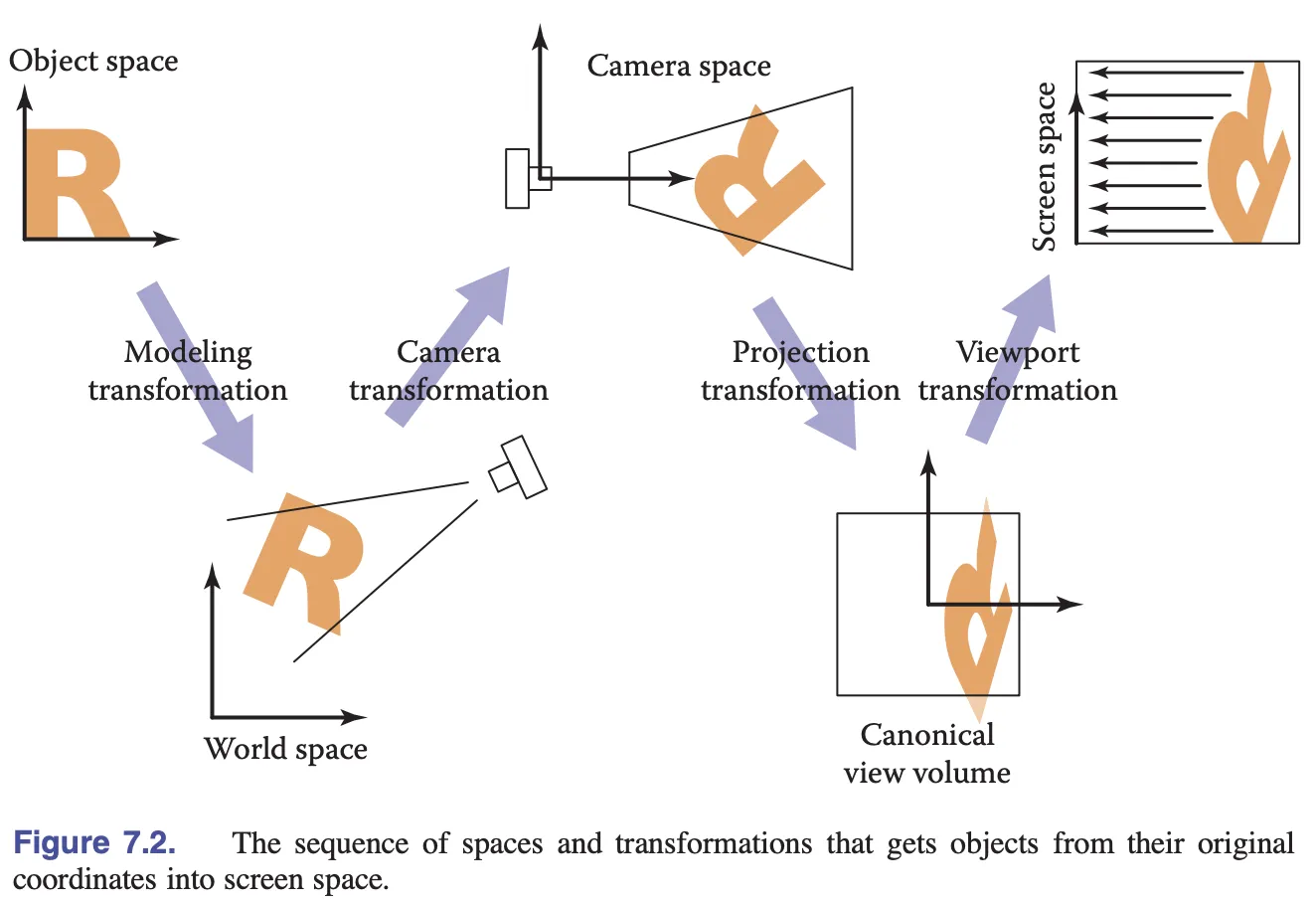
讓我們回顧物件從模型空間轉換到螢幕空間的各個階段。上一課介紹了模型變換。本課將討論投影變換與相機變換。
投影變換
讓我們先回顧先前講過的、從像素空間到裁剪空間的變換:
// Pixel space to [0, 1] (Screen space)
vec2 zeroToOne = position / u_Resolution;

// Convert from [0, 1] to [0, 2]
vec2 zeroToTwo = zeroToOne * 2.0;

// Convert from [0, 2] to [-1, 1] (NDC/clip space)
vec2 clipSpace = zeroToTwo - 1.0;

// Flip Y axis
gl_Position = vec4(clipSpace * vec2(1, -1), 0.0, 1.0);
如果能用單一的投影變換完成,程式會精簡許多。例如,我們可以直接在左側乘上模型變換矩陣:
layout(std140) uniform SceneUniforms {
  mat3 u_ProjectionMatrix;
};

gl_Position = vec4((u_ProjectionMatrix
    * u_ModelMatrix
    * vec3(position, 1)).xy, 0, 1);
2D 投影變換非常容易實作;你只需要提供 width 與 height。著色器中除以 u_Resolution,對應到這裡的 / width 與 / height:
[2 / width, 0, 0, 0, -2 / height, 0, -1, 1, 1];我們直接使用 gl-matrix 提供的 projection 方法。若有興趣,可以查看它的原始碼,實作完全相同。畫布尺寸改變時,也需要再次呼叫這個方法以重新計算。
export class Camera {
    #projectionMatrix = mat3.create();

    get projectionMatrix() {
        return this.#projectionMatrix;
    }

    projection(width: number, height: number) {
        mat3.projection(this.#projectionMatrix, width, height);
    }
}
不過,我們不能直接傳入 projectionMatrix,原因是上一課提到的 對齊問題。在傳入著色器之前,需要為 mat3 補上 padding:
export function paddingMat3(matrix: mat3) {
    return [
        matrix[0],
        matrix[1],
        matrix[2],
        0,
        matrix[3],
        matrix[4],
        matrix[5],
        0,
        matrix[6],
        matrix[7],
        matrix[8],
        0,
    ];
}
最後,我們在畫布初始化的同時建立相機。之後可以透過 canvas.camera 存取它:
export class Canvas {
    #camera: Camera;
    get camera() {
        return this.#camera;
    }

    constructor() {
        const camera = new Camera(width / dpr, height / dpr);
        this.#camera = camera;
    }
}
現在來考慮相機變換的問題,例如平移。
相機變換
相機變換同樣可以用矩陣表示。完成變換後,可以在著色器中這樣使用。相較於為每個圖形計算並更新模型變換矩陣 u_ModelMatrix,一次性更新全域的相機變換矩陣更有效率:
layout(std140) uniform SceneUniforms {
  mat3 u_ProjectionMatrix;
  mat3 u_ViewMatrix;
};

gl_Position = vec4((u_ProjectionMatrix
    * u_ViewMatrix
    * u_ModelMatrix
    * vec3(position, 1)).xy, 0, 1);
相機變換矩陣應該是相機在世界座標系中之變換的逆矩陣。如同開頭的例子,相機向右移動,對應到場景向左移動。這裡使用 gl-matrix 提供的 invert 方法來計算逆矩陣。同時,加入其他 getter,例如 projectionMatrix * viewMatrix,供後續使用:
export class Camera {
  #matrix = mat3.create();
  private updateMatrix() {
    mat3.invert(this.#viewMatrix, this.#matrix);
    this.updateViewProjectionMatrix();
  }

  get viewMatrix() {
    return this.#viewMatrix;
  }

  get viewProjectionMatrix() {
    return this.#viewProjectionMatrix;
  }

  get viewProjectionMatrixInv() {
    return this.#viewProjectionMatrixInv;
  }
}
平移
在 infinitecanvas 對無限畫布的定義中,「可擴充性」體現在畫布層級的平移:
現在來實作基本的相機功能。相較於 3D 相機,它簡單許多,支援平移 x/y、旋轉 rotation 與縮放 zoom。不使用 scaling 作為名稱,是因為 zoom 更常見(例如 Three.js 中的 OrthographicCamera.zoom):
export class Camera {
    #zoom = 1;
    #x = 0;
    #y = 0;
    #rotation = 0;

    private updateMatrix() {
        const zoomScale = 1 / this.#zoom;
        mat3.identity(this.#matrix);
        mat3.translate(this.#matrix, this.#matrix, [this.#x, this.#y]);
        mat3.rotate(this.#matrix, this.#matrix, this.#rotation);
        mat3.scale(this.#matrix, this.#matrix, [zoomScale, zoomScale]);
        mat3.invert(this.#viewMatrix, this.#matrix);
        this.updateViewProjectionMatrix();
    }
}
當我們用 camera.x += 100; 平移相機時,需要重新計算相機矩陣:
export class Camera {
    set x(x: number) {
        if (this.#x !== x) {
            this.#x = x;
            this.updateMatrix();
        }
    }
}
拖曳 Slider 來移動相機,試看看:
canvas = call(() => {
    const { Canvas } = Lesson4;
    return Utils.createCanvas(Canvas, 400, 400);
});positionX = Inputs.range([0, 100], { label: 'camera.x', value: 0, step: 1 });positionY = Inputs.range([0, 100], { label: 'camera.y', value: 0, step: 1 });call(() => {
const camera = canvas.camera;
camera.x = positionX;
camera.y = positionY;
});(async () => {
const { Circle, Group } = Lesson4;
canvas.getDOM().style.pointerEvents = 'none';
const solarSystem = new Group();
const earthOrbit = new Group();
const moonOrbit = new Group();
const sun = new Circle({
cx: 0,
cy: 0,
r: 100,
fill: 'red',
});
const earth = new Circle({
cx: 0,
cy: 0,
r: 50,
fill: 'blue',
});
const moon = new Circle({
cx: 0,
cy: 0,
r: 25,
fill: 'yellow',
});
solarSystem.appendChild(sun);
solarSystem.appendChild(earthOrbit);
earthOrbit.appendChild(earth);
earthOrbit.appendChild(moonOrbit);
moonOrbit.appendChild(moon);
solarSystem.position.x = 200;
solarSystem.position.y = 200;
earthOrbit.position.x = 100;
moonOrbit.position.x = 100;
canvas.appendChild(solarSystem);
let id;
const animate = () => {
solarSystem.rotation += 0.01;
earthOrbit.rotation += 0.02;
canvas.render();
id = requestAnimationFrame(animate);
};
animate();
unsubscribe(() => {
cancelAnimationFrame(id);
canvas.destroy();
});
return canvas.getDOM();
})();看起來不錯。如果能用滑鼠拖曳來互動,會更直覺。
實作外掛
我們決定透過外掛來實作這項功能:
export class CameraControl implements Plugin {}

[new CameraControl(), new Renderer()].forEach((plugin) => {
  plugin.apply(this.#pluginContext);
});
參考 如何在 2D WebGL 中以滑鼠實作縮放,我們把滑鼠事件物件中的座標從畫布座標轉換為裁剪空間座標:
function getClipSpaceMousePosition(e: MouseEvent): vec2 {
    // CSS space
    const rect = canvas.getBoundingClientRect();
    const cssX = e.clientX - rect.left;
    const cssY = e.clientY - rect.top;

    // Normalize to [0, 1]
    const normalizedX = cssX / canvas.clientWidth;
    const normalizedY = cssY / canvas.clientHeight;

    // Convert to clipspace
    const clipX = normalizedX * 2 - 1;
    const clipY = normalizedY * -2 + 1;

    return [clipX, clipY];
}
接著監聽 mousedown 事件,並處理後續的 mousemove 與 mouseup 事件,這兩者並非全域事件。
canvas.addEventListener('mousedown', (e) => {
    e.preventDefault();
    window.addEventListener('mousemove', handleMouseMove);
    window.addEventListener('mouseup', handleMouseUp);

    // the invert matrix of vp matrix
    mat3.copy(startInvertViewProjectionMatrix, camera.viewProjectionMatrixInv);
    // camera postion in world space
    startCameraX = camera.x;
    startCameraY = camera.y;
    // convert mouse position to world space
    startPos = vec2.transformMat3(
        startPos,
        getClipSpaceMousePosition(e),
        startInvViewProjMatrix,
    );
});
我們需要記錄以下變數:
startInvViewProjMatrix- 相機投影矩陣的逆矩陣startCameraX- 相機在世界空間中的 X 座標startCameraY- 相機在世界空間中的 Y 座標startPos- 目前滑鼠在世界空間中的位置,由 NDC(標準化裝置座標)空間中的座標,透過相機投影矩陣的逆矩陣變換而得
滑鼠放開時,解除事件監聽器的繫結,拖曳互動即告結束。
function handleMouseUp(e) {
    window.removeEventListener('mousemove', handleMouseMove);
    window.removeEventListener('mouseup', handleMouseUp);
}
滑鼠移動時,相機也跟著移動。同樣地,需要轉換到世界空間座標。接著,用目前的滑鼠位置減去上一次 mousedown 時儲存的滑鼠位置,得到移動距離。
function handleMouseMove(e: MouseEvent) {
    moveCamera(e);
}

function moveCamera(e: MouseEvent) {
    const pos = vec2.transformMat3(
        vec2.create(),
        getClipSpaceMousePosition(e),
        startInvertViewProjectionMatrix,
    );

    camera.x = startCameraX + startPos[0] - pos[0];
    camera.y = startCameraY + startPos[1] - pos[1];
}
你可以在本頁頂端的範例中試著拖曳畫布。
ECS 畫布也會隨著滑鼠滾輪或雙指觸控手勢平移。這些位移量以視埠像素衡量:在改變相機位置之前,先把它們旋轉到世界空間,再除以目前的縮放。觸控移動使用相反的相機位移,讓畫布跟著手指走。如果同一幀中的捏合改變了縮放,就把平移套用到更新後的相機變換上。
旋轉
旋轉並非畫布的必要功能,但曾有 FigJam 使用者在論壇詢問是否支援:旋轉畫布,因為把畫布稍微旋轉一下,更符合他們平常的使用習慣。
我們打算讓使用者按住 Shift 鍵並拖曳滑鼠來旋轉畫布。在 mousedown 事件監聽器中,可以透過檢查 KeyboardEvent: shiftKey 來判斷是否進入旋轉模式:
canvas.addEventListener('mousedown', (e) => {
  rotate = e.shiftKey;
});

function handleMouseMove(e: MouseEvent) {
  if (rotate) {
    rotateCamera(e);
  } else {
    moveCamera(e);
  }
}
在相機旋轉模式下,滑鼠移動的距離會被當作旋轉角度。接著,我們在世界座標系中建構一個繞指定點旋轉的變換矩陣;可以參考 transform-origin。然後把這個變換套用到相機矩陣,最後從矩陣中取出各項參數:
把指標按下時的座標存成獨立的值;若跨幀保留一份仍在更新的 ECS 輸入向量,會使旋轉手勢失效。
function rotateCamera(e: MouseEvent) {
    // convert moved distance to rotation
    const delta = (e.clientX - startMousePos[0]) / 100;

    // create matrix with pivot
    const camMat = mat3.create();
    mat3.translate(camMat, camMat, [startPos[0], startPos[1]]);
    mat3.rotate(camMat, camMat, delta);
    mat3.translate(camMat, camMat, [-startPos[0], -startPos[1]]);

    // apply transformation
    camera.x = startCameraX;
    camera.y = startCameraY;
    camera.rotation = startCameraRotation;
    mat3.multiply(camMat, camMat, camera.matrix);

    // Reset camera params
    camera.x = camMat[6];
    camera.y = camMat[7];
    camera.rotation = startCameraRotation + delta;
}
你可以回到頁面頂端的範例,試著按住 Shift 並拖曳畫布。
繞支點旋轉
在無限畫布中,除了平移,縮放也是非常常見的操作,尤其是繞特定點縮放:
監聽 wheel 事件,先記錄縮放前的滑鼠位置。縮放並更新相機矩陣後,計算位置差。這個差值就是相機需要移動的距離:
canvas.addEventListener('wheel', (e) => {
    e.preventDefault();
    const position = getClipSpaceMousePosition(e);

    // mouse position in world space before zooming
    const [preZoomX, preZoomY] = vec2.transformMat3(
        vec2.create(),
        position,
        camera.viewProjectionMatrixInv,
    );

    // calculate zoom factor
    const newZoom = camera.zoom * Math.pow(2, e.deltaY * -0.01);
    camera.zoom = Math.max(MIN_ZOOM, Math.min(MAX_ZOOM, newZoom));

    // mouse position in world space after zooming
    const [postZoomX, postZoomY] = vec2.transformMat3(
        vec2.create(),
        position,
        camera.viewProjectionMatrixInv,
    );

    // move camera
    camera.x += preZoomX - postZoomX;
    camera.y += preZoomY - postZoomY;
});
PointerEvent
到目前為止,我們一直在監聽 MouseEvent。將來實作事件系統時,會引入 PointerEvent。屆時我們會回來修改 CameraControl 外掛中事件監聽的部分,讓它支援觸控螢幕等輸入裝置。

現在進入下一個主題:如何讓相機的移動更自然。
相機動畫
Mapbox 提供 flyTo - Mapbox 方法,可以在不同位置之間平滑移動。我們將參考 WebGL Insights - 23. 為 WebGL 應用程式設計相機 來實作相機動畫,讓任意相機狀態之間都能平滑過渡。
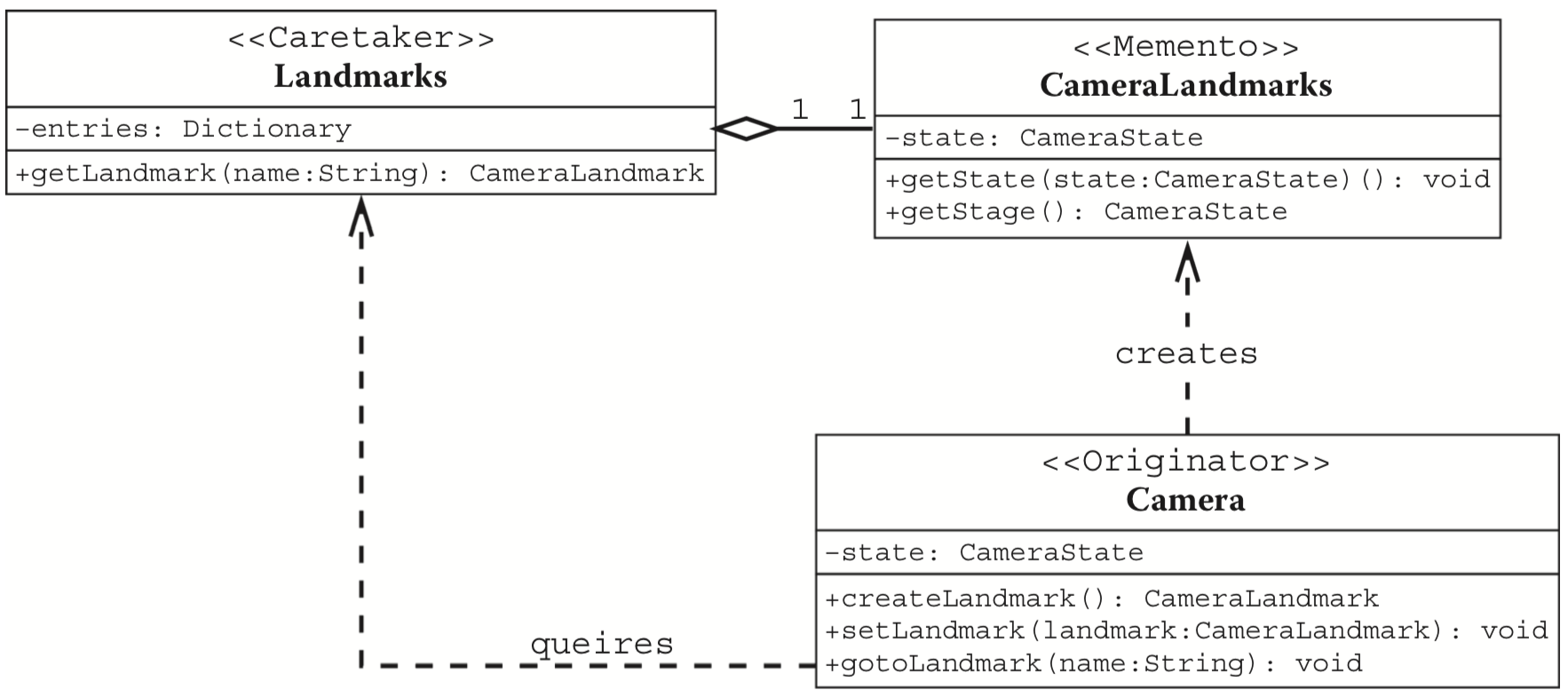
相關 API 的預期用法如下:
- 建立一個
Landmark,它可以代表相機的目前狀態,也可以設定位置、旋轉角度與縮放等參數。 - 讓相機從目前狀態過渡到指定的
Landmark,過程中包含平滑的過渡效果。
const landmark = camera.createLandmark({ zoom: 2 });
camera.gotoLandmark(landmark, { duration: 300 });
建立 Landmark
Landmark 需要儲存相機的狀態:
export interface Landmark {
    zoom: number;
    x: number;
    y: number;
    rotation: number;
}
建立 Landmark 本質上就是單純儲存相機參數;若使用者有提供,這些參數會被覆蓋:
export class Camera {
    createLandmark(params: Partial<Landmark>): Landmark {
        return {
            zoom: this.#zoom,
            x: this.#x,
            y: this.#y,
            rotation: this.#rotation,
            ...params,
        };
    }
}
動畫效果
我們使用 bezier-easing 來實作 三次 Bézier 緩動函式:
import BezierEasing from 'bezier-easing';
export const EASING_FUNCTION = {
    linear: BezierEasing(0, 0, 1, 1),
    ease: BezierEasing(0.25, 0.1, 0.25, 1),
    'ease-in': BezierEasing(0.42, 0, 1, 1),
    'ease-out': BezierEasing(0, 0, 0.58, 1),
    'ease-in-out': BezierEasing(0.42, 0, 0.58, 1),
};
現在來設計切換到 Landmark 的 API。參考 Web Animations API,我們支援以下參數:
easing支援與 CSS 相同的ease、linearduration傳入0會略過動畫。onframe動畫過程中每一幀的回呼onfinish動畫結束時的回呼
export class Camera {
    gotoLandmark(
        landmark: Landmark,
        options: Partial<{
            easing: string;
            duration: number;
            onframe: (t: number) => void;
            onfinish: () => void;
        }> = {},
    ) {}
}
如果傳入的 duration 為 0,就沒有動畫效果;直接用 Landmark 中的相機參數更新,並觸發結束回呼:
const { zoom, x, y, rotation } = landmark;

const endAnimation = () => {
  this.#zoom = zoom;
  this.#x = x;
  this.#y = y;
  this.#rotation = rotation;
  this.updateMatrix();
  if (onfinish) {
    onfinish();
  }
};

if (duration === 0) {
  endAnimation();
  return;
}
開始新的動畫之前,應先停止任何進行中的動畫(若有的話)。接著實作動畫過程中每一幀的邏輯。如果超過 duration,動畫應立即結束:
this.cancelLandmarkAnimation();

let timeStart: number | undefined;
const startPosition: vec2 = [this.#x, this.#y];
const startZoomRotation: vec2 = [this.zoom, this.#rotation];
const destPosition: vec2 = [x, y];
const destZoomRotation: vec2 = [zoom, rotation];
const animate = (timestamp: number) => {
  if (timeStart === undefined) {
    timeStart = timestamp;
  }
  const elapsed = timestamp - timeStart;
  if (elapsed > duration) {
    endAnimation();
    return;
  }

  // Omit calculation for now.

  if (elapsed < duration) {
    if (onframe) {
      onframe(t);
    }
    this.#landmarkAnimationID = requestAnimationFrame(animate);
  }
};
requestAnimationFrame(animate);
使用先前定義的緩動函式取得時間值,再用 vec2.lerp 做內插,求出目前的相機參數,最後套用它們來更新相機矩陣:
// use the same ease function in animation system
const t = EASING_FUNCTION[easing](elapsed / duration);

const interPosition = vec2.create();
const interZoomRotation = vec2.fromValues(1, 0);

vec2.lerp(interPosition, startPosition, destPosition, t);
vec2.lerp(interZoomRotation, startZoomRotation, destZoomRotation, t);

this.#x = interPosition[0];
this.#y = interPosition[1];
this.#zoom = interZoomRotation[0];
this.#rotation = interZoomRotation[1];
this.updateMatrix();
動畫開始時只擷取一次起始狀態。若每一幀都從更新後的相機狀態做內插,會改變緩動曲線,並使結果依賴幀率。只有當位置與縮放/旋轉都到達目標時,動畫才能提前結束;只檢查位置會略過僅有縮放的動畫:
if (
  vec2.dist(interPosition, destPosition) <= EPSILON &&
  vec2.dist(interZoomRotation, destZoomRotation) <= EPSILON
) {
    endAnimation();
    return;
}
回到頁面頂端的範例試看看。點擊按鈕,讓相機回到初始狀態。