第 29 課 - HTML コンテンツの埋め込み
キャンバスに HTML コンテンツを埋め込みたいことがあります。YouTube プレーヤー、CodeSandbox コンポーネント、ShaderToy などです。
HTML コンテナを作る
Excalidraw はキャンバスへの HTML 埋め込みに対応していませんが、tldraw は TLEmbedShape に対応しています。ページ内で、HTML コンテナ(iframe やほかの要素を含む)をキャンバスの <svg> 要素と並べて、または重ねて表示します。単一のキャンバスの「完全に内側」には入れません。
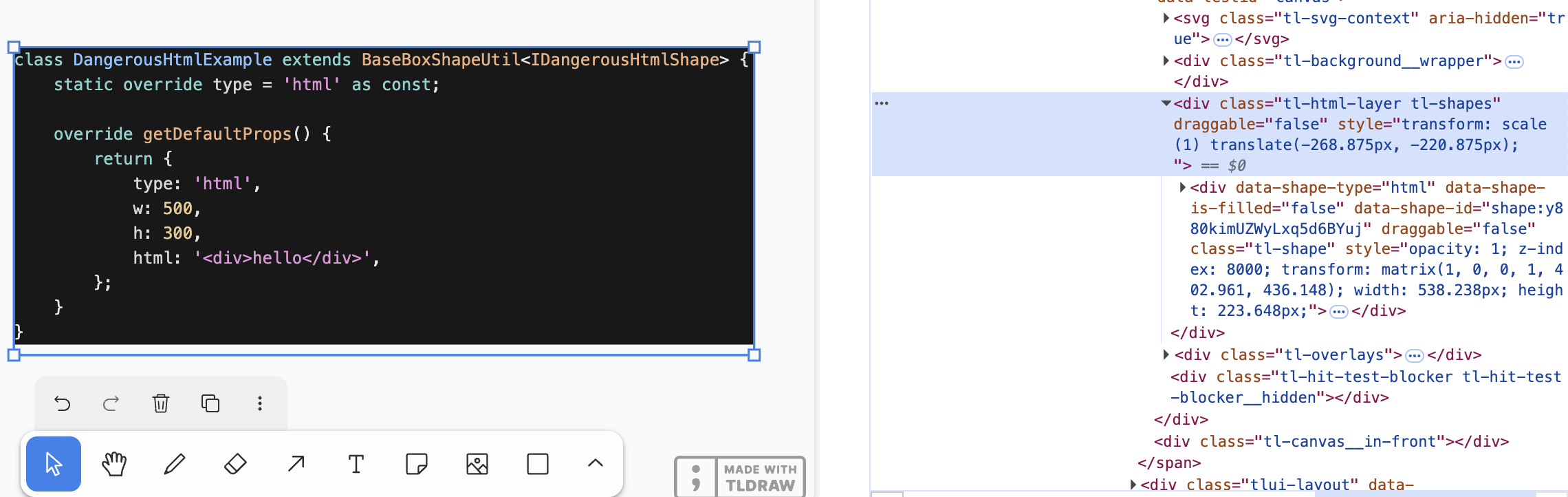
コンテナは二つの層に分かれます。
- HTML レイヤーは
<canvas>の兄弟ノードとして並び、すべての HTML コンテナを含み、カメラの同期を担当します。 - HTML コンテナは各
html/embed図形のコンテナであり、個々の図形の配置を担当します。
カメラの同期
第 4 課 - カメラ では、一連の重要なカメラパラメータを紹介しました。移動、回転、ズームです。ここではカメラパラメータを HTML コンテナの CSS transform に対応させ、キャンバスと HTML コンテナが同期したままになるようにします。
const { cameraZoom, cameraX, cameraY } = this.appStateProvider.value;

$htmlLayer.style.transform = `scale(${toDomPrecision(
    cameraZoom,
)}) translate(${toDomPrecision(-cameraX)}px, ${toDomPrecision(-cameraY)}px)`;
HTML レイヤーでは position: absolute; を使い、ルート要素を基準にします。
$htmlLayer.style.position = 'absolute';
$htmlLayer.style.top = topbarVisible ? `${TOP_NAVBAR_HEIGHT}px` : '0px';
$htmlLayer.style.left = '0px';
HTML 図形
External content sources の例で、tldraw が HTML コンテンツをどうサポートしているか確認できます。
class DangerousHtmlExample extends BaseBoxShapeUtil<IDangerousHtmlShape> {
    static override type = 'html' as const;

    override getDefaultProps() {
        return {
            type: 'html',
            w: 500,
            h: 300,
            html: '<div>hello</div>',
        };
    }
}
シリアライズできる図形も追加します。共通の x/y/width/height プロパティに加え、最も重要な属性は innerHTML の内容です。
export interface HtmlAttributes {
    html: string;
}
export interface HtmlSerializedNode
    extends BaseSerializeNode<'html'>,
        Partial<HtmlAttributes> {}
位置が変わったら、CSS transform で同期する必要があります。
const { matrix } = entity.read(GlobalTransform);

$child.style.transform = `matrix(${toDomPrecision(
    matrix.m00,
)}, ${toDomPrecision(matrix.m01)}, ${toDomPrecision(
    matrix.m10,
)}, ${toDomPrecision(matrix.m11)}, ${toDomPrecision(
    matrix.m20,
)}, ${toDomPrecision(matrix.m21)})`;
$child.style.width = `${toDomPrecision(width)}px`;
$child.style.height = `${toDomPrecision(height)}px`;
カリング
第 8 課 - カリング では、ビューポートの完全に外にある HTML コンテンツは隠すべきだと扱いました。display: none; で実現できます。第 18 課 - ECS で紹介した方法を使い、HTML コンポーネントを持ち、Culled コンポーネントが変化したすべてのエンティティを、System のクエリで追跡します。
export class RenderHTML extends System {
    private readonly culled = this.query(
        (q) => q.with(HTML).addedChangedOrRemoved.with(Culled).trackWrites,
    );

    execute() {
        this.culled.addedChangedOrRemoved.forEach((entity) => {
            entity.read(HTMLContainer).element.style.display = entity.has(
                Culled,
            )
                ? 'none'
                : 'block';
        });
    }
}
一部だけがキャンバスの外にある場合はどうでしょうか。注目すべきは、tldraw が .tl-canvas コンテナに次の CSS プロパティを設定していることです。
.tl-canvas {
    overflow: clip;
    content-visibility: auto;
    touch-action: none;
    contain: strict;
}| CSS プロパティ | 解決する問題 |
|---|---|
| overflow: clip | スクロールを無効にして座標系を安定させ、スクロールオフセットがレンダリングを壊さないようにします。 |
| content-visibility: auto | ビューポート外の DOM 要素(選択範囲、リモートカーソルなど)の性能を最適化します。 |
| touch-action: none | タッチ操作を完全に引き受け、ブラウザの既定ジェスチャによる干渉を避けます。 |
| contain: strict | キャンバスを独立したレンダリングの島として扱い、リフローとリペイントのコストを減らします。 |
HTML コンテンツの表示方法を見ていきます。
URL の貼り付け
第 24 課 - クリップボードから読み取る では、クリップボードの画像とテキストを扱う方法を扱いました。
URL は特別なテキストです。tldraw では次のようになります。
- URL が外部リンクと認識されると、既定のハンドラがページのメタデータ(og:image、title、favicon、description)を取得します。それをブックマークアセット(TLBookmarkAsset)と対応する図形に包み、ブックマークスタイルでレンダリングします。
- URL が埋め込み可能なコンテンツ(YouTube、Figma、Google Maps など)なら、
<iframe>でレンダリングします。 - URL が画像または動画リソースを指すなら、メディアアセット(TLImageAsset / TLVideoAsset)として読み込み、ImageShapeUtil でレンダリングします。
// @see https://github.com/tldraw/tldraw/blob/main/packages/tldraw/src/lib/ui/hooks/clipboard/pasteUrl.ts#L12
export async function pasteUrl() {
    return await editor.putExternalContent({
        type: 'url',
        point,
        url,
        sources,
    });
}
ブックマーク
// @see https://github.com/tldraw/tldraw/blob/ef0eba14c5a8baf4f36b3659ac9af98256d3b5dd/packages/tldraw/src/lib/defaultExternalContentHandlers.ts#L249
export async function defaultHandleExternalUrlAsset() {
    let meta: {
        image: string;
        favicon: string;
        title: string;
        description: string;
    };

    const resp = await fetch(url, {
        method: 'GET',
        mode: 'no-cors',
    });
    const html = await resp.text();
    const doc = new DOMParser().parseFromString(html, 'text/html');
    meta = {
        image:
            doc.head
                .querySelector('meta[property="og:image"]')
                ?.getAttribute('content') ?? '',
        // title, favicon, description
    };

    // Create bookmark asset
}
iframe でレンダリング
多くのウェブサイトは、コンテンツをウェブページへ埋め込む共有コントロールを提供しています。YouTube を例にすると、特定の規則で再生リンクを埋め込み用リンクに変換したあと、<iframe> で表示できます。
// Input URL: https://www.youtube.com/watch?v=37fvFffAmf8
const embedUrl = `https://www.youtube.com/embed/${videoId}${search}`;

const $iframe = document.createElement('iframe');
$iframe.src = embedUrl;
画像 URL
HTML コンテンツの貼り付け
VS Code からコピーしたコードブロックは HTML 断片です。
<meta charset="utf-8" />
<div
    style="color: #e4e4e4;background-color: #181818;font-family: Menlo, Monaco, 'Courier New', monospace;font-weight: normal;font-size: 12px;line-height: 18px;white-space: pre;"
>
    <div><span style="color: #d6d6dd;">### iframe</span></div>
</div>
クリップボードから読み取ってみます。
const html = event.clipboardData?.getData(MIME_TYPES.html); // text/htmlそのあと HTML に基づいてコンテンツを作れます。サイズを得るには、HTML を非表示の要素へ挿入してブラウザにレイアウトさせ、offsetWidth / offsetHeight を読みます。
function createHTML(
    api: ExtendedAPI,
    appState: AppState,
    html: string,
    position?: { x: number; y: number },
) {
    const { width, height } = measureHTML(html);

    updateAndSelectNodes(api, appState, [
        {
            id: uuidv4(),
            type: 'html',
            x: position?.x ?? 0,
            y: position?.y ?? 0,
            width,
            height,
            html,
        },
    ]);
}
HTML コンテンツとのインタラクション
一部の HTML コンテンツはインタラクティブです。たとえば YouTube プレーヤーをキャンバスに埋め込んだあとも、再生できる必要があります。ただし HTML コンテナに pointer-events: none; を設定すると、動画の再生が妨げられます。よくある解決策は、ダブルクリックで編集モードに入るインタラクションを使い、図形を選択するキャンバス既定のシングルクリックと区別することです。
実際、第 16 課 - テキスト入力 でも Text 図形をダブルクリックして編集モードに入りました。ここでは図形に isEditing プロパティを正式に追加します。
export interface BaseSerializeNode<Type extends string> {
    editable? boolean;
    isEditing?: boolean;
}class RenderHTML extends System {
private readonly editables = this.query(
(q) => q.withAny(HTML, Embed).addedOrChanged.with(Editable).trackWrites,
);
execute() {
this.editables.addedOrChanged.forEach((entity) => {
const { element } = entity.read(HTMLContainer);
const { isEditing } = entity.read(Editable);
element.style.pointerEvents = isEditing ? 'auto' : 'none';
});
}
}選択した図形をダブルクリックすると編集モードに入ります。ほかの場所をクリックすると編集モードを終了します。
if (input.doubleClickTrigger) {
    selection.mode = SelectionMode.EDITING;
    api.updateNode(api.getNodeByEntity(selected), { isEditing: true });
}

if (input.pointerDownTrigger) {
    if (selection.mode === SelectionMode.EDITING) {
        const toSelect = this.getTopmostEntity(api, x, y, (e) => !e.has(UI));
        if (selection.editing && toSelect !== selection.editing) {
            api.updateNode(api.getNodeByEntity(selection.editing), {
                isEditing: false,
            });
            selection.editing = undefined;
            selection.mode = SelectionMode.SELECT;
        }
    }
}
上の YouTube プレーヤーの例をダブルクリックすると編集モードに入り、そこで動画を再生できます。
SVG または画像として書き出す
第 10 課 - 画像の読み込みと書き出し では、キャンバスの内容を SVG または PNG 画像として書き出す方法を示しました。HTML コンテンツには、html-to-image のような成熟したコミュニティの解決策を使えます。
このライブラリは、<foreignObject> タグの中に任意の HTML コンテンツを置けるという SVG の機能を使います。