第 13 課 - パスとスケッチスタイル
前の課ではポリラインの描画を紹介しました。Path のストローク部分は、理論上サンプリングによってポリラインへ変換でき、p5js - bezierDetail() はそうしています。滑らかな効果を得るには、サンプリング点を増やす必要があります。塗り部分は、まだ実装が必要です。この課では次を扱います。
- SDF を試します
- いくつかの三角形分割で塗りを描き、ポリラインでストロークを描きます
- 手描きの図形をいくつか描きます
$icCanvas = call(() => {
    return document.createElement('ic-canvas-lesson13');
});call(() => {
const {
Canvas,
Path,
RoughCircle,
RoughRect,
deserializeNode,
fromSVGElement,
TesselationMethod,
} = Lesson13;
const stats = new Stats();
stats.showPanel(0);
const $stats = stats.dom;
$stats.style.position = 'absolute';
$stats.style.left = '0px';
$stats.style.top = '0px';
$icCanvas.parentElement.style.position = 'relative';
$icCanvas.parentElement.appendChild($stats);
$icCanvas.addEventListener('ic-ready', (e) => {
const canvas = e.detail;
const circle = new RoughCircle({
cx: 600,
cy: 100,
r: 50,
fill: 'black',
strokeWidth: 2,
stroke: 'red',
fillStyle: 'zigzag',
});
canvas.appendChild(circle);
const rect = new RoughRect({
x: 550,
y: 200,
fill: 'black',
strokeWidth: 2,
stroke: 'red',
fillStyle: 'dots',
});
rect.width = 100;
rect.height = 50;
canvas.appendChild(rect);
fetch(
'/Ghostscript_Tiger.svg',
// '/photo-camera.svg',
).then(async (res) => {
const svg = await res.text();
const $container = document.createElement('div');
$container.innerHTML = svg;
const $svg = $container.children[0];
for (const child of $svg.children) {
const group = await deserializeNode(fromSVGElement(child));
group.children.forEach((path) => {
path.cullable = false;
});
group.position.x = 100;
group.position.y = 75;
canvas.appendChild(group);
const group2 = await deserializeNode(fromSVGElement(child));
group2.children.forEach((path) => {
path.tessellationMethod = TesselationMethod.LIBTESS;
path.cullable = false;
});
group2.position.x = 300;
group2.position.y = 75;
canvas.appendChild(group2);
}
});
});
$icCanvas.addEventListener('ic-frame', (e) => {
stats.update();
});
});基本概念
Polyline との違い
まず SVG における Paths の定義を明確にします。特に、MDN が説明する <polyline> との違いです。
<path> 要素は、SVG の基本図形の中で最も強力な要素です。直線、曲線、円弧などを作れます。
<polyline> と <path> は見た目の似た図形を作れますが、<polyline> は曲線をまねるために短い直線を多数必要とし、大きくするとうまく拡縮できません。
そのため <polyline> で曲線を表すと滑らかさが足りません。下の図は Draw arcs, arcs are not smooth ISSUE のものです。

逆に Path を使えば、d=“M 100 100 L 200 200 L 200 100” のような定義でポリラインを実現できます。
サブパス
直線や曲線のような単純なパスに加え、1 つの <path> には一連の直線や曲線を含めることもでき、これをサブパスと呼びます。
各サブパスは moveto コマンドで始まり、通常は M または m です。これは線を描かずに、描画ツールを座標系の新しい位置へ移すよう指示します。その後に、線分(L または l)、水平線分(H または h)、垂直線分(V または v)、曲線(C、S、Q、T など)、円弧(A または a)といった描画コマンドが続けられます。
SDF を使う
以前、SDF で Circle、Ellipse、Rect を描きました。Path にも同じことができるでしょうか。
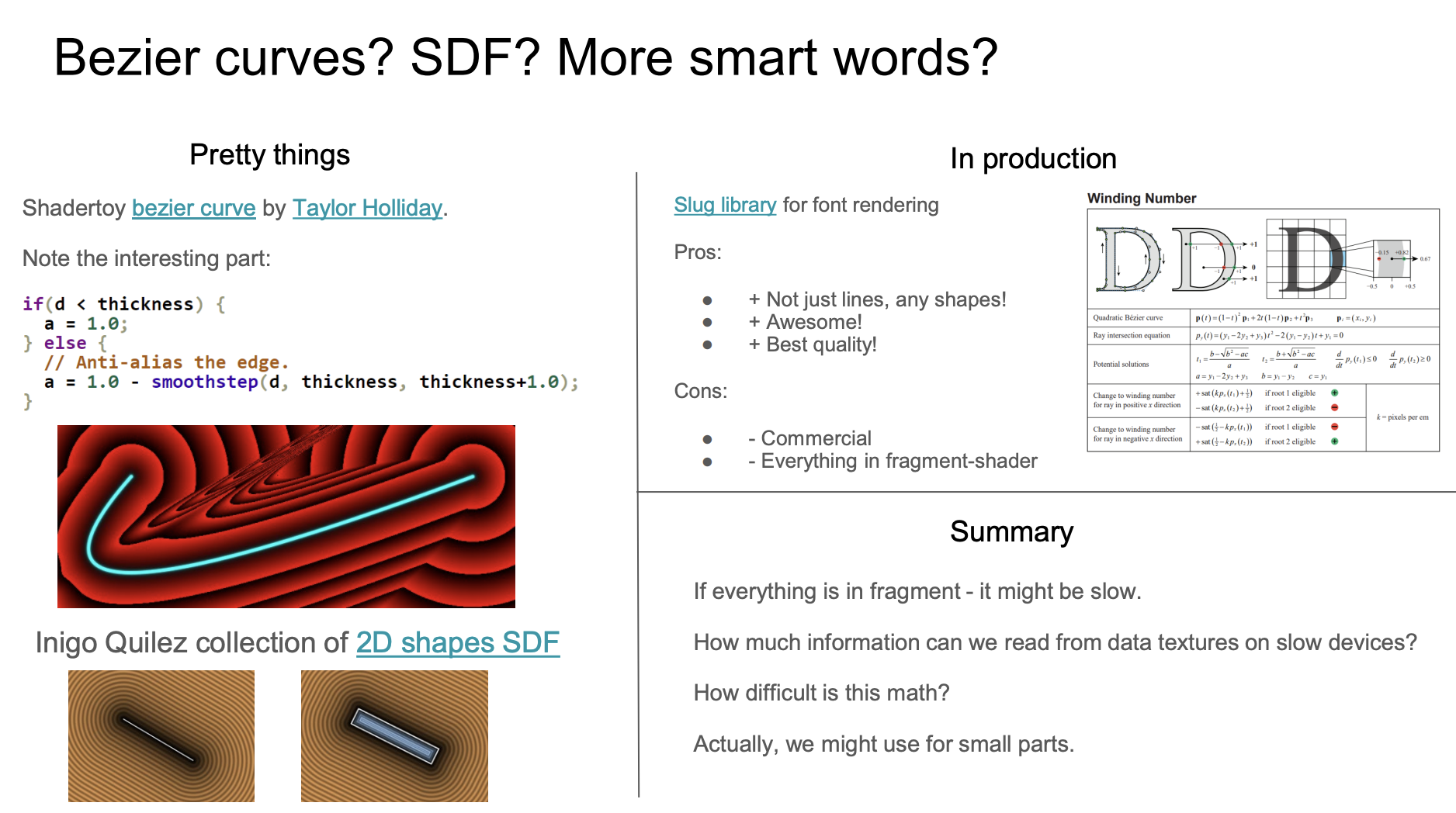
単純なパスには使えそうです。たとえば前の課で原著者の PPT が言及した、shadertoy の Quadratic Bezier - distance 2D です。ベジェ曲線 1 本には実際に動作しますが、複雑なパスには使えません。フラグメントシェーダーで数学演算が複雑すぎると、性能にも影響します。
Path2D
svg-path-sdf が別の考え方を示しています。興味深いことに、これは後で紹介するテキスト描画の考え方とほぼ同じです。OB にオンライン例があります。SDF Points with regl

Canvas2D API の fill() と stroke() は Path2D を引数に取れ、Path2D は SVG のパス定義から直接作れます。その後、Canvas2D API で SDF を生成してテクスチャとして渡します。作り方の詳細は tiny-sdf を参照してください。テキスト描画を紹介するときに、さらに詳しく説明します。
// @see https://github.com/dy/svg-path-sdf/blob/master/index.js#L61C3-L63C31
var path2d = new Path2D(path);
ctx.fill(path2d);
ctx.stroke(path2d);

var data = bitmapSdf(ctx);
もちろん Path2D はブラウザ環境でネイティブにサポートされる API です。サーバーサイドレンダリングで使うにはポリフィルが必要で、詳細はこちらです。Support Path2D API
メッシュを使う
したがって Path を扱う通常の方法は、2D でも 3D でも、三角形分割です。次の例は SVG loader in three.js のものです。まず SVG テキストを ShapePath の集合へ変換し、次に ShapeGeometry の集合を作ってレンダリングします。
const shapes = SVGLoader.createShapes(path);
for (const shape of shapes) {
    const geometry = new THREE.ShapeGeometry(shape);
    const mesh = new THREE.Mesh(geometry, material);
    mesh.renderOrder = renderOrder++;

    group.add(mesh);
}
以下で独自の実装を行います。
- パス定義を絶対コマンドへ正規化します
- 曲線上でサンプリングします
- Polyline でストロークを描きます
- earcut と libtess の三角形分割で塗りを描きます
絶対コマンドへの正規化
SVG のパスコマンドには絶対コマンドと相対コマンドがあります。たとえば M 100 100 L 200 100 は M 100 100 l 100 0 と同じです。後の処理を容易にするため、相対コマンドをまずすべて絶対コマンドへ変換します。Canvas2D API も lineTo と同じようにこの形式を使います。Three.js の ShapePath 実装を参考にします。その実装は moveTo / lineTo / bezierCurveTo のような CanvasRenderingContext2D のメソッドを提供します。
import { path2Absolute } from '@antv/util';

const path = new ShapePath();
const commands = path2Absolute(d);
commands.forEach((command) => {
    const type = command[0];
    const data = command.slice(1);
    switch (type) {
        case 'M':
            path.moveTo();
        case 'L':
            path.lineTo();
        //...
    }
});
ShapePath が提供するメソッドを簡単に紹介します。ShapePath は、パス定義の複数コマンドに対応するサブパスの集合から成ります。moveTo と lineTo を例にすると、前者は新しいサブパスを作って始点を設定し、後者は次の点まで線を結びます。
export class ShapePath {
    currentPath: Path | null;
    subPaths: Path[];

    moveTo(x: number, y: number) {
        this.currentPath = new Path();
        this.subPaths.push(this.currentPath);
        this.currentPath.moveTo(x, y);
        return this;
    }

    lineTo(x: number, y: number) {
        this.currentPath.lineTo(x, y);
        return this;
    }
}
各サブパスの構造は次のとおりです。
export class Path extends CurvePath {}曲線上のサンプリング
直線とベジェ曲線を、異なる精度でサンプリングします。理由は明確です。ベジェ曲線はサンプルを増やして初めて線が滑らかに見え、直線にはサンプルを追加する必要がありません。
export class CurvePath extends Curve {
    getPoints(divisions = 12) {
        const resolution =
            curve instanceof EllipseCurve
                ? divisions * 2
                : curve instanceof LineCurve
                ? 1
                : divisions;
        const pts = curve.getPoints(resolution);
    }
}
ズーム時の適応精度
上の固定分割数は、基本アルゴリズムを説明するためのものです。現在の core と ecs の Path レンダラーは、画面上の大きさに応じて 2 次/3 次ベジェと楕円弧を平坦化します。目標誤差は 0.25 物理ピクセルで、カメラのズーム、デバイスピクセル比、親の変換、書き出しに使うレンダーパスを考慮します。太いストロークは接線の変化も制約し、端点キャップの方向も含まれます。Path のストローク被覆は物理ピクセルを使うので、アンチエイリアスの縁はズームとともに太くなりません。
精度は 2 の累乗へ切り上げます。ズームインでは、現在の段階が不足した時点ですぐに細かくします。ズームアウトでは、境界付近で繰り返し再構築しないよう、ヒステリシスを 1 段階追加します。各ドローコールは Path ごとに、サンプリングした点集合を最大 4 組まで保持します。同じ段階の中でのパンとズームは GPU ジオメトリを再利用します。d を変えると、それらのサンプルは無効になります。
ジオメトリの範囲は、レンダリング精度とは別に、元の曲線の極値から求めます。Path.points、ECS の ComputedPoints、曲線の長さとパス上テキストの計算は、ビューに依存しない動作を保ちます。そのためズームを変えても選択範囲は動かず、テキストは再フローしません。カスタムの ECS 範囲プロバイダも引き続きサポートされます。
細分化は、SVG コマンドごとに再帰 16 段、または 4096 セグメントで停止します。極端な拡大では、この作業量の上限によって目標誤差が緩むことがあります。この変更が対象とするのは通常の Path です。Rough パス、VectorNetwork のサンプリング、過去のレッスンパッケージは、これまでのサンプリング戦略を維持します。
3 次ベジェ曲線を例にすると、正規化された t が与えられれば、サンプリング点はその定義から得られます。Bézier_curve
export class CubicBezierCurve extends Curve {
    getPoint(t: number) {
        const point = vec2.create();
        const { v0, v1, v2, v3 } = this;

        vec2.set(
            point,
            CubicBezier(t, v0[0], v1[0], v2[0], v3[0]),
            CubicBezier(t, v0[1], v1[1], v2[1], v3[1]),
        );

        return point;
    }
}
円形の Path の例です。サンプリングした頂点の一覧は次のとおりです。
points = call(() => {
    const { Path } = Lesson13;
    return new Path({
        d: 'M40,0A40,40 0 1,1 0,-40A40,40 0 0,1 40,0Z',
        fill: 'black',
        opacity: 0.5,
    }).points;
});
ポリラインでストロークを描く
これでサブパス上のサンプリング点がすべて揃ったので、塗りとストロークをそれぞれ描けます。塗りはすぐ後で扱い、ストロークは前の課で実装した Polyline で直接描けます。複数の区間を持つポリライン は、ちょうど一連のサブパスをサポートしています。
SHAPE_DRAWCALL_CTORS.set(Path, [Mesh, SmoothPolyline]);earcut による三角形分割
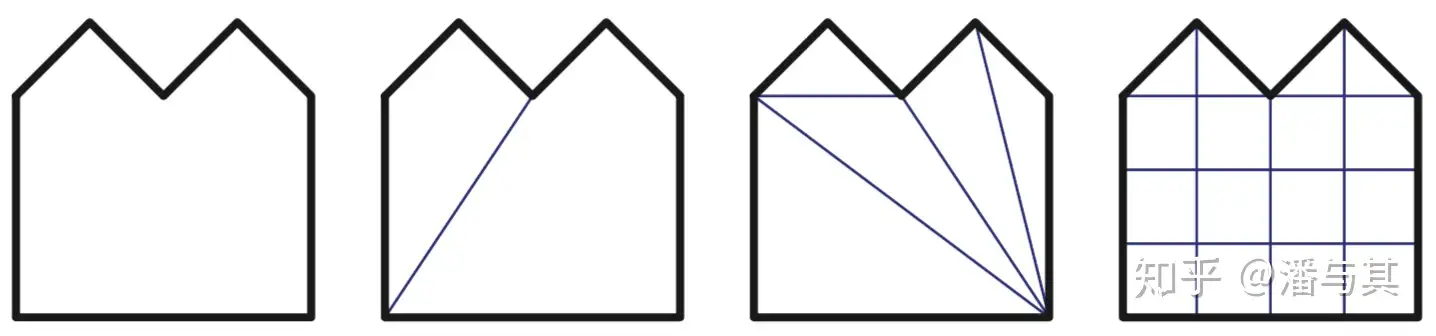
多角形をどのように三角形へ分けるのでしょうか。よく使われる方法の一つが ear clipping です。隣接する 2 つの頂点を結ぶ線が多角形のどの辺とも交わらなければ、その頂点は ear です。 下の図の左側を例に取ります。この基準では v2、v4、v5 が ear です。次に、見つかった ear、たとえば v4 を取り除き、その隣の v5 と v3 を続けて判定します。ここで v5 が ear になります。最終的にすべての ear が取り除かれ、多角形は三角形に分割されます。
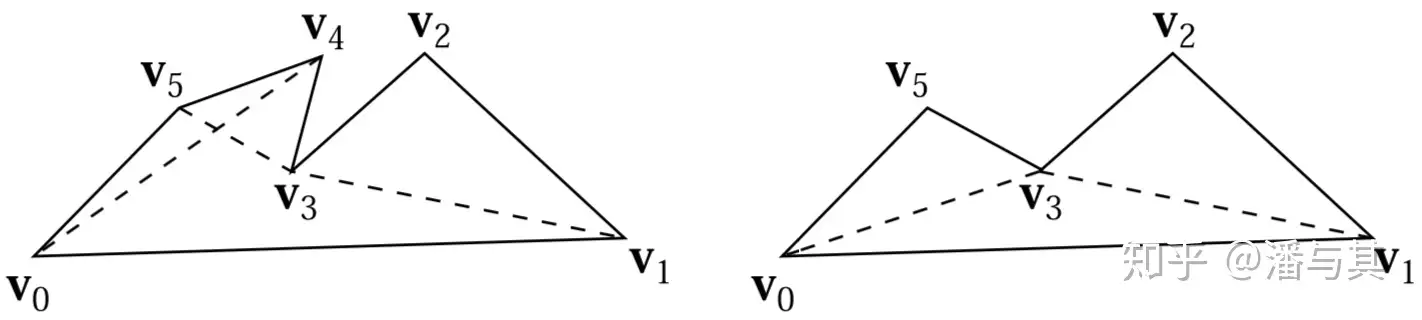
詳細なアルゴリズムは論文 Triangulation By Ear Clipping にあり、earcut が JS 実装を提供しています。
function isEar(ear) {
    var a = ear.prev,
        b = ear,
        c = ear.next;

    if (area(a, b, c) >= 0) return false; // reflex, can't be an ear

    // now make sure we don't have other points inside the potential ear
    var p = ear.next.next;

    while (p !== ear.prev) {
        // If the poing is in triangle, it's not an ear.
        if (
            pointInTriangle(a.x, a.y, b.x, b.y, c.x, c.y, p.x, p.y) &&
            area(p.prev, p, p.next) >= 0
        )
            return false;
        p = p.next;
    }

    return true;
}
earcut で三角形分割します。サンプリング点の座標を入力してインデックス配列を得て、誤差まで計算します。後でほかの三角形分割と比べると分かるとおり、earcut は計算速度を大きく上げる一方、精度をいくらか失います。
import earcut, { flatten, deviation } from 'earcut';

const { d } = path;
const { subPaths } = parsePath(d);
const points = subPaths
    .map((subPath) => subPath.getPoints().map((point) => [point[0], point[1]]))
    .flat(2); // [100, 100, 200, 200, 300, 100, 100, 100]

const { vertices, holes, dimensions } = flatten(points);
const indices = earcut(vertices, holes, dimensions); // [1, 3, 2]
const err = deviation(vertices, holes, dimensions, indices); // 0その後、gl.drawElements() または passEncoder.drawIndexed() で描画します。下の図で、左側の Path は次のように定義されます。SDF で描いた右側の円と比べると、縁はあまり滑らかではなく、カメラをズームインするとさらに明らかになります。
const path = new Path({
    d: 'M40,0A40,40 0 1,1 0,-40A40,40 0 0,1 40,0Z',
    fill: 'black',
    opacity: 0.5,
});$icCanvas2 = call(() => {
return document.createElement('ic-canvas-lesson13');
});call(() => {
const { Canvas, Path, Circle } = Lesson13;
const stats = new Stats();
stats.showPanel(0);
const $stats = stats.dom;
$stats.style.position = 'absolute';
$stats.style.left = '0px';
$stats.style.top = '0px';
$icCanvas2.parentElement.style.position = 'relative';
$icCanvas2.parentElement.appendChild($stats);
$icCanvas2.addEventListener('ic-ready', (e) => {
const canvas = e.detail;
canvas.camera.zoom = 2;
const path = new Path({
d: 'M40,0A40,40 0 1,1 0,-40A40,40 0 0,1 40,0Z',
fill: 'black',
opacity: 0.5,
});
path.position.x = 100;
path.position.y = 100;
canvas.appendChild(path);
const circle = new Circle({
cx: 0,
cy: 0,
r: 40,
fill: 'black',
opacity: 0.5,
});
circle.position.x = 200;
circle.position.y = 100;
canvas.appendChild(circle);
});
$icCanvas2.addEventListener('ic-frame', (e) => {
stats.update();
});
});vello のような多くの 2D レンダリングエンジンが、Path のレンダリングを試すために Ghostscript Tiger.svg を使います。この記事冒頭の例でも見られます。ただし元の SVG と比べると(実装した書き出し機能を覚えていますか。キャンバスの右上にあります)、欠けている部分があります。
その他の三角形分割手法
Pixi.js はポリゴンの三角形分割に earcut を使います。ほかの三角形分割ライブラリには cdt2d と libtess.js があります。後者は性能では劣りますが、より正確で、holes が多く自己交差のあるパスで特にそうです。earcut のドキュメントでも触れられており、Ability to substitute earcut for libtess.js for a given Graphics object を参照してください。
自己交差の多い非常に悪いデータでも正しい三角形分割が必要で、earcut の精度が足りないときは libtess.js を見てください。
Polygon Tesselation では、earcut と libtess.js の効果を比較しています。インデックス配列を返す earcut と異なり、libtess.js はリポジトリの例のように頂点配列を返します。そのためインデックス配列を自分で生成する必要がありますが、これは非常に簡単です。頂点の再利用を考えなくてよいので、0 から始まる増分配列を使えば済みます。
export function triangulate(contours: [number, number][][]) {
    tessy.gluTessNormal(0, 0, 1);

    const triangleVerts = [];
    tessy.gluTessBeginPolygon(triangleVerts);
    // Omit...
    return triangleVerts;
}

triangulate(points); // [100, 0, 0, 100, 0, 0, 0, 100, 100, 0, 100, 100]
// indices: [0, 1, 2, 3, 4, 5]
記事冒頭の「2 匹のトラ」の例に戻って比較できます。左は earcut で生成したもの、右は libtess.js で生成したものです。Path に tessellationMethod 属性を追加し、2 つの三角形分割を切り替えます。
export enum TesselationMethod {
    EARCUT,
    LIBTESS,
}
export interface PathAttributes extends ShapeAttributes {
    tessellationMethod?: TesselationMethod;
}
穴を描く
SVG の既定の nonzero 規則では、穴を輪郭と反対の巻き方向で定義できます。たとえば下のパスでは、輪郭は時計回りの M0 0 L100 0 L100 100 L0 100 Z で、続く 2 つの穴は反時計回りです。
M0 0 L100 0 L100 100 L0 100 Z M50 50 L50 75 L75 75 L75 50 Z M25 25 L25定義では時計回りを逆にしても構いません。例は Draw a hollow circle in SVG です。重要なのは、穴の方向が輪郭の方向と反対であることです。
塗り規則
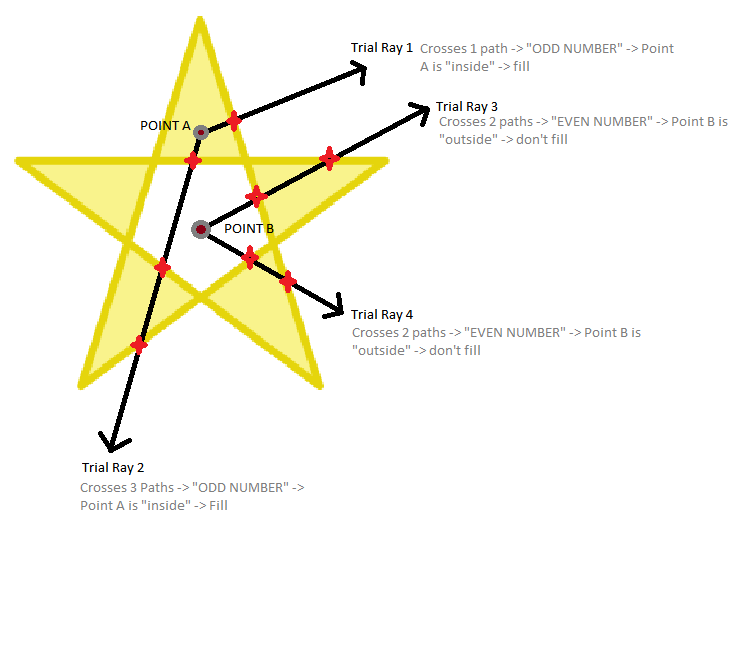
SVG の fill-rule は、Path の塗り領域を決めるために使います。下の例では、左が nonzero 規則、右が evenodd 規則です。
中央の空洞にある点を例にすると、レイは図形と偶数回交わるため、図形の外側と判定され、塗る必要がありません。詳細は how does fill-rule="evenodd" work on a star SVG を参照してください。
earcut は自己交差するパスをサポートしないので、パスの三角形分割には libtess.js を使います。
tessy.gluTessProperty(
    libtess.gluEnum.GLU_TESS_WINDING_RULE,
    fillRule === 'evenodd'
        ? libtess.windingRule.GLU_TESS_WINDING_ODD
        : libtess.windingRule.GLU_TESS_WINDING_NONZERO,
);
ECS では、既定の tessellationMethod: 'earcut' でも fillRule が適用されます。複合パスと evenodd の塗りは、入力順や最初の輪郭の方向から穴を推測するのではなく、パス全体の巻き数または偶奇を解決するために自動で libtess を使います。穴は輪郭より前に現れても構いません。入れ子の島、重なる輪郭、重複した輪郭も、フィルタで使うネイティブの Canvas マスクと同じ規則に従います。
単一の nonzero 輪郭は Earcut の高速パスを維持します。そのような輪郭での一般的な自己交差には、明示的に libtess を選んでください。複合パスの解決は三角形分割のコストを増やすことがあります。既存のジオメトリキャッシュは、それでも毎フレームの再構築を避けます。塗り規則または三角形分割オプションが異なる Path は、塗りメッシュを共有しません。Rough のペイントは、重なるブラシのアルファを保つため、別の三角形分割経路を維持します。
バウンディングボックスとピッキング
バウンディングボックスは、前の課でポリラインに使ったのと同じ方法で見積もれます。ここでは、点が Path の内側にあるかを判定する実装に注目します。
ネイティブメソッドを使う
CanvasRenderingContext2D は、すぐに使える isPointInPath と isPointInStroke を提供します。前に紹介した Path2D と組み合わせれば、簡単に判定できます。
const canvas = document.getElementById('canvas');
const ctx = canvas.getContext('2d');
const isPointInPath = ctx.isPointInPath(new Path2D(d), x, y);
以前 OffscreenCanvas を紹介しました。メインスレッドのレンダリング作業と無関係な、ピッキング判定のような計算に特に向いています。PickingPlugin で初期化し、その後 containsPoint を渡して、個々の図形が必要に応じて呼び出せるようにします。
export class Picker implements Plugin {
    private ctx: OffscreenCanvasRenderingContext2D | CanvasRenderingContext2D;

    private hitTest(shape: Shape, wx: number, wy: number): boolean {
        if (shape.hitArea || shape.renderable) {
            shape.worldTransform.applyInverse(
                { x: wx, y: wy },
                tempLocalPosition,
            );
            const { x, y } = tempLocalPosition;

            return shape.containsPoint(x, y);
            return shape.containsPoint(x, y, this.ctx);
        }

        return false;
    }
}
幾何的な方法
Path の各サブパスは、点との位置関係について幾何演算を行えます。たとえば Pixi.js は GraphicsContext - containsPoint を実装しています。詳しくはその実装を読んでください。
手描きスタイルの描画
excalidraw は手描きスタイルの描画に rough を使います。rough が既定で提供する、Canvas2D や SVG に基づく実際の描画機能は必要ないので、RoughGenerator を使う方が適切です。
手描きパス定義の生成
RoughGenerator は、よくある図形の生成メソッドを提供します。矩形を例に取ります。
const generator = rough.generator();
const rect = generator.rectangle(0, 0, 100, 100);
入力パラメータに基づいて、サブパスに似た構造の集合を生成してくれます。これを OpSet と呼び、move lineTo bcurveTo の演算子を含みます。これを絶対パスのコマンドへ簡単に変換し、サンプリングしたあと Polyline で描き続けられます。
import { AbsoluteArray } from '@antv/util';
import { OpSet } from 'roughjs/bin/core';

export function opSet2Absolute(set: OpSet) {
    const array = [];
    set.ops.forEach(({ op, data }) => {
        if (op === 'move') {
            array.push(['M', data[0], data[1]]);
        } else if (op === 'lineTo') {
            array.push(['L', data[0], data[1]]);
        } else if (op === 'bcurveTo') {
            array.push([
                'C',
                data[0],
                data[1],
                data[2],
                data[3],
                data[4],
                data[5],
            ]);
        }
    });
    return array as AbsoluteArray;
}
Rough Mixin
バウンディングボックスの計算やピッキングでは、手描きではない版を再利用したいと考えます。理由は次のとおりです。
- このような様式化されたレンダリングは、描画結果にだけ影響すべきで、物理的な属性は変えません。
- 手描きの図形は実際には複数組の Path から成るので、バウンディングボックスを厳密に計算するのは性能の無駄です。
- ピッキングでは全体を 1 つとして扱うべきです。Path ごとに判定すると誤った結果になります。たとえばマウスが図形の内側に乗っていても、線と線の間の空白にあると、図形の外側だと判定されます。
そこで、rough がサポートする seed や roughness などのパラメータをすべて持つ新しい Mixin を作り、これらのパラメータが変わるとすぐに再描画します。
import { Drawable, Options } from 'roughjs/bin/core';
import { GConstructor } from '.';
import { parsePath } from '../../utils';

export interface IRough
    extends Omit<Options, 'stroke' | 'fill' | 'strokeWidth'> {
    /**
     * @see https://github.com/rough-stuff/rough/wiki#roughness
     */
    roughness: Options['roughness'];
}
export function Rough<TBase extends GConstructor>(Base: TBase) {
    abstract class Rough extends Base implements IRough {
        get roughness() {
            return this.#roughness;
        }
        set roughness(roughness: number) {
            if (this.#roughness !== roughness) {
                this.#roughness = roughness;
                this.renderDirtyFlag = true;
                this.generate();
            }
        }
    }
}
こうすれば、すでにサポートしている図形をこれで包むだけで手描き効果が得られます。使い方は次のとおりで、Rect を継承する RoughRect を例に取ります。
import { RectWrapper, RectAttributes } from './Rect';

export class RoughRect extends Rough(RectWrapper(Shape)) {}
fillStyle solid
fillStyle = 'solid' の場合をサポートするには、次のようにします。
SHAPE_DRAWCALL_CTORS.set(RoughRect, [
    ShadowRect,
    Mesh, // fillStyle === 'solid'
    SmoothPolyline, // fill
    SmoothPolyline, // stroke
]);$icCanvas3 = call(() => {
return document.createElement('ic-canvas-lesson13');
});call(() => {
const { Canvas, RoughCircle } = Lesson13;
const stats = new Stats();
stats.showPanel(0);
const $stats = stats.dom;
$stats.style.position = 'absolute';
$stats.style.left = '0px';
$stats.style.top = '0px';
$icCanvas3.parentElement.style.position = 'relative';
$icCanvas3.parentElement.appendChild($stats);
const circle1 = new RoughCircle({
cx: 100,
cy: 100,
r: 50,
fill: 'black',
strokeWidth: 2,
stroke: 'red',
fillStyle: 'dots',
});
const circle2 = new RoughCircle({
cx: 200,
cy: 100,
r: 50,
fill: 'black',
strokeWidth: 2,
stroke: 'red',
fillStyle: 'hachure',
});
const circle3 = new RoughCircle({
cx: 300,
cy: 100,
r: 50,
fill: 'black',
strokeWidth: 2,
stroke: 'red',
fillStyle: 'zigzag',
});
const circle4 = new RoughCircle({
cx: 400,
cy: 100,
r: 50,
fill: 'black',
strokeWidth: 2,
stroke: 'red',
fillStyle: 'cross-hatch',
});
const circle5 = new RoughCircle({
cx: 500,
cy: 100,
r: 50,
fill: 'black',
strokeWidth: 2,
stroke: 'red',
fillStyle: 'solid',
});
const circle6 = new RoughCircle({
cx: 100,
cy: 200,
r: 50,
fill: 'black',
strokeWidth: 2,
stroke: 'red',
fillStyle: 'dashed',
});
const circle7 = new RoughCircle({
cx: 200,
cy: 200,
r: 50,
fill: 'black',
strokeWidth: 2,
stroke: 'red',
fillStyle: 'zigzag-line',
});
$icCanvas3.addEventListener('ic-ready', (e) => {
const canvas = e.detail;
canvas.appendChild(circle1);
canvas.appendChild(circle2);
canvas.appendChild(circle3);
canvas.appendChild(circle4);
canvas.appendChild(circle5);
canvas.appendChild(circle6);
canvas.appendChild(circle7);
});
$icCanvas3.addEventListener('ic-frame', (e) => {
stats.update();
});
});SVG の書き出し
ご覧のとおり、rough が生成する図形は Path の集合でできています。そのため SVG へ書き出すときは <path> を使います。上の例で書き出しを試せます。
export function exportRough(
    node: SerializedNode,
    $g: SVGElement,
    doc: Document,
) {
    const {
        attributes: { drawableSets, stroke, fill },
    } = node;

    drawableSets.forEach((drawableSet) => {
        const { type } = drawableSet;
        const commands = opSet2Absolute(drawableSet);
        const d = path2String(commands, 2); // retain two decimal places
        const $path = createSVGElement('path', doc);
        $path.setAttribute('d', d);
        $g.appendChild($path);
        if (type === 'fillSketch') {
            $path.setAttribute('stroke', fill as string);
            $path.setAttribute('fill', 'none');
        }
    });
}
水彩スタイル
watercolorizer を使い、新しい fillStyle: 'watercolor' を追加します。
特に、矩形はもはや頂点 4 個だけではモデル化しません。代わりに subdivideAxisAlignedRect で、大きさから辺ごとの分割数を 4 から 16 の間で選びます(hypot(w, h) / 40)。こうすると輪郭は頂点数の多いポリゴンに近くなり、頂点だけの四角形が一様に外側へ膨らむ度合いが小さくなります。