课程 26 - 选择工具
在 课程 14 - 选择模式 中我们仅实现了简单的点击图形单独选中的功能。本节课我们会继续完善这个选择工具,增加多选、框选和套索功能。
多选
在点击单独选择的基础上,通过按住 Shift 可以在当前选择的基础上,新增/删除另外的图形。

在选择模式中,我们根据 input.shiftKey 即 Shift 的按下状态,决定是否需要保留当前的选择:如果未按下则切换单选;如果按下则将目标图形加入已有的选择中:
if (selection.mode === SelectionMode.SELECT) {
    if (layersSelected.length > 1 && layersSelected.includes(selected.id)) {
        // deselect if already selected in a group
        api.deselectNodes([selected]);
    } else {
        api.selectNodes([selected], input.shiftKey); // whether to add to existed selection
    }
}
在 课程 21 - Transformer 中我们实现了单个图形,接下来需要为多个选中的图形增加一个 Group 展示。和单选的 Transformer 不同,多选形成的 Group 不需要考虑 rotation 和 scale。
export class RenderTransformer extends System {
    getOBB(camera: Entity): OBB {
        const { selecteds } = camera.read(Transformable);

        // Single selected, keep the original OBB include rotation & scale.
        if (selecteds.length === 1 && selecteds[0].has(ComputedBounds)) {
            const { obb } = selecteds[0].read(ComputedBounds);
            return obb;
        }

        if (selecteds.length > 1) {
        }
    }
}
效果如下,Resize 时对选中的所有图形进行变换的逻辑已经在 课程 21 - 变换图形 中介绍过,这里不再赘述:
框选
下图来自 Select layers and objects in Figma

这个框选工具被称作 “marquee”,详见:Make selections with the Rectangular Marquee tool,我们把形成的矩形区域称作 Brush。
在框选结束(鼠标抬起)时,首先需要隐藏 Brush 矩形(在下一小节我们会看到它的实现),然后使用 课程 8 - 使用空间索引加速 中介绍的快速拾取方法。值得注意的是,由于该矩形的宽高有可能为负数(取决于拖拽方向),我们需要进行一些计算保证 BBox 是合法的:
if (input.pointerUpTrigger) {
    if (selection.mode === SelectionMode.BRUSH) {
        // Hide Brush...

        if (selection.brush) {
            const { x, y, width, height } = selection.brush.read(Rect);
            // Make a valid BBox
            const minX = Math.min(x, x + width);
            const minY = Math.min(y, y + height);
            const maxX = Math.max(x, x + width);
            const maxY = Math.max(y, y + height);
            const selecteds = api
                .elementsFromBBox(minX, minY, maxX, maxY) // Use space index
                .filter((e) => !e.has(UI))
                .map((e) => api.getNodeByEntity(e));
            api.selectNodes(selecteds); // Finish selection
        }
    }
}
在框选过程中,我们也希望实时通过高亮和 Transformer 展示选中情况,在上面的拾取和选中逻辑基础上,增加高亮:
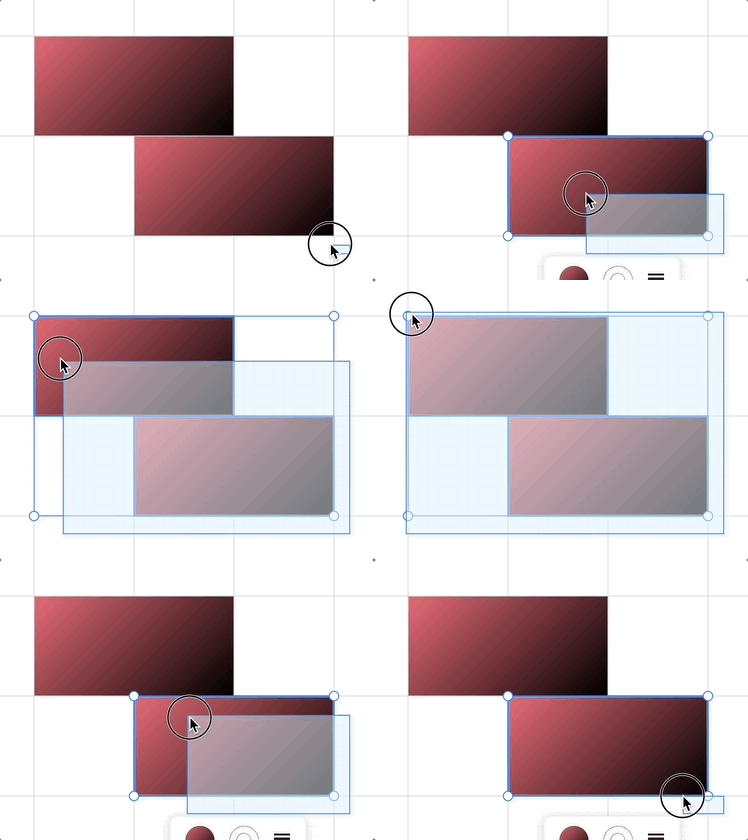
api.selectNodes(selecteds);
if (needHighlight) {
    api.highlightNodes(selecteds);
}
当然对于这种在视口空间的组件,我们也可以使用 SVG 实现,在后续的套索工具中将看到。
通过 Esc 取消选择
选中状态下按 Esc 会取消选择,另外在框选过程中需要隐藏掉 Brush:
if (input.key === 'Escape') {
    api.selectNodes([]);
    if (selection.mode === SelectionMode.BRUSH) {
        this.hideBrush(selection);
    }
}
锁定与解锁
锁定的图层无法被选中,详见:Lock and unlock layers
套索工具
相较于框选工具,套索工具可以通过不规则的多边形完成更精细的选取。
在基于 AI 的图像编辑中,套索也可以更精细地创建 mask 完成 inpainting。下图为 Figma 的效果,选择后可以擦除或者分离图层:
绘制套索
在 课程 25 - 铅笔工具 中我们已经介绍过如何自由绘制折线。我们依然在 SVG 容器中绘制套索路径,一般采用带有动画效果(蚂蚁线)的虚线表示。
<path d="...">
    <animate
        attribute-name="stroke-dashoffset"
        stroke-dasharray="7 7"
        stroke-dashoffset="10"
        from="0"
        to="-14"
        dur="0.3s"
    />
</path>
首先将视口坐标系下的点坐标转换到 Canvas 坐标系下。然后根据当前的相机缩放等级对路径进行简化,显然在高缩放等级下需要更精细的选择粒度,反之亦然。另外更少的顶点既能提升渲染性能,也能提升后续的相交性检测效率:
import simplify from 'simplify-js';

let lassoPath = super
    .getCurrentTrail()
    ?.originalPoints?.map((p) => ({ x: p[0], y: p[1] }));

const simplifyDistance = 5 / this.api.getAppState().cameraZoom;
selectByLassoPath(simplify(lassoPath, simplifyDistance).map((p) => [p.x, p.y]));
多边形的相交性检测
现在我们创建了一个 Path,需要获取场景中与之相交的图形。依旧先使用 课程 8 - 使用空间索引加速
function selectByLassoPath(api: API, lassoPath: [number, number][]) {
    const lassoBounds = lassoPath.reduce(
        (acc, item) => {
            return [
                Math.min(acc[0], item[0]),
                Math.min(acc[1], item[1]),
                Math.max(acc[2], item[0]),
                Math.max(acc[3], item[1]),
            ];
        },
        [Infinity, Infinity, -Infinity, -Infinity],
    ) as [number, number, number, number];

    // Hit-test with rbush
    const elements = api.elementsFromBBox(
        lassoBounds[0],
        lassoBounds[1],
        lassoBounds[2],
        lassoBounds[3],
    );

    // TODO: filter locked elements
}
通过快速包围盒检测后,接下来需要处理两种情况:套索完全在图形内;套索与图形相交。
function isPolygonsIntersect(points1: number[][], points2: number[][]) {
    let isIn = false;
    // 判定点是否在多边形内部,一旦有一个点在另一个多边形内,则返回
    points2.forEach((point) => {
        if (isPointInPolygon(points1, point[0], point[1])) {
            isIn = true;
            return false;
        }
    });
    if (isIn) {
        return true;
    }
}