Lesson 39 - 3D Mesh Rendering
Before Lesson 30 - Post-processing and render graph, everything on the canvas went through the 2D pipeline: orthographic camera, SDFs, path triangulation fills, and so on. This lesson adds a 3D mesh branch without replacing that 2D renderer: vertices carry normals, perspective/orthographic projection, depth testing, and compositing with 2D layers on the same canvas.
Framer, Spline, Rive, and Bevy
The core ideas behind 2D/3D fusion in Framer and Spline can be summarized as two technical paths—each product picks a different architecture based on its positioning.
Framer’s 3D capability is essentially an enhanced wrapper around CSS 3D transforms, not a real 3D rendering pipeline. That means no external 3D model import (GLB/OBJ), no real lighting, shadows, or material system—3D effects are limited to simple cases like card flips and parallax layers. See: How to Turn 2D Elements into Interactive 3D Objects in Framer
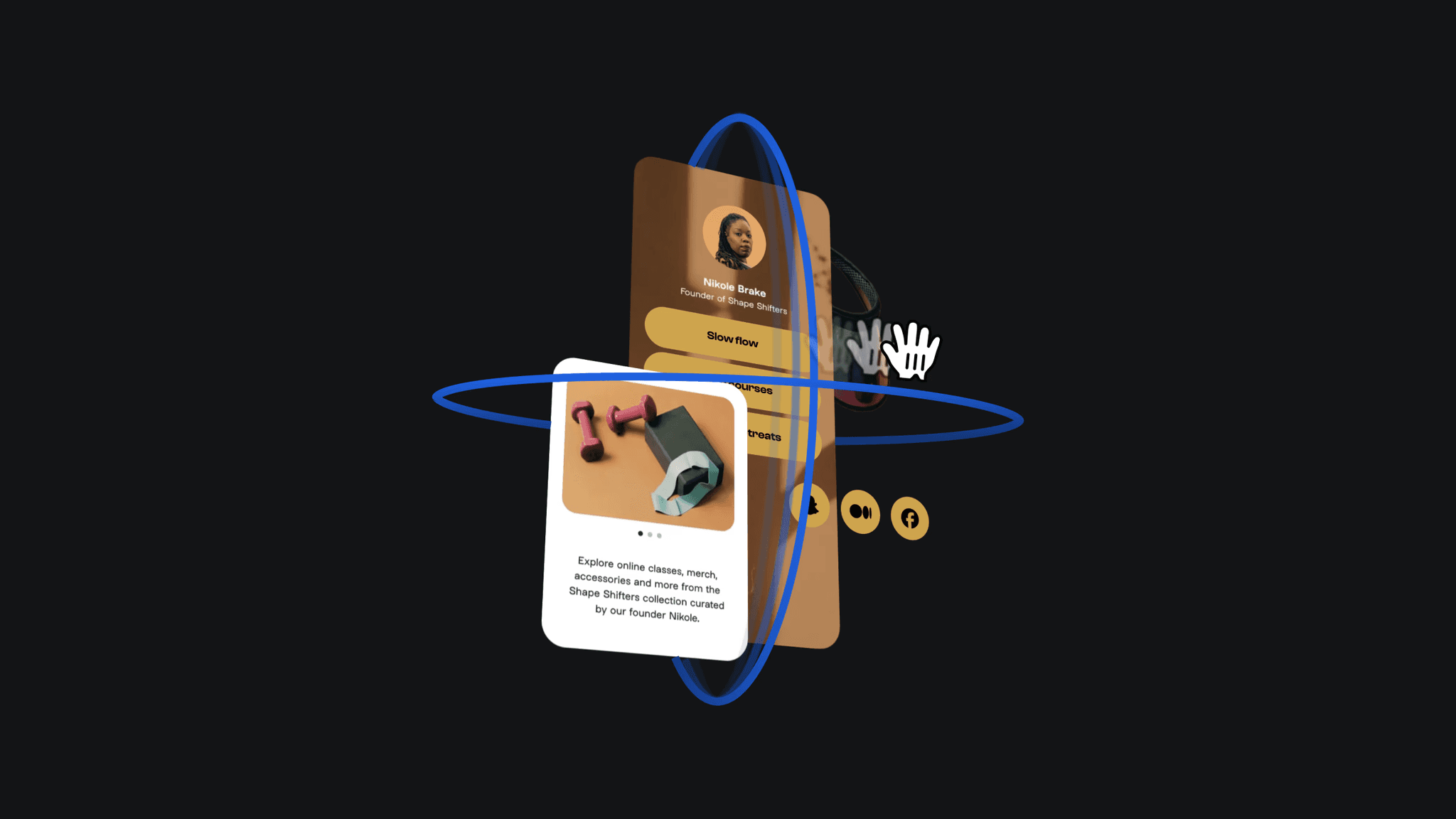
Spline is a true 3D editor whose architecture is closer to a game engine. Spline lets you create standalone UI Scenes (2D canvases) and use them as textures on UI Frame objects in a 3D scene. Working with 2D and 3D objects
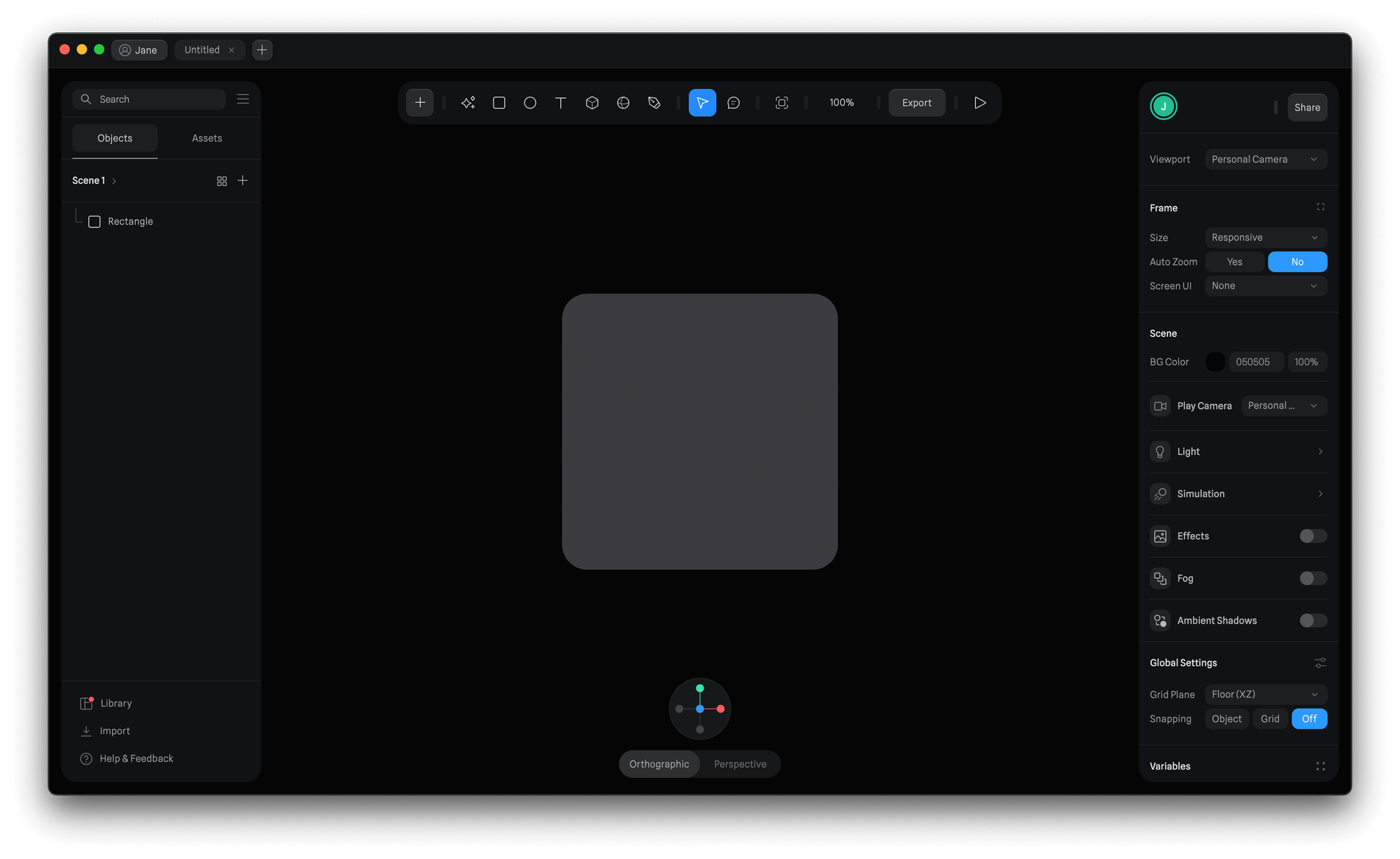
Rive is still fundamentally a 2D tool today. Its “3D feel” comes from 2.5D transforms, mesh deformation, and similar tricks—not a full 3D pipeline.
Our approach is closer to 2D Rendering in Bevy: 2D shapes live on the z = 0 plane and 3D models share the same world; when you pan/zoom the 2D camera, the 3D camera can optionally follow. See the implementation in PR #271.
Architecture overview
Same WebGL/WebGPU context
  └─ MeshPipeline render graph
       ├─ Pass: 3D (MeshPipeline3D.drawMeshes)
       ├─ Pass: 3D Gizmo (RenderGizmo3D.drawGizmos, on top of meshes)
       ├─ Pass: grid / 2D vector (existing BatchManager)
└─ Pass: post-processing → presentRenderer3DPlugin: registers 3D components and schedulesMeshPipeline3D(GPU cache),CameraSync(2D camera coupling),Pick3D(selection/drag), andRenderGizmo3D(transform gizmo drawing).MeshPipeline3D: does not present its own swapchain; insideMeshPipeline’s main pass it draws 3D first, then 2D, sharing color and depth attachments.- The existing
Mesh.tsis still 2D vector fill—do not confuse it with 3DMesh3D.
Plugin setup:
import {
    App,
    DefaultPlugins,
    DefaultRenderer3DPlugin,
} from '@infinite-canvas-tutorial/ecs';

const app = new App().addPlugins(...DefaultPlugins, DefaultRenderer3DPlugin);
app.run();
Core components
| Component | Role |
|---|---|
Camera3D | projection: 'perspective' | 'orthographic'; when linked, CameraSync follows 2D pan/zoom |
Mesh3D | positions, normals, optional indices (triangle mesh) |
Material3D | Metallic-roughness PBR: baseColor, metallic, roughness, and ambient strength; legacy fields remain for compatibility |
Light3D | ambient / directional / point / spot; see Scene lighting example |
Transform3D | translation, Euler rotation, scale |
Selected3D | 3D selection state: gizmo mode, active axis/plane, drag reference point, etc. (see 3D transform Gizmo) |
Mat4 | 4×4 matrix helpers (perspective / ortho / lookAt) |
Spawn entities via ECS commands.spawn, for example:
import {
    Camera3D,
    Mesh3D,
    Material3D,
    Transform3D,
} from '@infinite-canvas-tutorial/ecs';

commands.spawn(
    new Camera3D({
        eye: [3, 3, 5],
        center: [0, 0, 0],
        clearColor: true,
    }),
);

commands.spawn(
    new Mesh3D({ positions, normals, indices }),
    new Material3D({
        baseColor: [0.25, 0.55, 0.95, 1],
        ambient: 0.45,
        diffuse: 0.75,
        specular: 0.4,
        shininess: 48,
    }),
    new Transform3D({
        translation: [0, 0, 0],
        rotation: [0.3, 0.6, 0],
        scale: [1, 1, 1],
    }),
);
Unified 3D space (linked camera)
To pan/zoom the canvas and move 2D and 3D together, set linked: true on Camera3D.
Each frame, CameraSync reads 2D ComputedCamera (x, y, zoom) and writes the 3D camera’s eye / center / baseDistance:
- Zoom:
baseDistance = canvas.height / 2,eye.z = baseDistance / zoom, matching the visible height of 2Dmat3.projectionat z = 0 - Linked orthographic (
projection: 'orthographic'):eye = [x, -y, distance],center = [x, -y, 0](2D canvas Y is down, 3D world Y is up—flipped viacanvasWorldToWorld3D) - Linked perspective (
projection: 'perspective'):eye = [x, y, distance],center = [x, y, 0](same as 2D nodes—canvas coordinates, Y down)
Linked + orthographic
MeshPipeline3D uses the 2D viewProjectionMatrix directly (including Y flip, pan, and zoom), which keeps extrude3d and 2D rects strictly aligned.
The Cube (orthographic) example uses linked + orthographic (translation: [200, 100, 40]).
Linked + perspective
In perspective mode, screen position comes from the full 2D VP (pan, zoom, and Y flip match 2D); depth uses a perspective matrix on Transform3D.translation.z for foreshortening. The anchor is (x, y, z) from translation, so the object lands at the same (x, y) as in 2D.
Cube (perspective) uses the linked + perspective setup above; when you drag the canvas, the cube should pan and zoom with the 2D layers.
Raycast picking
3D selection and gizmo interaction are handled by the Pick3D system (also used from Select when the Select tool is active). On pointer down, the viewport pixel under the cursor is tested against gizmo handles and Mesh3D triangles. No GPU picking pass is used—everything runs on the CPU in ray-casting.ts and pick3d-probe.ts.
Pipeline
viewport (x, y)
  └─ buildPickSceneForViewport(camera, …)  →  Mesh3DPickScene (same matrices as rendering)
       └─ probePick3DAtViewport(…)
            ├─ 1. gizmo parts on Selected3D entities (screen-space / ray, per part)
└─ 2. all Mesh3D on this canvas → keep closest hit (smallest t)Priority: already-selected entities are probed for gizmo handles first; only if none hit does the probe test scene meshes. Among meshes, the hit with the smallest distance along the ray (or largest depth in linked perspective) wins.
Standard raycast (orthographic / free camera)
For non–linked-perspective modes, picking mirrors classic 3D editors:
screenToRay: viewport pixels → NDC → unproject near/far withinv(view × projection)to get a world-space ray.rayMeshIntersection: transform mesh vertices with the entity’s model matrix, then:- Broad phase: ray vs transformed AABB (slab method).
- Narrow phase: Möller–Trumbore ray–triangle test on each triangle; keep the closest
t.
// packages/ecs/src/utils/ray-casting.ts (simplified)
const invVP = computeInvViewProjection(projMatrix, viewMatrix);
const ray = screenToRay(vx, vy, width, height, invVP);
const hit = rayMeshIntersection(ray, positions, indices, modelMatrix);
// hit: { t, point, triangleIndex } | null
Linked orthographic (linked + orthographic) reuses the same path: MeshPipeline3D feeds the 2D viewProjectionMatrix into the pick scene, so clicks stay aligned with 2D rects and extrude3d.
Linked perspective: screen-space triangles
Linked perspective does not use a world ray for mesh hits. Screen position is driven by the full 2D VP; depth comes from a separate perspective matrix on translation.z. To match the vertex shader, pickMeshLinkedPerspective projects each triangle to viewport space with the same uniforms, then tests whether the cursor lies inside the 2D projected triangle (pointInTriangle2D) and picks the front-most depth at that pixel. Gizmo parts in this mode reuse the same helper (with optional Z screen bias for handles).
This keeps “what you see is what you pick” when panning/zooming the infinite canvas with a perspective cube.
Drag constraints
A gizmo press creates a GizmoSession with the initial pose and a fixed projection. For ordinary cameras, pointer movement intersects a ray with the active constraint plane. Linked cameras invert the displayed handle projection, including its Z screen offset. Translation follows the selected axis or plane; rotation follows the local ring axis. Invalid or degenerate samples leave the preview unchanged.
The session updates runtime components during movement. On release, a declarative source publishes one document edit and one undo entry. Escape, pointer cancellation or leaving the canvas restores the starting pose without recording an edit.
Changing the active camera, its projection/view, or the canvas size cancels a held gesture. External edits to the source's pose, geometry, or an ancestor's transform also cancel it: the runtime preview returns to the current document, so an old pointer release cannot overwrite an API edit or undo. Unrelated edits, such as names and colors, can merge with a drag that continues normally. Changes on another canvas do not interrupt it. Press a handle again to start in the new view.
Computed layout is also part of the gesture context. Yoga can change a source's position or size without changing those document fields; these changes, including ancestor transforms, cancel the preview. Cancellation preserves the new layout and restores only coordinates still owned by the preview. Escape on an otherwise unchanged layout returns to the computed starting position, even when it differs from the document. The session's own preview writes do not invalidate it.
GizmoSourceFrame snapshots local source/ancestor geometry, avoiding false interruptions from delayed world-matrix updates. While a pointer session owns the source preview, companion synchronization does not write that source again. Integrations that manipulate a companion directly retain their reverse sync.
Unchanged frames do not rewrite companion transforms or materials, and pose or material edits reuse generated CPU geometry. Geometry configuration changes invalidate that cache independently.
MeshPipeline3D also reuses GPU vertex, normal, UV, index and per-mesh uniform buffers during pose/material edits. Only Mesh3D writes invalidate geometry; when editing arrays directly, acquire the component with entity.write(Mesh3D) first. The cache consumes those writes after companion synchronization, retains them across skipped draws, and uploads the replacement once on the next draw. Each canvas owns its cache and scene uniforms. Removing a mesh or moving it to another canvas releases the old buffers, and disposing the canvas releases its resources before the device. Failed allocations are rolled back and can be retried without replacing the previous complete cache entry.
Model and normal matrices are recalculated only when the pose changes. Model uniform uploads also skip unchanged frames and camera-only changes; material edits and completed texture loads update the uniforms without rebuilding those matrices. In-place edits to transform/color arrays are compared by value.
Scene uniforms are cached per canvas. Camera and linked 2D view changes update scene matrices; light changes repack lighting without rebuilding those matrices. Unchanged draws reuse both the scene data and each mesh's draw bindings. Texture readiness or replacement, geometry rebuilds and GPU resource replacement invalidate the affected bindings. Bindings are released before the buffers and textures they reference. Failed scene uploads and binding allocations remain retryable.
The 3D layer list follows ECS geometry, metadata, scope and membership changes, instead of scanning every mesh each idle frame. Selection membership is tracked separately, so hovering gizmo handles does not rebuild the list. Layer entries retain stable entity references for later selection, including after undo/redo.
See 3D transform Gizmo for handle colors, axes, and the full pointer flow.
3D transform Gizmo
With the Select tool (penbarSelected === Pen.SELECT), clicking a 3D mesh adds Selected3D to the entity and draws translate handles at its center: red/green/blue arrows plus semi-transparent plane widgets. Dragging a handle writes back to Transform3D.translation. Similar to 2D Selected + RenderTransformer, but through a separate 3D pick and draw path.
Interaction flow
pointer down (Select tool)
  └─ Pick3D: probe gizmo first, then Mesh3D
       ├─ hit gizmo → capture pose/projection, create GizmoSession
       └─ hit mesh → select; miss → clear selection

pointer move (held)
  └─ GizmoSession.update → constrained runtime preview

pointer up
  └─ finish(true) → publish source pose once, record history

Escape / pointer cancel / leave
  └─ finish(false) → restore pose, clear gesture state
Coordinates and handle meaning
Consistent with Unified 3D space, the gizmo uses canvas coordinates (Y down), not Blender-style Y-up:
| Color | Axis | Direction (typical linked canvas view) | Drag updates |
|---|---|---|---|
| Red | +X | right | translation.x |
| Green | +Y | down | translation.y |
| Blue | +Z | depth (z+ into the screen) | translation.z |
Arrows: translate along a single axis.
Planes (
xy/xz/yzsemi-transparent squares): move two components at once (e.g.xy= X and Y only, not Z).Combined mode
transform(default, Spline-like): show translate arrows/planes and rotation rings at the same time; whichever handle you grab runs that operation (activePartKind:translate|rotate)—noW/Emode switch.Drag arrow / plane → updates
Transform3D.translation; drag ring → updatesTransform3D.rotation(local Euler angles, same as the mesh).Rings follow the object’s current orientation; arrows stay in canvas world axes (X right, Y down, Z depth).
Picking uses screen-space nearest hit; when overlapping, arrows are on top so translate wins.
scaleis reserved for later.
Editing extruded rectangles
A rect with extrude3d uses the same gizmo as a declarative mesh. Its serializable options now include elevation and a local 3D rotation:
const node: RectSerializedNode = {
    id: 'extruded-card',
    type: 'rect',
    zIndex: 0,
    x: 100,
    y: 80,
    width: 160,
    height: 100,
    extrude3d: { depth: 80, z: 20, rotation: [0.2, 0.3, 0] },
    fills: [{ type: 'solid', value: '#3377dd' }],
};- XY translation writes the source rectangle's
x/yin its parent's coordinates, including rotated, scaled or flipped parents. A singular parent transform rejects the preview because its inverse does not exist. - Z translation changes
extrude3d.z, preservingdepth. With zero 3D rotation,zis the front plane's elevation; the companion center is atz - depth / 2. - Ring rotation writes
extrude3d.rotation: XYZ Euler angles in radians, relative to the source's existing world-space 2D rotation. It leaves the source's 2Drotationintact. For an ordinary rotated shape, the companion composesRz(sourceAngle) × Rx(x) × Ry(y) × Rz(z).
Release commits once; cancellation restores the preview. Undo/redo and document reload restore the same pose. Disabling extrusion or replacing its companion interrupts the gesture and restores the current document instead of recreating an obsolete companion.
extrude3d: true still means a depth of 100, and a number still specifies depth. Object values default to depth 100, elevation 0 and rotation [0, 0, 0]. An update replaces the whole option value: omitted fields return to those defaults. There are no scale handles yet; use rectangle dimensions and depth to change size. Rect extrusion follows its local corners through rotation and scale. Rounded corners, reflections and shear from transformed parents are baked into the mesh, so their footprint remains aligned with the editable 2D source. A singular parent transform cannot produce a new mesh.
Extruding a closed Path
A closed Path with one solid fill can use the same extrude3d option. Its front and back faces follow the filled contours, including holes; editing d or fillRule rebuilds the mesh. Translation reuses it. Shear from transformed parents is baked into the mesh, so changes to that linear transform rebuild it.
const vector: PathSerializedNode = {
    id: 'extruded-vector',
    type: 'path',
    zIndex: 0,
    x: 100,
    y: 80,
    d: 'M100 80 L200 80 L200 180 L100 180 Z M125 105 L125 155 L175 155 L175 105 Z',
    fillRule: 'evenodd',
    fills: [{ type: 'solid', value: '#3377dd' }],
    extrude3d: { depth: 40, z: 0, sideColor: '#facc15' },
};
All subpaths must be closed. Open paths, stroke layers, multiple or non-solid fills, non-manifold contours and singular transforms remain visible in 2D. The Path keeps its original document node and supports gizmo edits, undo and reload.
sideColor is an optional CSS color for the walls; the front and back keep the source fill. Omitting it makes all faces use the source fill color. The side color is a paint change, so editing it reuses the existing mesh geometry.
SVG <path>, <polygon>, <rect>, <circle> and <ellipse> elements, plus <polyline> elements whose first and last points coincide, can be imported as extrusion sources with svgElementsToExtrudedNodes. The helper preserves other imported shapes in 2D; invalid depth is rejected instead of silently changing it to a default.
import { svgElementsToExtrudedNodes } from '@infinite-canvas-tutorial/ecs';

const svg = new DOMParser().parseFromString(source, 'image/svg+xml');
const nodes = svgElementsToExtrudedNodes(
    svg.documentElement as unknown as SVGSVGElement,
    40,
);
api.updateNodes(nodes);
In the online App, select a rectangle or Path to open the 3D control in the top toolbar. Enable extrusion, then edit its depth and bevel. The project menu also offers Import SVG as 3D, which centers the visible artwork on the canvas, even when it occupies only part of the SVG viewport, and retains unsupported layers in 2D. Use Export as → GLB (3D) to download all ready extruded meshes in the project. The App also lets you set a bevel profile (1–8 segments) and an optional hex side color; leave the side color blank to use the shape's fill. For a Path that cannot produce a mesh, the App disables the extrusion action and shows the closed outline, fill and stroke requirements.
The converter accepts closed contours with one solid fill and no visible stroke; SVG's stroke="none" placeholder is ignored. It preserves fill-rule, including evenodd holes, and inherits fill colors from SVG groups. Plain rectangles stay editable Rect nodes; rounded rectangles, ellipses and closed polylines become editable Paths. Open polylines keep their 2D form. Inline style declarations for fill, stroke, opacity, fill rule and stroke geometry override presentation attributes. fill="currentColor" and stroke="currentColor" resolve against the nearest color on the shape, group, <use> instance or SVG root; absent color defaults to black. A stroke supplied through style keeps that shape in 2D. External CSS stylesheets are not parsed. For extrusion, rounded rectangles preserve independent SVG rx and ry values as elliptical corner arcs. A missing radius defaults to the other, and each radius is clamped to half of its corresponding dimension. The ordinary 2D Rect importer still stores a single corner radius. Open contours, stroked shapes, gradients, paint servers and unsupported SVG shapes remain in 2D. Local <use href="#id"> and legacy xlink:href references to supported shapes or groups create independent instances, including forward and repeated references. Instance pixel offsets, transform and inherited fill are applied before extrusion; each instance receives its own editable ID. Circular and unresolved references are skipped. <use> can also reference a <symbol> with a viewBox when the instance or symbol provides positive pixel width and height. Instance dimensions override the symbol's dimensions. The symbol's preserveAspectRatio supports meet alignments, none, and slice clipping of extruded outlines. Missing or invalid effective dimensions skip that symbol instance. External references are not imported yet. Nested <svg> elements with explicit positive pixel dimensions and a viewBox also create editable viewport groups. Their x/y, transform and preserveAspectRatio affect extruded children. A local <use> may reference one of these SVG elements and override its viewport dimensions independently. Nested SVG viewports clip generated extrusion outlines by default, including with slice; set overflow="visible" to retain overhanging geometry. Fully contained shapes keep their group relationship, so moving the viewport group also moves their 3D meshes. Shapes crossing an edge become clipped Paths. Local clip-path="url(#id)" and inline CSS clip-path now clip eligible 3D outlines too. A <clipPath> can contain Paths, polygons, polylines, rectangles, circles, ellipses, nested groups and local <use> references to those shapes. Its shapes form a union; clip-rule="evenodd" can cut holes. Clips on groups and repeated <use> instances follow their transforms, and multiple ancestor clips intersect with each other and with SVG viewports. clipPathUnits="objectBoundingBox" uses the bounds of a single shape or a group's supported child shapes, including their transforms. A clipped outline becomes an editable Path; an outline wholly inside its clip keeps its original node and group relationship. Unresolved or unsupported clip definitions stay in 2D. Masks, filters, text inside clip paths and external clip references are not converted to 3D. Elements with display="none" or inherited visibility="hidden" do not produce 3D meshes; a descendant can explicitly set visibility="visible". Pass the root <svg> to apply an explicit pixel width/height and viewBox, including preserveAspectRatio. Filled extrusions also preserve SVG skewX, skewY, and sheared matrix(...) transforms from nested groups. These outlines become editable Paths with sampled line segments when the combined transform contains shear. Plain viewBox scaling keeps rectangles and curved Paths editable in their original form. SVGs without explicit pixel viewport dimensions keep their viewBox coordinates. Unsupported 2D shapes still use the ordinary SVG importer, which does not preserve source shear.
With preserveAspectRatio="slice", filled extrusion outlines are clipped to the viewport, including holes and shapes split into separate islands. Shapes fully inside the viewport keep their Rect or curved Path form. Unsupported 2D shapes still follow the ordinary importer and are not clipped by this helper.
Choose Repeated use sample below to inspect two instances of the same definition with different fills, alongside an ordinary rectangle. Choose Symbol viewport sample to compare two viewport instances of one holed symbol. The first uses the symbol's dimensions; the second sets its own. Choose Nested SVG viewport sample to compare an inline SVG viewport and a second instance referenced with <use>; their extruded outlines are clipped to each viewport. Choose Paint style + currentColor sample to compare inherited and instance-specific colors, an inline fill override and a styled stroke that stays in 2D. Choose Clip paths + repeated use sample to inspect two independently clipped instances with holes and a shape clipped by an object-bounds union. Choose Group bounds + clip use sample to inspect an object-bounds clip on a transformed group whose two windows reuse one local definition.
Set extrude3d.bevelSize (in canvas units) for a bevel on both ends of Path and Rect extrusions. The demo exposes this as Bevel. Holes, multiple islands and concave corners are supported when the inward offset preserves the filled topology. If contours collide or a narrow region collapses, the shape retains its sharp edges. Changing depth or size rebuilds the companion mesh while keeping the source editable. Shapes with more than 4096 vertices across their resolved fill boundaries also stay sharp to bound mesh work.
Set extrude3d.bevelSegments to 1 for a straight bevel (the default), or 2–8 for a rounded quarter-circle profile. More segments make the silhouette smoother and add mesh triangles. The demo's Bevel profile control lets you compare straight and rounded profiles on imported SVG shapes.
The example's Download GLB button exports the generated 3D meshes as a self-contained glTF binary file. Use api.export to download all ready extruded shapes, or pass nodes to export only a selection (including children of selected groups):
import { ExportFormat } from '@infinite-canvas-tutorial/ecs';

api.export({ format: ExportFormat.GLB });
const glb = api.export({
    format: ExportFormat.GLB,
    nodes: [api.getNodeById('extruded-vector')!],
    download: false,
}); // Uint8Array
Export converts canvas Y-down coordinates to glTF Y-up coordinates and keeps the current 3D pose, solid fill and optional side color. It exports only ready mesh companions; unsupported 2D SVG shapes and textures are not included. For lower-level mesh exports, use exportMeshesToGlb directly.
Use ViewBox + shear sample to inspect the transformed outline and its evenodd hole, then turn extrusion off to compare the 2D footprint. Use Slice clipping sample to see a hole, two separated pieces and a curved edge cut by the SVG viewport.
Loading canvas…
Lighting
Compare ambient, directional, point, and spot lights on a stationary cube, sphere, and cylinder. Switch lights, adjust intensity/range and the sphere's metallic/roughness values, enable studio environment lighting and cast shadows, or play the spotlight orbit. Point and spot lights can use the original smooth range falloff or opt into inverse-square falloff with a configurable reference distance. The renderer uses GGX direct lighting with sRGB-to-linear inputs and filmic tone mapping. An LDR panorama or Radiance HDR image provides spherical-harmonic diffuse lighting and prefiltered reflections with a split-sum BRDF lookup.
Up to two directional, point, or spot lights with castShadow: true cast shadows at once, filtered with 3 × 3 PCF. Each light can set shadowStrength (0–1), shadowSoftness (0–4 texels), shadowBiasScale (0–4), and shadowNormalBias (0–10 canvas units); defaults preserve the original appearance. Each mesh can independently opt out of casting or receiving via material3d.castShadow and material3d.receiveShadow (both default to true). Directional maps fit the current meshes, spot maps use the light's cone and range, and point maps contain six faces. See the lighting example for controls, map sizes, and API details.
The cube is a rough dielectric, the sphere is a metal, and the cylinder is a smooth dielectric. Toggle the sphere caster and floor receiver independently. Compare HDR and LDR panoramas on the sphere.
glTF model
Load an external glTF/GLB via declarative mesh3d geometry (geometry: { type: 'gltf', url: '…' }). The Khronos Duck sample uses a .gltf + .bin pair under /data/; meshes are centered and normalized to unit bounds, then scaled with scale3d.
Further reading
- Working with 2D and 3D objects
- Bevy Core3dPlugin (plugin layering reference)