Lesson 26 - Selection tool
In Lesson 14 - Selection Mode we only implemented simple click-to-select functionality for individual shapes. In this lesson, we will continue to improve the selection tool by adding multi-selection, marquee selection, and lasso functionality.
Multi-selection
Based on individual click selection, holding Shift allows adding/removing additional shapes to the current selection.

In selection mode, we determine whether to preserve the current selection based on the input.shiftKey state (whether Shift is pressed): if not pressed, switch to single selection; if pressed, add the target shape to the existing selection:
if (selection.mode === SelectionMode.SELECT) {
    if (layersSelected.length > 1 && layersSelected.includes(selected.id)) {
        // deselect if already selected in a group
        api.deselectNodes([selected]);
    } else {
        api.selectNodes([selected], input.shiftKey); // whether to add to existed selection
    }
}
In Lesson 21 - Transformer we implemented single shape selection. Next, we need to add a Group display for multiple selected shapes. Unlike the single-selection Transformer, the multi-selection Group doesn't need to consider rotation and scale.
export class RenderTransformer extends System {
    getOBB(camera: Entity): OBB {
        const { selecteds } = camera.read(Transformable);

        // Single selected, keep the original OBB include rotation & scale.
        if (selecteds.length === 1 && selecteds[0].has(ComputedBounds)) {
            const { obb } = selecteds[0].read(ComputedBounds);
            return obb;
        }

        if (selecteds.length > 1) {
        }
    }
}
The effect is as follows. The logic for transforming all selected shapes during resize was already introduced in Lesson 21 - Transform Shapes, so we won't repeat it here:
Marquee selection
The following image is from Select layers and objects in Figma

This marquee selection tool is called "marquee", see: Make selections with the Rectangular Marquee tool. We call the formed rectangular area a Brush.
When marquee selection ends (mouse up), we first need to hide the Brush rectangle (we'll see its implementation in the next section), then use the fast picking method introduced in Lesson 8 - Using Spatial Indexing for Acceleration. It's worth noting that since the rectangle's width and height might be negative (depending on drag direction), we need to perform some calculations to ensure the BBox is valid:
if (input.pointerUpTrigger) {
    if (selection.mode === SelectionMode.BRUSH) {
        // Hide Brush...

        if (selection.brush) {
            const { x, y, width, height } = selection.brush.read(Rect);
            // Make a valid BBox
            const minX = Math.min(x, x + width);
            const minY = Math.min(y, y + height);
            const maxX = Math.max(x, x + width);
            const maxY = Math.max(y, y + height);
            const selecteds = api
                .elementsFromBBox(minX, minY, maxX, maxY) // Use space index
                .filter((e) => !e.has(UI))
                .map((e) => api.getNodeByEntity(e));
            api.selectNodes(selecteds); // Finish selection
        }
    }
}
During the marquee selection process, we also want to show the selection status in real-time through highlighting and Transformer. Based on the picking and selection logic above, we add highlighting:
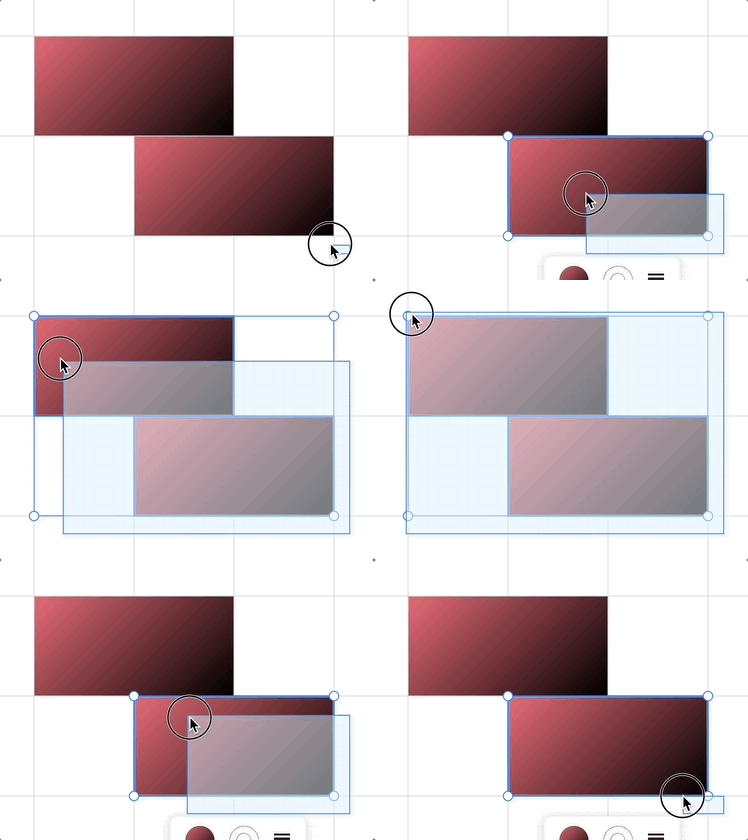
api.selectNodes(selecteds);
if (needHighlight) {
    api.highlightNodes(selecteds);
}
Of course, for components within the viewport space, we can also implement them using SVG, as we'll see in the subsequent Lasso tool.
Deselect with Esc
Pressing Esc in selected state will cancel the selection. Additionally, during marquee selection, we need to hide the Brush:
if (input.key === 'Escape') {
    api.selectNodes([]);
    if (selection.mode === SelectionMode.BRUSH) {
        this.hideBrush(selection);
    }
}
Lock and unlock layers
Locked layers cannot be selected. For details, see: Lock and unlock layers
Lasso selection
Compared to the Rectangular Marquee Tool, the Lasso Tool enables more precise selections by creating irregular polygons.
In AI-based image editing, the lasso tool can also create masks with greater precision to perform inpainting. The image below shows the effect in Figma, where selected areas can be erased or separated into layers:
Draw lasso
In Lesson 25 - Pencil Tool, we covered how to freely draw polyline paths. We continue to draw lasso paths within the SVG container, typically represented by dashed lines with animation effects (ant line).
<path d="...">
    <animate
        attribute-name="stroke-dashoffset"
        stroke-dasharray="7 7"
        stroke-dashoffset="10"
        from="0"
        to="-14"
        dur="0.3s"
    />
</path>
First, convert the point coordinates from the viewport coordinate system to the canvas coordinate system. Then simplify the path based on the current camera zoom level—obviously requiring finer selection granularity at high zoom levels and vice versa. Additionally, fewer vertices improve both rendering performance and the efficiency of subsequent intersection detection:
import simplify from 'simplify-js';

let lassoPath = super
    .getCurrentTrail()
    ?.originalPoints?.map((p) => ({ x: p[0], y: p[1] }));

const simplifyDistance = 5 / this.api.getAppState().cameraZoom;
selectByLassoPath(simplify(lassoPath, simplifyDistance).map((p) => [p.x, p.y]));
Intersection detection of polygons
Now that we've created a Path, we need to retrieve the geometry intersecting it in the scene. As before, we'll start by using Lesson 8 - Using Spatial Indexing for Acceleration.
function selectByLassoPath(api: API, lassoPath: [number, number][]) {
    const lassoBounds = lassoPath.reduce(
        (acc, item) => {
            return [
                Math.min(acc[0], item[0]),
                Math.min(acc[1], item[1]),
                Math.max(acc[2], item[0]),
                Math.max(acc[3], item[1]),
            ];
        },
        [Infinity, Infinity, -Infinity, -Infinity],
    ) as [number, number, number, number];

    // Hit-test with rbush
    const elements = api.elementsFromBBox(
        lassoBounds[0],
        lassoBounds[1],
        lassoBounds[2],
        lassoBounds[3],
    );

    // TODO: filter locked elements
}
After passing the rapid bounding box detection, two scenarios must be handled: the lasso is entirely within the graphic; the lasso intersects with the graphic.
function isPolygonsIntersect(points1: number[][], points2: number[][]) {
    let isIn = false;
    // Determine whether a point lies inside a polygon. If any point is inside another polygon, return true.
    points2.forEach((point) => {
        if (isPointInPolygon(points1, point[0], point[1])) {
            isIn = true;
            return false;
        }
    });
    if (isIn) {
        return true;
    }
}