第 33 課 - レイアウトエンジン
ブラウザは Flexbox、Grid、Block などのレイアウトシステムを実装しているため、ノードの位置を手で計算しなくても「中央揃え」のような効果を簡単に作れます。
DOM の外で動く無限キャンバスのようなアプリケーションでは、レイアウトエンジンのロジックを自分で実装する必要があります。Figma は Auto Layout を実装しています。そのうち Grid は現在ベータで、Vertical と Horizontal は CSS の flex-direction プロパティに対応します。詳しくは Figma - Guide to auto layout を参照してください。
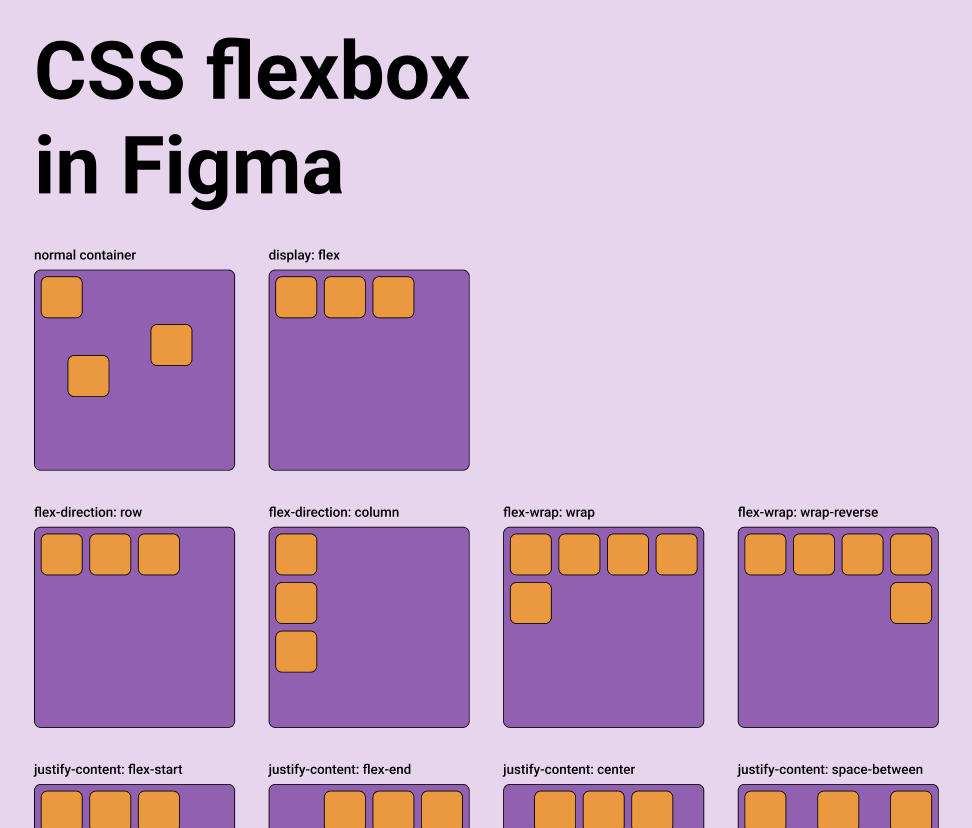
デザインからコードへつなぐツールは、通常この機能を提供します。詳しくは次を参照してください。 Layout in pencil.dev
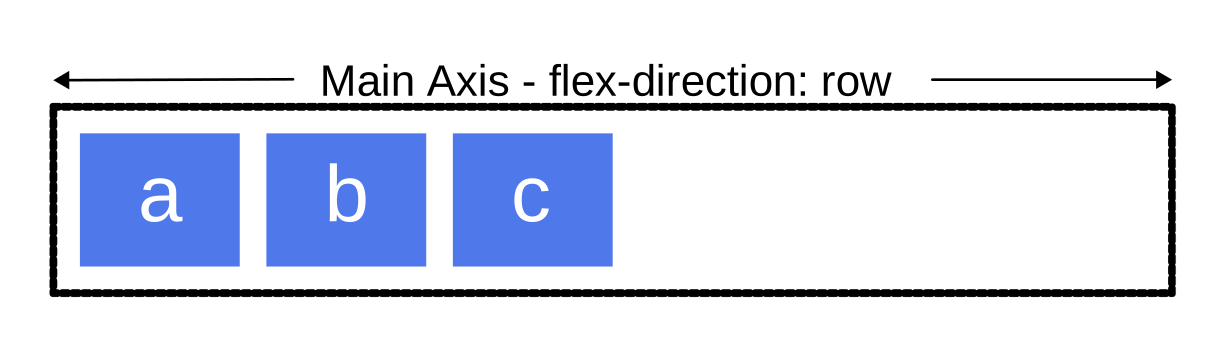
親オブジェクトは、layout、justifyContent、alignItems のようなプロパティを通じて、Flexbox 方式のレイアウトシステムで子のサイズと位置を引き受けられます。
export interface Layout {
    /** Enable flex layout. None means all children are absolutely positioned and will not be affected by layout properties. Frames default to horizontal, groups default to none. */
    layout?: 'none' | 'vertical' | 'horizontal';
    /** The gap between children in the main axis direction. Defaults to 0. */
    gap?: NumberOrVariable;
    layoutIncludeStroke?: boolean;
    /** The Inside padding along the edge of the container */
    padding?:
        | /** The inside padding to all sides */ NumberOrVariable
        | /** The inside horizontal and vertical padding */ [
              NumberOrVariable,
              NumberOrVariable,
          ]
        | /** Top, Right, Bottom, Left padding */ [
              NumberOrVariable,
              NumberOrVariable,
              NumberOrVariable,
              NumberOrVariable,
          ];
    /** Control the justify alignment of the children along the main axis. Defaults to 'start'. */
    justifyContent?:
        | 'start'
        | 'center'
        | 'end'
        | 'space_between'
        | 'space_around';
    /** Control the alignment of children along the cross axis. Defaults to 'start'. */
    alignItems?: 'start' | 'center' | 'end';
}
この課では Flexbox レイアウトを実装し、ノード上で CSS と同じ名前のプロパティを支えます。
const parent = {
    id: 'parent',
    type: 'rect',
    x: 100,
    y: 100,
    width: 200,
    height: 200,
    display: 'flex',
    alignItems: 'center',
    justifyContent: 'center',
};
const child = {
    id: 'child',
    parentId: 'parent',
    type: 'rect',
    width: 50,
    height: 50,
};
Yoga
フロントエンドで Yoga レイアウトエンジンを使うには、WASM を経由する必要があります。現在、使える実装はいくつかあります。
- yoga-layout-prebuilt 最後の更新から長い時間が経っています。
- yoga-wasm-web 初期の satori は、HTML を SVG に変換してレイアウトを計算するために使っていました。taffy にも関連する 例 があります。
- yoga-layout これを使うことを勧めます。私たちの実装もこれに基づいています。react-pdf/yoga もこれを使っています。
Yoga は、平面を指定すれば 3D 空間にも適用できます。詳しくは react-three-flex を参照してください。
DOM の Flexbox とのもう一つの重要な違いは、3D でコンテナの平面を指定する必要があることです。要素は 2 つの軸が定める 2D 平面上に配置され、その 2 軸に沿って計算した width と height を使います。

pixijs/layout
pixijs/layout も Yoga で実装されています。似た実装には pixi-flex-layout があります。
const container = new Container({
    layout: {
        width: '80%',
        height: '80%',
        gap: 4,
        flexWrap: 'wrap',
        justifyContent: 'center',
        alignContent: 'center',
    },
});
troika-flex-layout
troika-flex-layout は、yoga-layout-prebuilt を使って Web Worker で計算します。
import { requestFlexLayout } from 'troika-flex-layout';

// Describe your layout style tree, with a unique id for each node:
const styleTree = {
    id: 'root',
    width: 100,
    height: 100,
    alignItems: 'center',
    justifyContent: 'center',
    children: [
        {
            id: 'child',
            width: '50%',
            height: '50%',
        },
    ],
};

// Initiate a layout request with a callback function:
requestFlexLayout(styleTree, (results) => {
    // The results are a mapping of node ids to layout boxes:
    // {
    //   root: { left: 0, top: 0, width: 100, height: 100 },
    //   child: { left: 25, top: 25, width: 50, height: 50 }
    // }
});
Yoga 以外の選択肢
純粋な JS 実装:
- Motion Canvas Layouts ブラウザネイティブの Flexbox 実装を使い、複雑なレイアウトアルゴリズムを再実装せずに済みます。
- Simplifying WebGL: Building an Effective Layout Engine
Rust 実装:
- stretch は Flexbox を実装し、
stretch-layoutの WASM バインディングを提供しますが、長いあいだ保守されていません。 - taffy Rust で書かれた高性能な UI レイアウトライブラリです。現在、Flexbox、Grid、Block を含むいくつかの CSS レイアウトアルゴリズムを実装しています。ただし WASM バインディングはまだありません。詳しくは taffy wasm bindings を参照してください。
私たちの実装
公式の yoga-layout を選びました。よく知る Flexbox に加え、Margin や Padding のような基本的なレイアウトプロパティも提供します。
import { loadYoga } from 'yoga-layout/load';

class YogaSystem extends System {
    async prepare() {
        Yoga = await loadYoga();
    }
}
シーングラフと並行するレイアウト木を構築する必要があります。
まず、シーングラフと並行するレイアウト木を作ります。ノードの構造は次のとおりです。
interface StyleTreeNode {
    id: string;
    top?: number | string;
    left?: number | string;
    width?: number | string;
    height?: number | string;
    children: StyleTreeNode[];
    padding?: number | number[];
    margin?: number | number[];
    gap?: number;
    rowGap?: number;
    columnGap?: number;
}
その後、適切なタイミングでレイアウト木を Yoga の木に変換し、レイアウト計算を実行して、結果をシーングラフのノードへ適用します。
const root = Yoga.Node.createWithConfig(yogaConfig);
populateNode(root, styleTree);

root.calculateLayout();
const results = Object.create(null);
walkStyleTree(styleTree, (styleNode) => {
    const { id, yogaNode } = styleNode;
    results[id] = {
        x: yogaNode.getComputedLeft(),
        y: yogaNode.getComputedTop(),
        width: yogaNode.getComputedWidth(),
        height: yogaNode.getComputedHeight(),
    };
});
root.freeRecursive();
レイアウトを行うタイミング
Flexbox コンテナ自身のサイズが変わったときは、レイアウトを再計算し、その結果を子の位置とサイズに適用する必要があります。コンテナに新しい子が追加されたときも同様です。
class YogaSystem extends System {
    private readonly bounds = this.query((q) =>
        q.addedOrChanged.and.removed
            .with(ComputedBounds)
            .trackWrites.and.with(Flex),
    );

    execute() {
        this.bounds.addedOrChanged.forEach((entity) => {
            // relayout
        });
    }
}
AlignItems と JustifyContent
最もよくある使い方は、この 2 つのプロパティで内容を中央に揃えることです。
テキストを中央に置いたボタンを実装します。
ラベルは内在幅(wordWrap: false)を使い、Yoga が計測したテキストボックスをボタン内で中央に置きます。固定の wordWrapWidth に maxLines: 1 と textOverflow: 'ellipsis' を組み合わせると、ボタンに余裕があってもラベルが切り詰められることがあります。意図して切り詰めるラベルにだけ、これらのオプションを残してください。
間隔
次の例は、padding と gap の効果を示します。
const parent = {
    id: 'yoga-gap-parent',
    type: 'rect',
    x: 100,
    y: 100,
    width: 200,
    height: 250,
    fill: 'grey',
    display: 'flex',
    padding: 10,
    flexWrap: 'wrap',
    gap: 10,
    zIndex: 0,
};
Flex Basis、Grow、Shrink
Flex grow は 0 以上の任意の浮動小数点値を受け取り、既定値は 0 です。コンテナは余った空間を、子の flex grow 値を重みとして子に分配します。
最小/最大の幅と高さ
SVG への書き出し
CSS Flexbox はコンテナとして HTML 要素だけを支え、SVG 要素は支えないため、SVG へ書き出すときはレイアウト後の絶対位置をそのまま使う必要があります。
const layoutNodes = api.readLayoutFromECS(nodes);

(await serializeNodesToSVGElements(layoutNodes)).forEach((element) => {
    $namespace.appendChild(element);
});